Applicant Guide

Welcome to CareerPortal. CareerPortal is an easy-to-use, lightweight application system that allows you save job posts, easily manage profile settings, send messages to employers about job posts, and much more.
The CareerPortal’s User Guide provides a look at CareerPortal’s key user features using process orientated use-cases that illustrate how to perform tasks within CareerPortal so that you can find that perfect job. Let’s get started.
Before You Begin
Basic Navigation See Navigation and Search for more information about basic navigation and search options on the page.
Get Started
- Register for a CareerPortal Account
Register
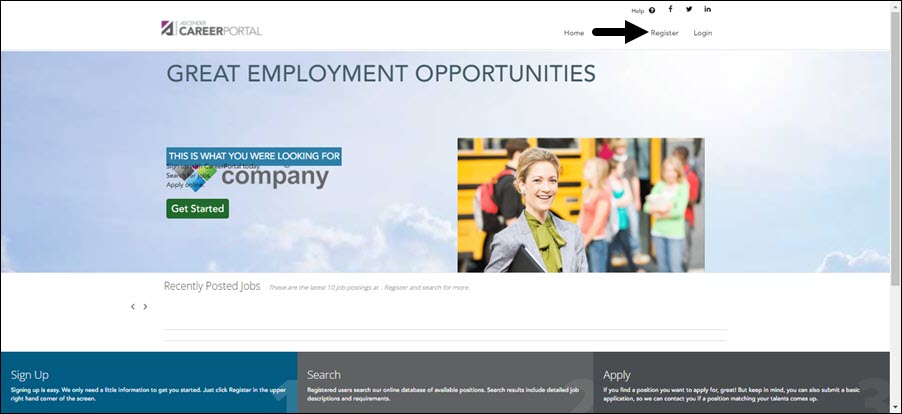
To begin the process of applying for a job, you will need to register for an account. You can click Register on the CareerPortal homepage.
OR
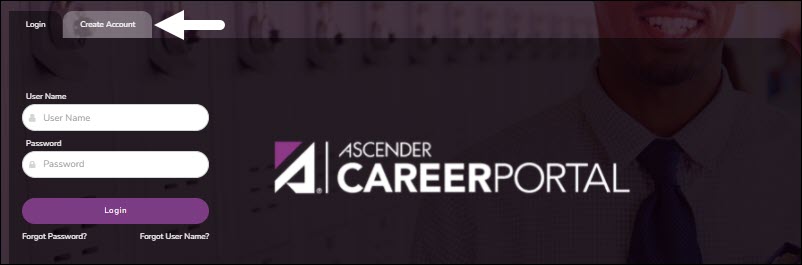
Click Create an Account on the CareerPortal Login page.
Create a CareerPortal account
User Information
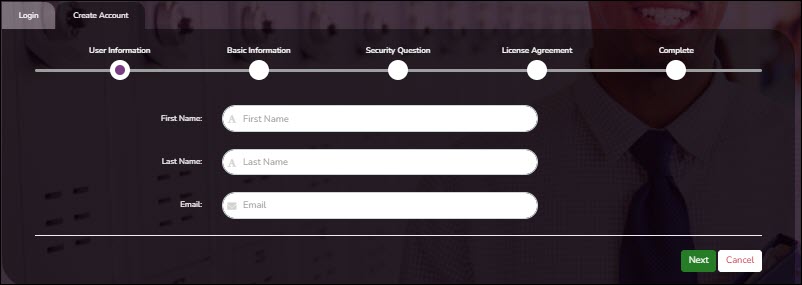
Field Description First Name Type your first name. Last Name Type your last name. Email Type your email address.
Click Next.
Basic Information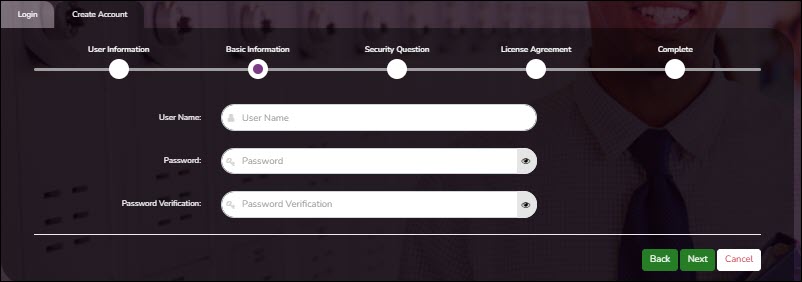
User Name Type unique username. Password Type your password.
Requirements:
Between 16 and 46 characters. Must include at least one of each of the following character types:
- Uppercase letters (A–Z)
- Lowercase letters (a–z)
- Numbers (0–9)
- At least one allowed special character
Password Verification Retype the password.
Security Question
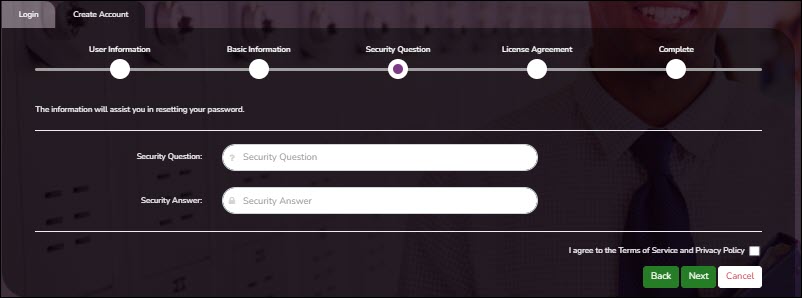
Security Question Type a security question. It should be something only you would know. This question will be used to reset your password should you forget it. Security Answer Type your answer to the security answer above. I agree to the Terms of Service and Privacy Policy Select this to continue. Click Terms of Service or Privacy Policy to read each of the documents. Click Next.
License AgreementReview and accept the End User License Agreement (EULA) for ASCENDER. This agreement must be accepted in order to proceed.
❏ Select Accept.
❏ Click Next.
Complete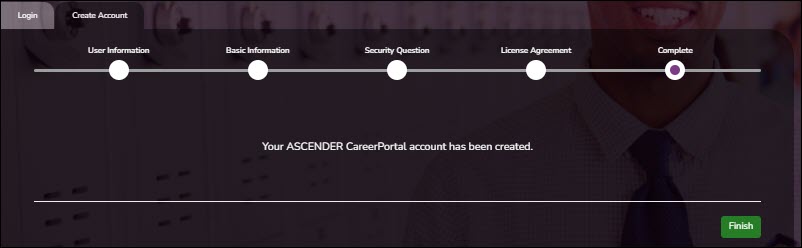
A message is displayed indicating that your ASCENDER CareerPortal account has been created. Click Finish.
The ASCENDER CareerPortal opens and displays the Job Dashboard page indicating that you have successfully logged on to the portal. - Log In to CareerPortal
Login
The Login page is used by CareerPortal users to log into the system. If you don't have an account yet, see Don't have an account yet? section below.
Log into CareerPortal
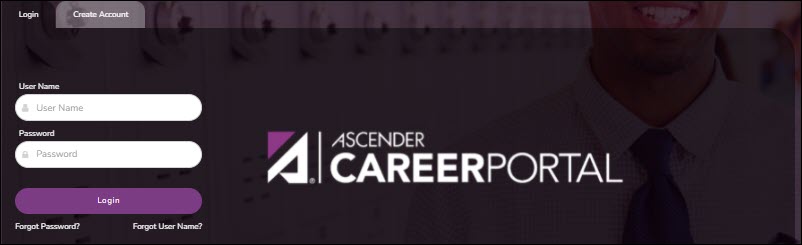
User Name Type your user name. Password Type your password. Click Login. Your CareerPortal Job Dashboard is displayed.
Don't have an account yet?
Click Create an account to register.
Did you forget your password?
We all forget our passwords. Thankfully, CareerPortal makes it easy to reset your password.
Click Forgot Password on the Login page.
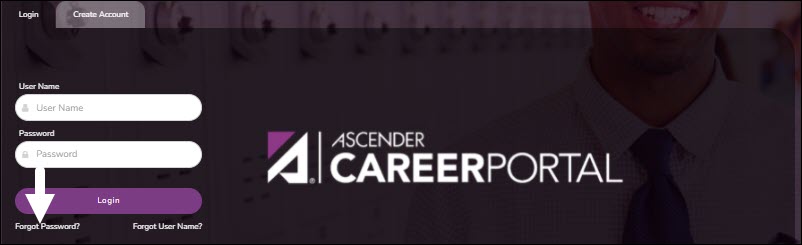
The Reset Your Password page opens allowing you to enter the following information:
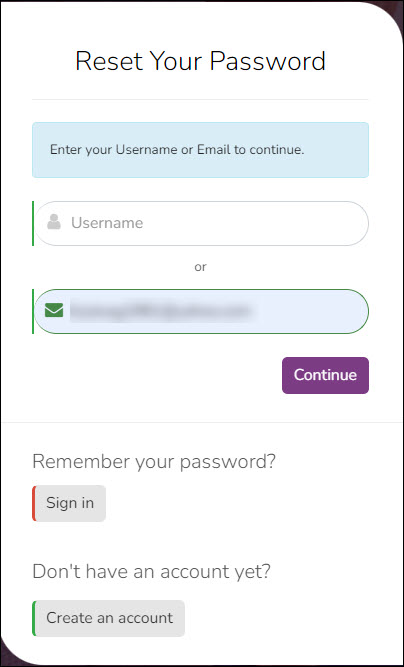
Field Description Username Type your username. You only have to type your username or email address. Email Type your email address. You only have to type your username or email address. I'm not a robot You may be asked to complete a simple recognition task to verify that you are not a robot. If this is the case, complete the recognition task, and click Verify. Continue Continue.
Answer your security question to continue
Field Description Answer Type the answer to the security question that you typed when creating your account. Continue Continue.
Enter and confirm new password
Field Description New Password Type your password.
Requirements:
Between 16 and 46 characters. Must include at least one of each of the following character types:
- Uppercase letters (A–Z)
- Lowercase letters (a–z)
- Numbers (0–9)
- At least one allowed special character
Confirm Password Retype the password.
Reset Password You are taken to the CareerPortal log in page.
CareerPortal will also send a password reset confirmation email to the email address used to register your CareerPortal account.Logging out of CareerPortal
When you are logged into your CareerPortal account, each page displays Logged into CareerPortal as: <Your Username> in the top right corner.
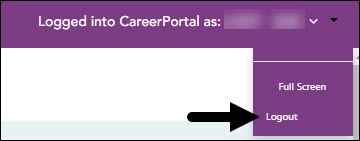
- Click your username. A drop-down menu will appear.
- Click Log Out. A log out confirmation page will appear.
- Click Yes. Logoff. to log off.
- Click No. Stay logged in. to remain logged into CareerPortal.
- Explore the Job Dashboard
Job Dashboard
CareerPortal's Job Dashboard provides an all-in-one experience for your job search and application process. The Job Dashboard makes it easy to view your saved search results, access your messages, and view jobs that you have applied for.
Basic Navigation See Navigation and Search for more information about basic navigation and search options on the page.
Your Job Dashboard is divided into several sections for quick access to important information.
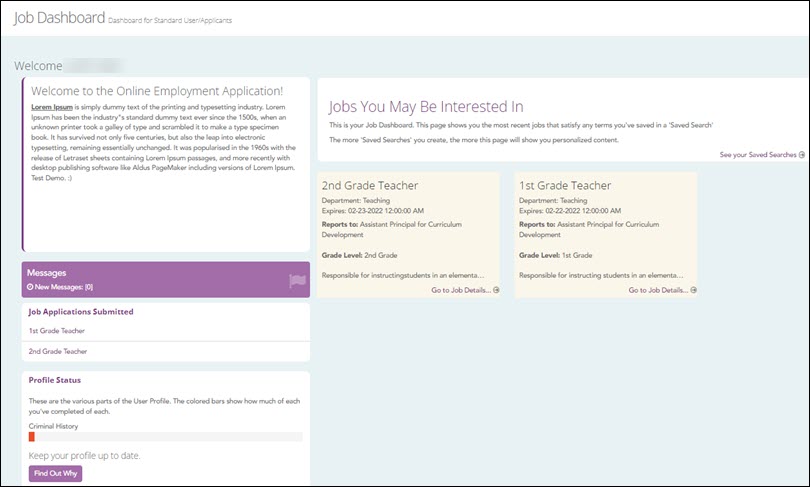
Messages
The tile displays the number of new messages in your inbox. Click Messages to go to your inbox.
Job Applications Submitted
The tile displays a list of all of the jobs that you have applied for.
Profile Status
Three categories are listed:
- Contact Information
- Criminal History
- Availability.
The colored bars depict the percentage of the questions you have completed on the Profile Questions page.
Click the Find Out Why button to review why it's important to keep your profile up to date.
Jobs You May Be Interested In
This section displays job posts related to keywords in your saved searches. If there are less than nine jobs that are relevant to your searches, the most recently posted jobs are displayed.
Click the job post's title, or click Go to Job Details to view the Job Detail page.
- Update Your Profile
- Update Your Profile Settings
Profile Settings
The Profile Settings page allows you to edit or update your personal information. Your profile settings page was created when you first registered for a CareerPortal account. If an account was created for you, then review your profile settings information to make updates where necessary. You can view and update your profile settings at any time.
Basic Navigation See Navigation and Search for more information about basic navigation and search options on the page.
View and update your profile settings
You can edit the following fields at any time.
Field Description First Name Edit your first name. You can also change your first name on individual applications, if needed. Last Name Edit your last name. You can also change your last name on individual applications, if needed. Select a Username Edit the user name that you use to sign into CareerPortal. Password Type your password.
Requirements:
Between 16 and 46 characters. Must include at least one of each of the following character types:
- Uppercase letters (A–Z)
- Lowercase letters (a–z)
- Numbers (0–9)
- At least one allowed special character
Note: Leave this field and the Confirm Password field blank if you do not want to change your password.
Confirm Password Retype the password.
Contact Information
Field Description Email Address Update your password if it is different from the one listed. Email Confirmation Send an email confirmation message to the email address typed into the Email Address field. The Email Confirmation page is displayed indicating that a confirmation has been sent or that your email address has been confirmed. Primary Phone Type your primary phone number. Secondary Phone Type your secondary phone number. Account Recovery
Field Description Security Question Type a hint question. This question will be used to reset your password should you forget it. Security Answer Type your hint question response. Field Description Save Save your work.
Cancel Cancel and return to the previous page.
- Update Your Profile Questions
Profile Questions
The Profile Questions page allows you to answer core job application questions. Your answers will act as a template when you apply for a job so that you do not have to re-type your answers to questions common to all applications. You can change your answers at any time by editing this page or by changing your answers when you apply for a job. Required fields are marked with a red asterisk.
Notes:
- Profile questions will vary based on organizational standards. If you update your profile questions after you have started an application, your updated information will not be reflected on the application. Update your profile questions before beginning an application.
- The percentage of the questions answered is displayed at the top of the page as well as under Profile Status on the Job Dashboard.
Basic Navigation See Navigation and Search for more information about basic navigation and search options on the page.
Change or add profile question information
- Update your personal and professional information where needed.
- Click Submit to save your profile questions and return to your My Profile page.
Other functions and features


Apply for a Job
- Search and Save Jobs
Search Jobs
The Search Jobs page allows you to view and search for jobs. Available jobs are listed in a grid on this page. By default, all CareerPortal jobs are viewable. You can filter your search to search for specific criteria. You can also save your searches for later viewing.
Basic Navigation See Navigation and Search for more information about basic navigation and search options on the page.
Columns on the Search Jobs page
Column Description View View the job on the Job Detail page. District (Co-op) Displays the co-op that the job position is posted for. Position Type Displays the job's department (e.g. teacher, administrator). Description / Description Displays the job summary and other key job information. Days Left to Apply Displays the number of days left to apply. Filter your job searches
You can filter your job search results using the Search field or the search boxes and drop-down menus located within each column.
If you need greater control, you can fine-tune your job search results using one or more of the search boxes and drop-down menus located within each column.
Save your job searches
Your job searches can be saved for later viewing. A saved search saves the search parameters used to create the search. Your searches are saved to the Saved Searches page. You set search parameters by using the grid's search fields, the drop-down menus or the Search field.
Field Description Save Search The Save Search window will open. - View your Saved Job Searches
Saved Job Searches
The Saved Jobs Searches page allows you to save job search parameters and view previously saved searches. All saved job searches are displayed in a grid on this page.
Basic Navigation See Navigation and Search for more information about basic navigation and search options on the page.
View and search saved searches
Field Description View Navigate to Search Jobs and see updated job posts using your saved search parameter. ID Displays the saved search ID. Saved Search Name Displays the search name used when you saved it. Date-Time Created / Last Updated Displays the date and time the search was saved. Delete Delete the row. A confirmation message is displayed prompting you to continue.
OK: Delete the row.
Cancel: Cancel and return to the previous page.The search parameter saved to this page will also display your search results in your CareerPortal Job Dashboard.
- View and Respond to Your Messages
Messages
The Messages page allows you to view your messages. Messages about job applications, the application process, and questions asked or answered are available on this page. Unread messages are displayed by default. Your messages can be sorted at any time by clicking on a column's heading. You can also view and search your messages using the Search field. Your messages are also accessible from the Messages panel on your dashboard.
Basic Navigation See Navigation and Search for more information about basic navigation and search options on the page.
View and respond to messages
Your inbox displays all of your messages including sent responses and answered questions. Your inbox opens displaying all of your unread messages by default. Using your inbox is much like using an email program.
Column Description View Read all posts within a message thread. View appears in red font for messages marked read. Position Name Displays the position that is the thread's topic. Original Poster Displays the original sender's name. Message Displays the message. Date & Time Stamp Displays the message's timestamp. Responses Displays the number of individual messages (posts) that comprise a message thread. Using your inbox
Use the drop-down record menu under Inbox to select the number of messages to display.
Field Description Unread View all of your unread messages. All View read and unread messages. The View button on read messages are gray while unread messages have a green View button. Muted View muted messages. Message Thread
Click View to open the message thread.
The Message Thread page is displayed. The subject of the message, timestamp, sender name, and message is displayed.
On the left, you have the following options:
Field Description Return Return to the Messages page. Reply Reply to the message. Mute Click X to mark the message and all threads as muted. Muted messages are messages that you no longer wish to receive notifications on. Rather than deleting a message, CareerPortal allows you to mute it. Read Click X to mark the message as read. Click ✔ to mark a message as unread. Read messages can be viewed under All on the Messages page. - Apply for a Job
Apply for a Job
The Apply for the Job page walks you through the job application process. There are two expandable sections on this page: Position Details and Application. The Application section is expanded by default. You can open and close each expandable section by clicking on its title. Required fields are marked with a red asterisk (*).
Basic Navigation See Navigation and Search for more information about basic navigation and search options on the page.
Position Details and Application sections
The Position Details section provides the job detail information for you to review. You can expand the job detail information by clicking Position Details.
The Application section is where you will apply for the job. The information asked by an employer may vary according to need, job type, and the organization. In addition to your contact information, you may be asked for references, a resume, questions specific to the organization or job position, etc.
Apply for a job
Field Description Next Click to move to the next section.
Previous Click to move back to the previous section.
Submit Submit your application. Your application is submitted at this point so make sure you have completed everything.
Jobs that you have applied for are available under Job Applications Submitted on your job dashboard.
Other functions and features: