
Sidebar
academy:business_creditcardprocessing
This is an old revision of the document!
ASCENDER - Credit Card Process

Created: 04/28/2023
Reviewed: in progress
Revised: in progress
The purpose of this document is to guide you through the necessary credit card processing steps, which include recording credit card payments to vendors, reconciling credit card statements, and then paying the credit card company.
This document assumes that you are familiar with the basic features of the ASCENDER Business System and have reviewed the ASCENDER Business Overview guide.
Some of the images and/or examples provided in this document are for informational purposes only and may not completely represent your LEA’s process.
Before You Begin
Credit Card Process
- Set up credit card codes.
Set up credit card codes
Finance > Tables > Credit Card Codes
Establish a list of credit card codes to be used by the local education agency (LEA). The credit card code table is necessary to complete credit card functions in Finance, Purchasing, and District Administration.
Multiple credit cards can be set up for a credit card company. The account code must be a liability account (2XXX). A different account code can be used for each credit card to make it easier to verify transactions if the credit card statement does not reconcile to the transactions in ASCENDER. This account should be different from previously used liability accounts.
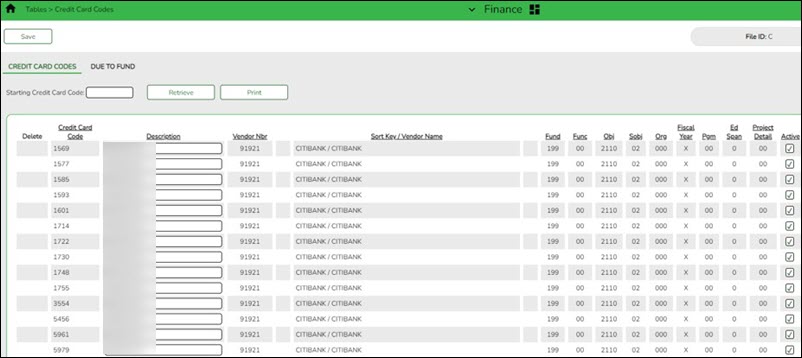
Notes:
- Credit card codes can be assigned to individual users on the District Administration > Maintenance > User Profiles > Purchasing Credit Cards tab.
- All credit card account code components must exist on the Finance > Tables > Account Codes page.
- The contra account is the credit card account from the credit card table even though it is different from the purchasing fund. This means that due to/due from accounts will be created to complete the accounting transactions.
❏ Click +Add to add a row.
Credit Card Code Type a unique user-defined credit card code. The field can be a maximum of six alphanumeric characters. It is helpful to use the last 4 digits of the credit card.
Description Type a user-defined credit card description. The field can be a maximum of 30 alphanumeric characters. It is helpful to use the name of the credit card.
Vendor Nbr Type an active vendor number, if known. As you type the data, a drop-down list of corresponding data is displayed. Select a vendor number. The vendor number must exist on the Maintenance > Vendor Information page. The Vendor Name field is automatically populated with the vendor name.
If the vendor number is not known, click . The Vendors directory is displayed.
Note: The vendor number represents the credit card company (e.g., Bank of America).
Vendor Name Type the vendor name, if known. As you type the data, a drop-down list of corresponding data is displayed. Select a vendor name. Only existing active vendors are displayed in the drop-down list. The Vendor Number field is automatically populated with the vendor number.
If the vendor name is not known, click
. The Vendors directory is displayed.
Note: The vendor name represents the credit card company (e.g., Bank of America).
Account Code Type the 20-digit account code of the payable account. The object code must be a class 2XXX account. All account code components must exist on the Finance > Tables > Account Code page.
Note: You can use one account for all credit cards or set up a separate account for each credit card.
The account code is divided into the following components:
Fund
Function
Object
Sub-Object
Organization
Fiscal Year - This field is display only and defaults to X indicating that the current fiscal year for the account code offset is used when creating credit card transactions. You can verify the fiscal year on the Tables > District Finance Options page.
Program Intent
Educational Span
Project DetailActive Select to allow the use of the credit card code in Purchasing. The field is selected by default; however, you can clear the field to restrict the use of the credit card code in Purchasing. ❏ Click Save.
- (Optional) Assign credit card codes to users.
(Optional) Assign credit card codes to users
District Administration > Maintenance > User Profiles > Purchasing Credit
Assign specific credit card codes to individual requisition users. If users will not be selecting a credit card code when creating and submitting a requisition, then credit card codes do not need to be assigned to users. The business office can select a credit card code on the PO at the time the payable transaction is entered in Finance.
If a specific credit card code is assigned to a user, the user can select from their assigned list of active credit card codes in the Credit Card Code drop-down field when entering a requisition on the Purchasing > Maintenance > Create/Modify Requisition and Create/Modify Contract Requisition pages in Purchasing.
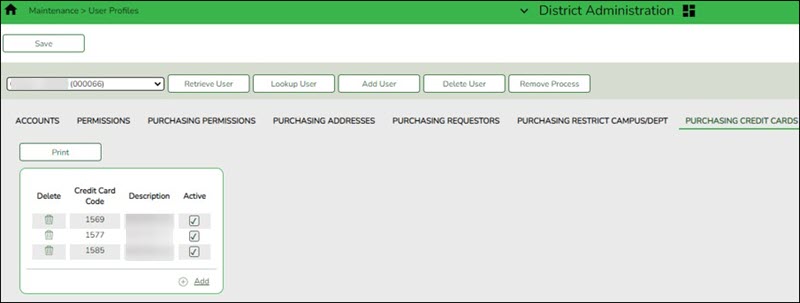
❏ Click +Add to add a row. The Credit Card Directory is displayed.
- Select one or more credit card codes to assign to the selected user. Only credit card codes that exist on the Finance > Tables > Credit Card Codes tab are displayed.
- Type data in the Search field to narrow the list of credit card codes displayed in the list.
- Click OK to continue and return to the Purchasing Credit Cards tab.
- Click Cancel to return to the Purchasing Credit Cards tab without making a selection.
Field Description Credit Card Code The user-defined credit card code is displayed. Description The user-defined credit card code description is displayed. Active Indicates the credit card code status. ❏ Click Save.
- Create credit card transactions.
Perform Excel file maintenance
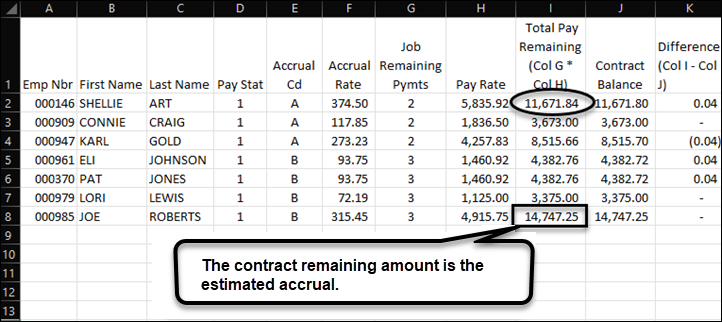
Modify the Excel file.
- Sort the file by Accrual Cd, and then by Last Name.
- Arrange the order of columns as follows: Employee Nbr, First Name, Last Name, Accrual Code, Accrual Rate, Remaining Payments, Pay Rate, and Contract Balance
- Insert a new column (Total Pay Remaining) between the Pay Rate and the Contract Balance columns. And, then in this column (Column H), insert the following formula: Job Remaining Payments (column F) x Pay Rate (column G)
- In Column J, insert the calculation for the Difference with the following formula: Total Pay Remaining (column H) - Contract Balance (column I)
- Post returns.
Generate the HRS3050 report for inactive employees
Payroll > Reports > Year to Date Reports > HRS3050 - School Year To Date Report
Generate the report with the following parameters. Print and/or save this report and review it for accuracy.
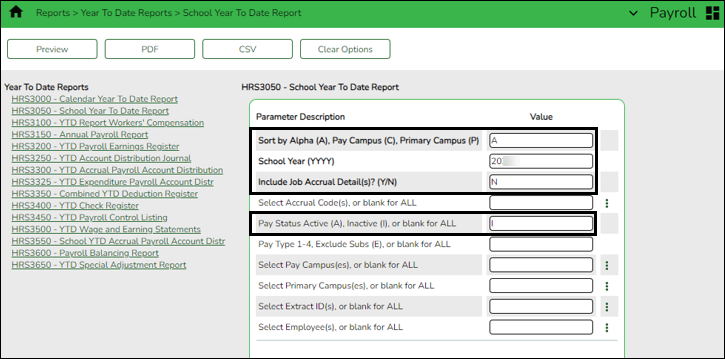
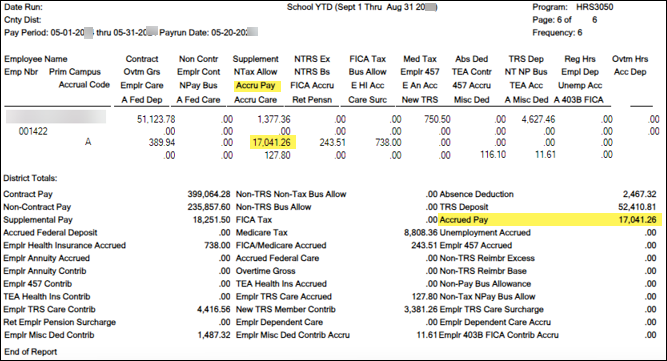
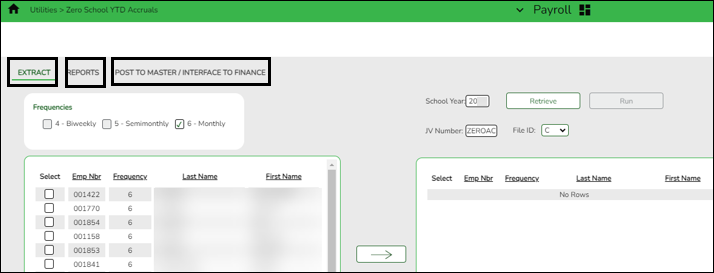
If there are any individuals with an accrual balance displayed on this report who are no longer with the LEA, perform the Payroll > Utilities > Zero School YTD Accruals to zero out their accruals.
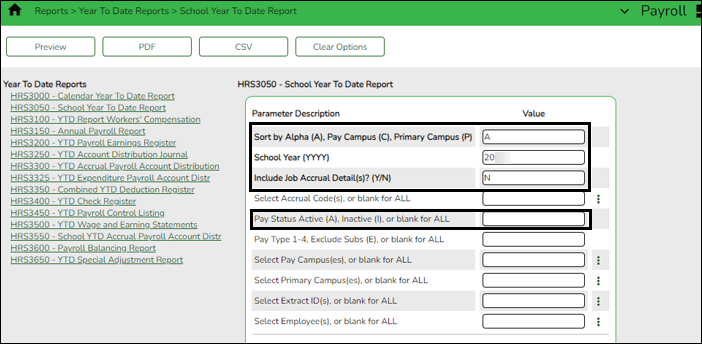
Generate the report again with the following parameters. Print and/or save this report and review it for accuracy.
Compare the Accrued Pay totals to the Total Pay Remaining column from Step 3.
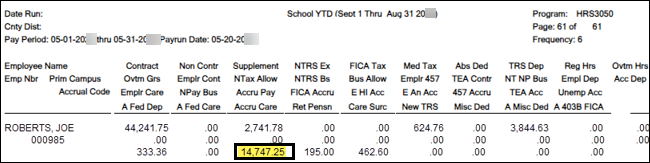
Note: The Accrued Pay should match the Total Pay Remaining (column H) in the Excel file.
- Post interest and miscellaneous charges.
Verify and correct issues
Verify the differences and correct any problems with the staff accrual payroll information so that the amounts are the same. You may have to:
Use the Payroll > Tables > Accrual Calendars > Accrual Calendar page to:
- Build an accrual calendar for individuals who did not have one built at the beginning of the year.
- Correct the number of days worked in the accrual calendar.
Use the Payroll > Maintenance > Staff Job/Pay Data > Job Info tab to:- Enter an accrual code for individuals who do not have one.
- Enter an accrual rate for individuals who do not have one.
- Correct the accrual rate (should be the same as the daily rate) for individuals.
Then, use the Payroll > Utilities > Payroll Accrual Variance Extract to perform the following steps:
- Use the Extract tab to run the accrual variance again.
- Use the Reports tab to review and verify any differences between the spreadsheet and the variance report.
- Correct any issues as needed.
- Use the Post To Master/Interface To Finance tab to post valid variances and interface to Finance if needed.
Generate the Payroll > Reports > Year to Date Reports > HRS3050 - School Year To Date Report again from Step 4 and verify that it matches the estimate from Step 3. - Reconcile the credit card statement.
Generate the HRS3550 Report
Payroll > Reports > Year To Date Reports > HRS3550 - School YTD Accrual Payroll Account Distr
After the estimate from the Excel file (Step 3) and the HRS3050 report (Step 4) match, generate the report with the following parameters:
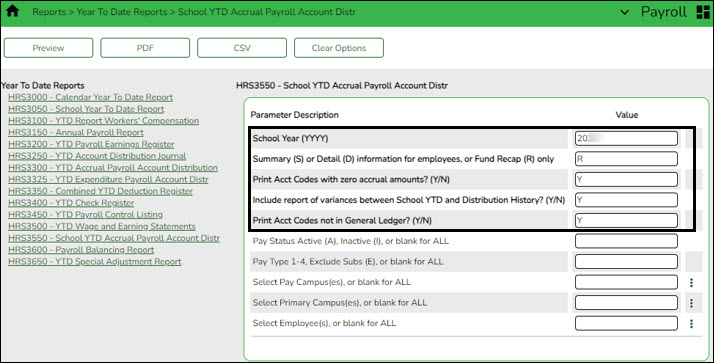
This report will assist you as you balance to Finance in the following step.
- Process payment to the credit card company.
Run a general ledger inquiry
Finance > Inquiry > General Ledger Inquiry > General Ledger Account Summary
When considering potential journal entries to be made later in this step, use the following chart for reference.
Note: This chart derives from the Payroll Automatic Posting Default section on the Finance > Tables > District Finance Options > Clearing Fund Maintenance tab.
General Ledger Inquiry Report School YTD Report Expenditure Object Code 216X Accrued Wages 6119 or 6129 221X.11 Accrued Federal Grant Deposit 6146 221X.12 Accrued Federal Grant Care 6146 221X.14 Accrued Employer FICA/Medicare 6141 221X.15 Accrued Employer Unemployment Tax 6145 221X.16 Accrued Health Insurance Contribution (Emplr Health Insurance Accrued + TEA Health Ins Accrued) 6142 221X.17 Accrued Employer 457 Contribution 6149 221X.18 Accrued Employer Annuity Contribution 6149 221X.19 Accrued Employer TRS Care Contribution 6146 221X.20 Accrued Employer Dependent Care 6149 221X.21 Accrued Employer Miscellaneous Deduction Contribution 6149 Run an inquiry on the 216X and 221X accounts from Finance and compare the balances to the Payroll > Reports > Year To Date Reports > HRS3550 - School YTD Accrual Payroll Account Distribution Journal.
This inquiry can also be run in Purchasing.
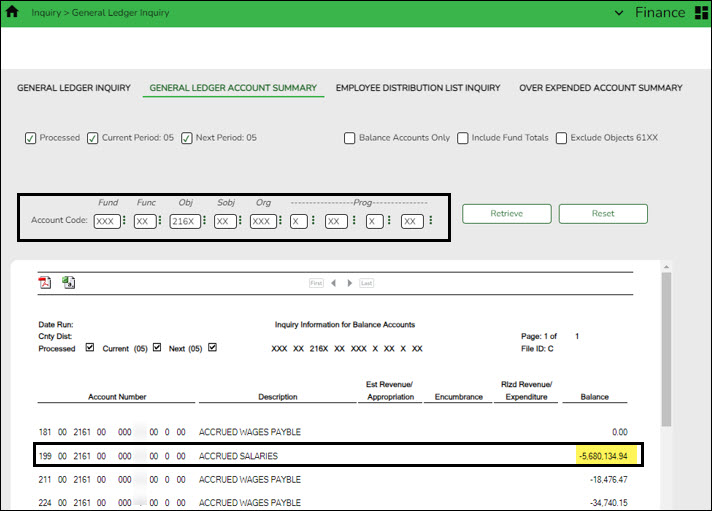
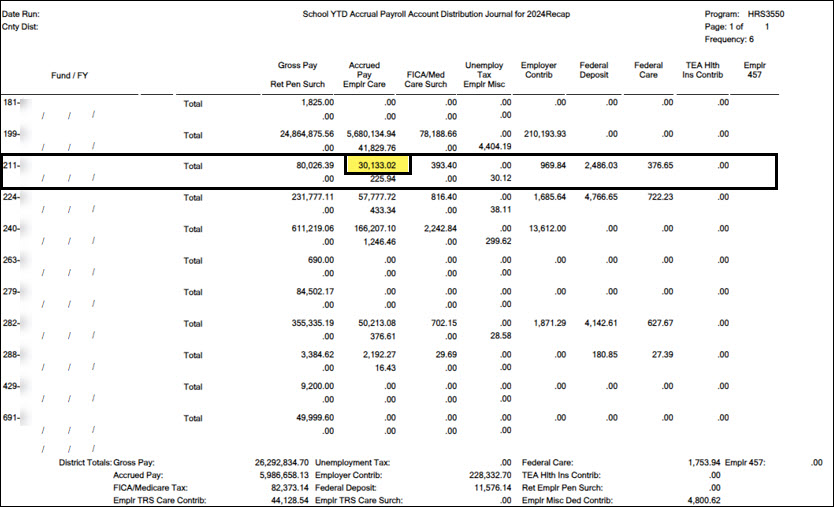
If there is a difference in any of the funds, a journal entry needs to be made to balance the general ledger to the HRS3550 - School YTD Accrual Payroll Account Distribution Journal.
Compare the HRS3550 report totals to the General Ledger Inquiry reports.
Review the following example entry:Account Code Debit Credit 199-00-2161-00-000-X-00-000 $36,000.00 199-11-6119-00-001-X-11-000 $36,000.00 This is the difference between the two amounts. The entry has to make the general ledger match the HRS3550 - School YTD Accrual Payroll Account Distribution Journal.
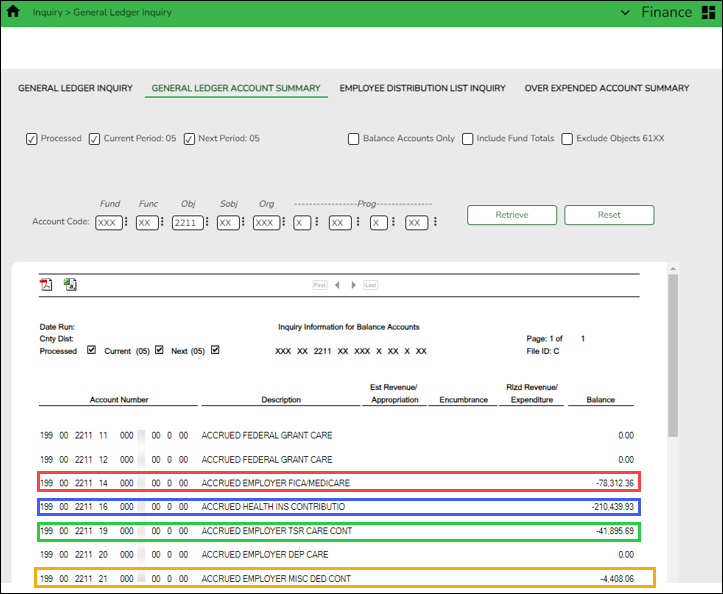
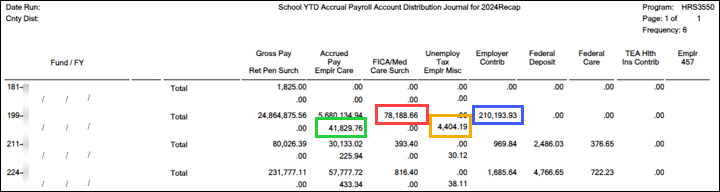
If there is a difference in any of the funds such as in the example shown below, a journal entry will need to be made to balance the general ledger to the HRS3550 - School YTD Accrual Payroll Account Distribution Journal.
Review the following example entry:Account Code Debit Credit 199-00-2211-14-000-X-00-000 $700.00 199-11-6141-00-001-X-11-000 $700.00 199-00-2211-16-000-X-00-000 $3,000.00 199-11-6142-00-001-X-11-000 $3,000.00 199-00-2211-19-000-X-00-000 $644.00 199-11-6146-00-001-X-11-000 $644.00 Note: Be sure to keep a clean final copy of both of the HRS3550 reports for the auditor. These reports cannot be recreated after the July and August payrolls are processed.
- Credit card payment listing.
Run a general ledger inquiry
Finance > Inquiry > General Ledger Inquiry > General Ledger Account Summary
When considering potential journal entries to be made later in this step, use the following chart for reference.
Note: This chart derives from the Payroll Automatic Posting Default section on the Finance > Tables > District Finance Options > Clearing Fund Maintenance tab.
General Ledger Inquiry Report School YTD Report Expenditure Object Code 216X Accrued Wages 6119 or 6129 221X.11 Accrued Federal Grant Deposit 6146 221X.12 Accrued Federal Grant Care 6146 221X.14 Accrued Employer FICA/Medicare 6141 221X.15 Accrued Employer Unemployment Tax 6145 221X.16 Accrued Health Insurance Contribution (Emplr Health Insurance Accrued + TEA Health Ins Accrued) 6142 221X.17 Accrued Employer 457 Contribution 6149 221X.18 Accrued Employer Annuity Contribution 6149 221X.19 Accrued Employer TRS Care Contribution 6146 221X.20 Accrued Employer Dependent Care 6149 221X.21 Accrued Employer Miscellaneous Deduction Contribution 6149 Run an inquiry on the 216X and 221X accounts from Finance and compare the balances to the Payroll > Reports > Year To Date Reports > HRS3550 - School YTD Accrual Payroll Account Distribution Journal.
This inquiry can also be run in Purchasing.
If there is a difference in any of the funds, a journal entry needs to be made to balance the general ledger to the HRS3550 - School YTD Accrual Payroll Account Distribution Journal.
Compare the HRS3550 report totals to the General Ledger Inquiry reports.
Review the following example entry:Account Code Debit Credit 199-00-2161-00-000-X-00-000 $36,000.00 199-11-6119-00-001-X-11-000 $36,000.00 This is the difference between the two amounts. The entry has to make the general ledger match the HRS3550 - School YTD Accrual Payroll Account Distribution Journal.
If there is a difference in any of the funds such as in the example shown below, a journal entry will need to be made to balance the general ledger to the HRS3550 - School YTD Accrual Payroll Account Distribution Journal.
Review the following example entry:Account Code Debit Credit 199-00-2211-14-000-X-00-000 $700.00 199-11-6141-00-001-X-11-000 $700.00 199-00-2211-16-000-X-00-000 $3,000.00 199-11-6142-00-001-X-11-000 $3,000.00 199-00-2211-19-000-X-00-000 $644.00 199-11-6146-00-001-X-11-000 $644.00 Note: Be sure to keep a clean final copy of both of the HRS3550 reports for the auditor. These reports cannot be recreated after the July and August payrolls are processed.


academy/business_creditcardprocessing.1682693823.txt.gz · Last modified: 2023/04/28 14:57 by emoreno
Except where otherwise noted, content on this wiki is licensed under the following license: CC Attribution-Share Alike 4.0 International
Americans with Disabilities Act (ADA) and Web Accessibility
The Texas Computer Cooperative (TCC) is committed to making its websites accessible to all users. It is TCC policy to ensure that new and updated content complies with Web Content Accessibility Guidelines (WCAG) 2.0 Level AA. We welcome comments and suggestions to improve the accessibility of our websites. If the format of any material on our website interferes with your ability to access the information, use this form to leave a comment about the accessibility of our website.