- Set up accelerated learning plans.
Graduation Plan > Maintenance > District > Tables > Accelerated Learning
This tab allows you to maintain a district-level code table for accelerated learning criteria. These criteria populate the Accelerated Learning Plan fields on the PGP tab. Accelerated learning is required for any student who has failed a standardized test.
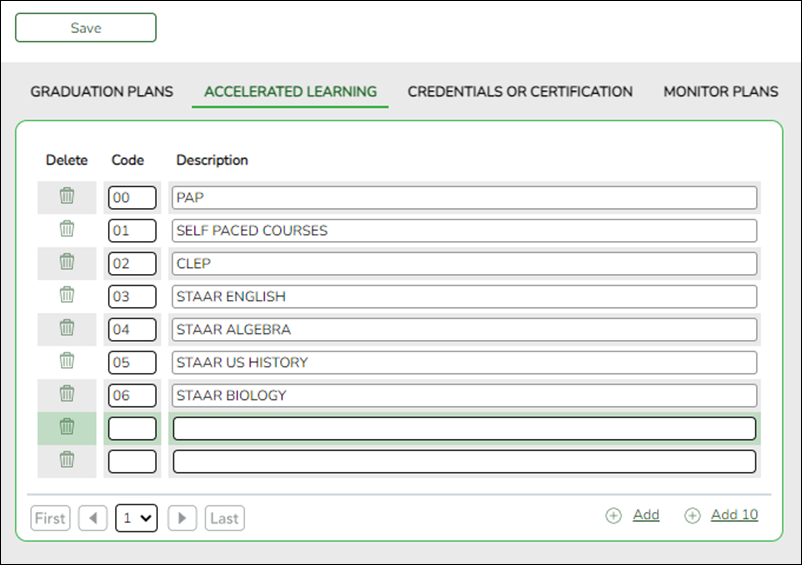
Existing accelerated learning codes are displayed in order by code.
❏ Click +Add to add one blank row. A blank row is added to the grid.Or, click +Add 10 to add ten blank rows to the grid.
Code Type a unique two-digit code.
Description Type a description for the code, up to 35 characters.
❏ Click Save.
❏ To update a description, type over the existing description and save.
NOTE: You can only update the description; you cannot update a code. To change a code, you must delete and re-enter the code and description.
Other functions and features:

Delete a row. 1. Click
to delete a row. The row is shaded red to indicate that it will be deleted when the record is saved. You can select multiple rows to be deleted at the same time.
2. Click Save. You are prompted to confirm that you want to delete the row. Click Yes to continue. Otherwise, click No.
You can save edits and delete records in the same step (i.e., the changes are all committed when the record is saved).
- Set up credentials and certification criteria.
Graduation Plan > Maintenance > District > Tables > Credentials or Certification
This tab allows you to maintain a district-level code table for credentials and certification criteria (e.g., welding or cosmetology). Each certification must be associated with a PEIMS certification code. These criteria populate the Industry Credentials or Certification fields on the PGP tab.
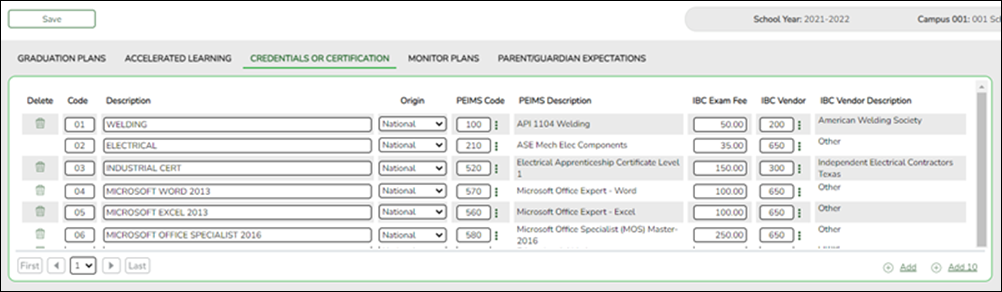
Existing credential and certification codes are displayed in order by code.
❏ Click +Add to add one blank row. A blank row is added to the grid.Or, click +Add 10 to add ten blank rows to the grid.
Code Type a unique two-digit code.
Description Type a description for the code, up to 35 characters.
Origin Indicate if the credential or certification is recognized as international (I) or national (N), or leave blank if neither.
This information is used on Maintenance > Student > Individual Maintenance > PGP and Performance Acknowledgment tabs, and prints on the Student Personal Graduation Plan (SGP1000) and AAR Multi-Year (SGR2047) reports.PEIMS Code Click
 to select the PEIMS certification code (C214) associated with the district code.
NOTE: Codes entered in this field can be saved regardless of the school year when the certification was attempted.PEIMS Description The description for the selected PEIMS Code is displayed.
IBC Exam Fee Enter the exam fee amount. This fee identifies the amount of money that was paid by the local education agency for a student’s industry certification exam.
NOTE: This field will be pre-populated if completed on the Credentials or Certification tab on Graduation Plan > Maintenance > District > Tables.
TWEDS Data Element: IBC-EXAM-FEE-AMOUNT (E1654)
IBC Vendor Use the drop-down menu to select the vendor. This field identifies the organization or company that offered the service.
NOTE: This field will be pre-populated if completed on the Credentials or Certification tab on Graduation Plan > Maintenance > District > Tables.
NOTE: Codes entered in this field can be saved regardless of the school year when the certification was attempted.TWEDS Data Element: IBC-VENDOR-CODE (E1655)
IBC Vendor Description This field identifies the IBC Vendor and is automatically populated when the vendor code is selected from the IBC Vendor drop-down menu.
❏ Click Save.
❏ To update a description, type over the existing description and save.
NOTE: You can only update the description; you cannot update a code. To change a code, you must delete and re-enter the code and description.
Other functions and features:
Delete a row. 1. Click
to delete a row. The row is shaded red to indicate that it will be deleted when the record is saved. You can select multiple rows to be deleted at the same time.
2. Click Save. You are prompted to confirm that you want to delete the row. Click Yes to continue. Otherwise, click No.
You can save edits and delete records in the same step (i.e., the changes are all committed when the record is saved).
- Set up criteria for monitoring PGPs.
Graduation Plan > Maintenance > District > Tables > Monitor Plans
This tab allows you to maintain a district-level code table of criteria for monitoring graduation plans (e.g., interim progress reports, benchmark scores, or student attendance). These criteria populate the Monitor Plan fields on the PGP tab.
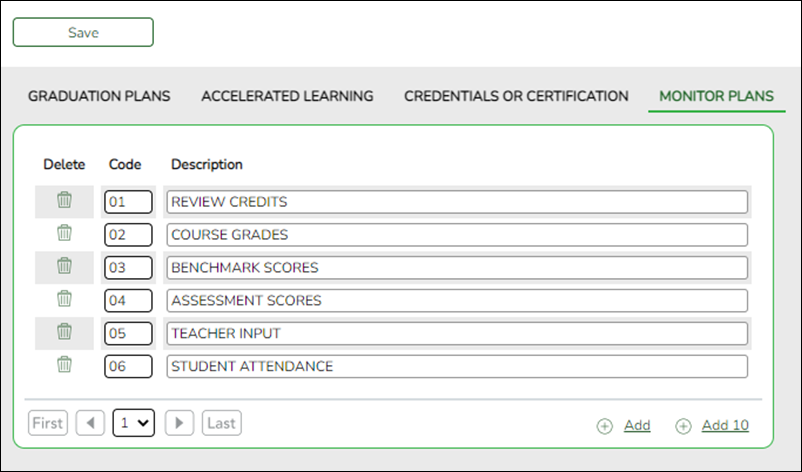
Existing codes are displayed in order by code.
❏ Click Add or Add 10 to add one or 10 blank rows to the grid.
Code Type a unique, two-digit code for the criteria.
Description Type a description of the code, up to 35 characters.
❏ Click Save.
❏ To update a description, type over the existing description and save.
NOTE: You can only update the description; you cannot update a code. To change a code, you must delete and re-enter the code and description.
Delete a row. 1. Click
to delete a row. The row is shaded red to indicate that it will be deleted when the record is saved. You can select multiple rows to be deleted at the same time.
2. Click Save. You are prompted to confirm that you want to delete the row. Click Yes to continue. Otherwise, click No.
You can save edits and delete records in the same step (i.e., the changes are all committed when the record is saved).
- Set up parent/guardian expectations.
Graduation Plan > Maintenance > District > Tables > Parent/Guardian Expectations
This tab allows you to maintain a district-level code table for parent/guardian expectations (e.g., four year college, military, or vocational school). These expectations populate the Parent's Educational Expectation fields on the PGP tab.
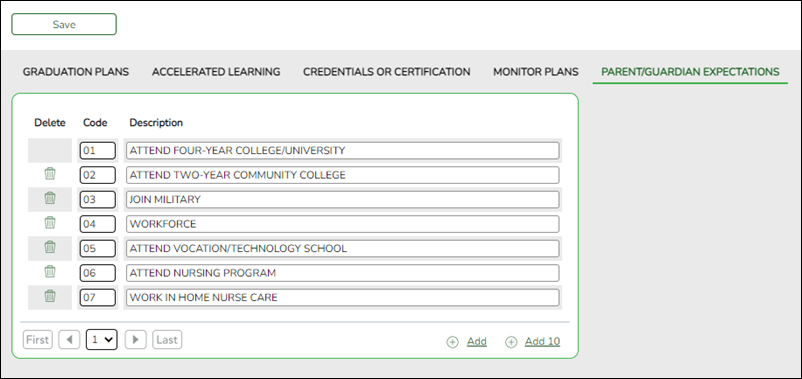
Existing codes are displayed in order by code.
❏ Click +Add to add one blank row. A blank row is added to the grid.Or, click +Add 10 to add ten blank rows to the grid.
Code Type a unique, two-digit code for the expectation.
Description Type a description of the code, up to 35 characters.
❏ Click Save.
❏ To update a description, type over the existing description and save.
NOTE:
• You can only update the description; you cannot update a code. To change a code, you must delete and re-enter the code and description.
• You cannot delete a code that is assigned to a student.
Delete a row. 1. Click
to delete a row. The row is shaded red to indicate that it will be deleted when the record is saved. You can select multiple rows to be deleted at the same time.
2. Click Save. You are prompted to confirm that you want to delete the row. Click Yes to continue. Otherwise, click No.
You can save edits and delete records in the same step (i.e., the changes are all committed when the record is saved).


