
User Tools
Sidebar
academy:student:grade_reporting_grade_averaging_class_rank_ga_tables
Book Creator
Add this page to your book
Add this page to your book
Book Creator
Remove this page from your book
Remove this page from your book
Ensure that grade averaging (GA) tables are set up correctly.
- Set up Course Type (GA Table).
Grade Reporting > Maintenance > Tables > Course Type
This page allows you to set up district-wide descriptions for numeric and grade point course types using codes 0-9 and A-Z, such as Regular, Advanced Placement (AP), Pre-AP, Dual Credit, etc. This can also be used at middle schools for Credit Level H.
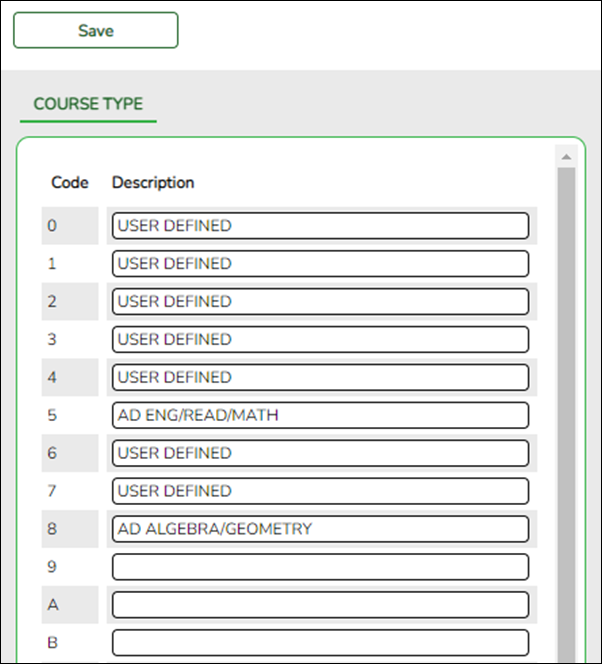
Code Codes 0-9 and A-Z are displayed and cannot be changed.
Description The default for each code is User Defined. Type over User Defined with a new description as needed, up to 40 characters.
Examples of common code descriptions:
2 - Dual credit
H - Honors
J - High school credit course taken in middle school
P - AP
Q - Pre-AP
R - Regular
❏ Click Save.
- Set up numeric grade averaging.
Grade Reporting > Maintenance > Tables > Grade Reporting Tables > Num Grade Avg Operator/Value
Any codes set up in the Course Type table must be entered in the Numeric Grade Average Operator/Value table if any courses in the district master schedule use that course type (i.e., the GA Table field on Maintenance > Master Schedule > District Schedule is set to the code). The Numeric Grade Average Operator/Value table specifies adjustments (i.e., weights) that will be applied to the student’s grade according to the grade average type code used for the course.
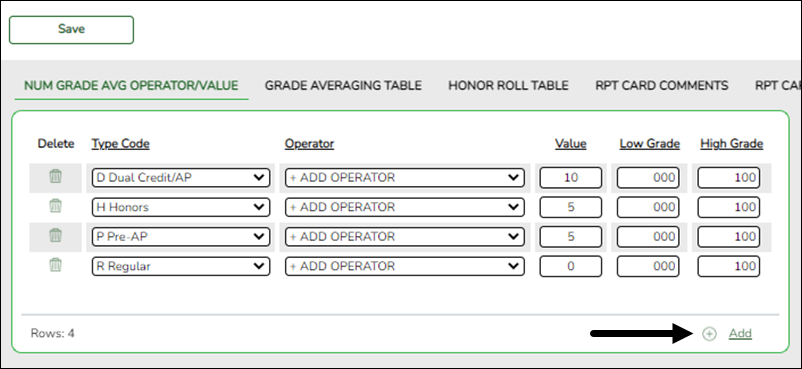
Existing data is displayed.
- The list can be re-sorted.
You can re-sort the grid by clicking on an underlined column heading. It will sort in ascending order. Click it again to sort in descending order.
A triangle next to the column heading indicates the column by which the grid is currently sorted and whether it is sorted in ascending or descending
  order.
❏ Click +Add to add grade conversion data.A blank row is added to the grid.
Type Select the code for the type of courses to which the table applies. The codes are established on Maintenance > Tables > Course Type.
Operator Select the mathematical operation to be applied to the grades in the grade range for the course type.
NOTE: Per the Office of Civil Rights (Letter to Runkel, 1996), special ed courses cannot be discounted in grade averaging.
Per the Letter to Runkel, “…It is permissible for school districts to set eligibility criteria for class ranking of honors, provided it does not “arbitrarily discount” or “exclude grades” received by students with disabilities with the assistance of special education services…“
The letter also states that a “school district will have the responsibility to justify the various weights assigned, if challenged.”Value Type the number by which the grades are to be adjusted according the selected operator.
Low Grade Type the lowest grade for which the adjustment should be performed.
High Grade Type the highest grade for which this adjustment should be performed.
This field must match the Highest Cycle Grade Allowed field on Maintenance > Tables > Campus Control Options > Ranges & Conversions.
NOTE: If a gap exists between grades, and a student has a cycle grade that falls in the gap, the student's grade is calculated at face value. No points are added or subtracted.
Course Type Operator Value Grade Calculation Weighted Grade Dual Credit %+ - PERCENT PLUS OPERATOR 10 85 85 x .10 = 8.5
85 + 8.5= 93.5 Modified Coursework %- - PERCENT MINUS OPERATOR 5 85 85 x .05 = 4.25
85 - 4.25= 80.75
The operator’s calculation may produce a decimal place in the weighted grade which is not rounded up or down. The decimal place is used in calculating the student’s current year grade point average.
NOTE: If no weight will be applied to a course (such as a Regular), the Operator must be set to + ADD OPERATOR, and Value must be 0. These settings will include the course in grade averaging and use the student’s grade at face value.
Different Weights for Different Grades:
The Numeric Grade Average Operator/Value table allows different grade ranges to have different weights applied within the same course type.
Example:
Course Type Operator Value Low Grade High Grade Honors %+ - PERCENT PLUS OPERATOR 10 090 100 Honors %+ - PERCENT PLUS OPERATOR 5 075 089
Failing Grades:
Failing grades are processed differently in numeric grade averaging than in grade point grade averaging. Numeric grade averaging uses the grade at face value if it falls outside the high or low grade range. In grade point grade averaging, the grade must be listed in the Grade Point Grade Averaging table, with a grade other than zero, to be included in the average.
Example:
If the Low Grade field in the Numeric Grade Average Operator/Value table is set to 070, and the student’s grade is 65, the student will not receive the weighted value for the course. Instead, the student’s grade of 65 is used in calculating the GPA.
NOTE: If Low Grade For Average on Maintenance > Tables > Campus Control Options > H Roll & Gr Avg is 50, and the student’s grade is below 50, the grade is adjusted to 50.
Blank, Incomplete, and No Grade:
Grades that are blank are adjusted to zero in grade averaging calculations, and the course is counted in the student’s total number of courses.
Grades that are incomplete (I) and no grade (N/G) are not counted in grade averaging calculations, and the I or N/G will display on the report.
Running Both Numeric and Grade Point Grade Averaging:
A district can choose to use numeric grade averaging with no weights applied to calculate the student’s true numeric average, and then use grade point grade averaging to weight the courses and rank the students. In this case, the Numeric Grade Average Operator table must include all Course Type codes used at each campus entered with Operator set to + ADD OPERATOR, and Value set to 0. Then, the Grade Point tables are used to weight the grades and used to rank the students.
NOTE: If you are running both numeric and grade point grade averaging, you must run grade point grade averaging last. Each time grade averaging is run, the program overwrites the student’s existing current year rank.
❏ To edit conversion data, type over the existing data.
❏ Click Save.

Delete a row. 1. Click
to delete a row. The row is shaded red to indicate that it will be deleted when the record is saved. You can select multiple rows to be deleted at the same time.
2. Click Save. You are prompted to confirm that you want to delete the row. Click Yes to continue. Otherwise, click No.
You can save edits and delete records in the same step (i.e., the changes are all committed when the record is saved).
- Set up grade point grade averaging.
Grade Reporting > Maintenance > Tables > Grade Reporting Tables > Grade Average Table
Any codes set up in the Course Type table must have values entered on the Grade Averaging Table tab if any courses in the district master schedule use that course type (i.e., the GA Table field on Maintenance > Master Schedule > District Schedule is set to the code).
You cannot combine numeric and grade points in the Grade Averaging table; you must use one or the other.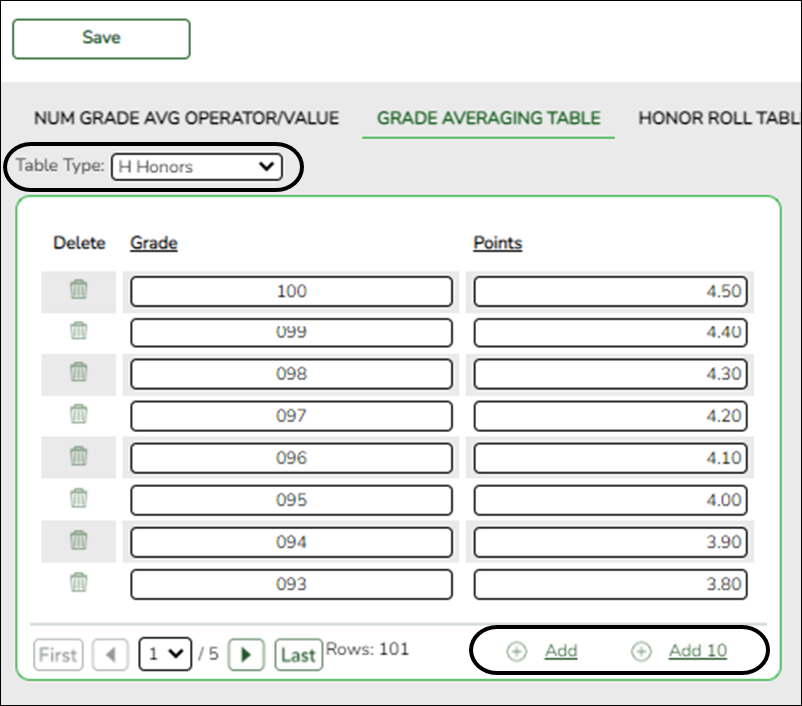
❏ Select the table type:
Table Type Select the code for the type of courses to which the table applies. The codes are established on Maintenance > Tables > Course Type.
Existing data is displayed.
- The list can be re-sorted.
You can re-sort the grid by clicking on an underlined column heading. It will sort in ascending order. Click it again to sort in descending order.
A triangle next to the column heading indicates the column by which the grid is currently sorted and whether it is sorted in ascending or descending order.
- If there are multiple pages, page through the list.
Click
 to go to the first page of the report or list.
Click to go back one page.
Click to go forward one page.
Click to go to the last page.
Click to select the page number you want to view in the report or list.
❏ Click +Add to add one blank row. A blank row is added to the grid.
❏ Or, click +Add 10 to add ten blank rows to the grid.
❏ Under Grade:
Type the numeric course grade to be adjusted.
IMPORTANT:
You must enter every numeric grade from the high grade to the lowest grade for the table type. If a gap exists, the student’s grade will be calculated as zero if it corresponds to the missing grade.
If the Highest Cycle Grade Allowed field on Maintenance > Tables > Campus Control Options > Ranges & Conversions is set to a value higher than 100, this table must include grades up to the highest grade allowed. Otherwise, a student’s grade will be calculated as zero if it is not included in the table.
❏ Under Points:
Type either the grade points or numeric grades that correspond to the course grade when determining grade averaging. Enter up to five digits with three whole numbers and two decimal places (e.g., 100.00).
You can use either all grade points or all modified grades, but not a mixture of both.
Examples:
Grade Points Numeric Grades Course Grade Numeric Points Course Grade Grade Points 100 5.00 100 105 099 4.90 099 104 098 4.80 098 103 097 4.70 097 102 and so on and so on You can adjust each grade by a different amount.
Example:
You could add 10 points for grades 90-100, but only add 7 points for grades 80-89, as follows:Course Grade Points Adjusted Grade 100 10.00 110 99 10.00 109 98 10.00 108 97 10.00 107 96 10.00 106 95 10.00 105 94 10.00 104 93 10.00 103 92 10.00 102 91 10.00 101 90 10.00 100 89 7.00 96 88 7.00 95 and so on
NOTE: If using numeric values, when you run the Grade Averaging and Class Ranking utility, you must set Process to Grade Point Grade Averaging in order to use the Grade Average tables that were set up for this purpose.
❏ Click Save.
❏ Repeat for the next table type.
Delete a row. 1. Click
to delete a row. The row is shaded red to indicate that it will be deleted when the record is saved. You can select multiple rows to be deleted at the same time.
2. Click Save. You are prompted to confirm that you want to delete the row. Click Yes to continue. Otherwise, click No.
You can save edits and delete records in the same step (i.e., the changes are all committed when the record is saved).
- Verify that grade averaging tables are set up correctly.
Registration > Reports > Registration Reports > Program > SRG0100 - Campus Information
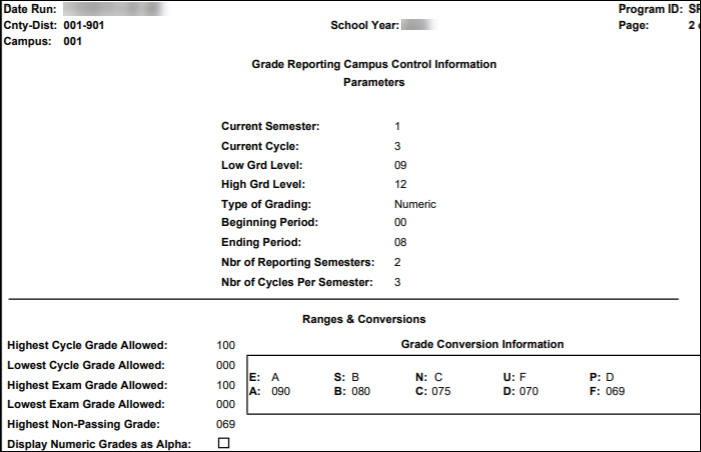
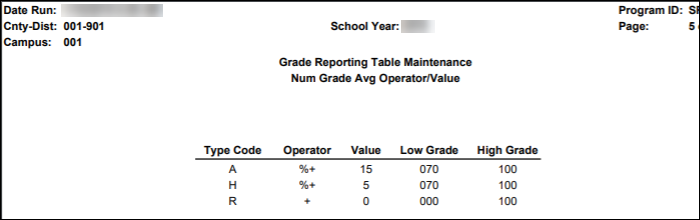
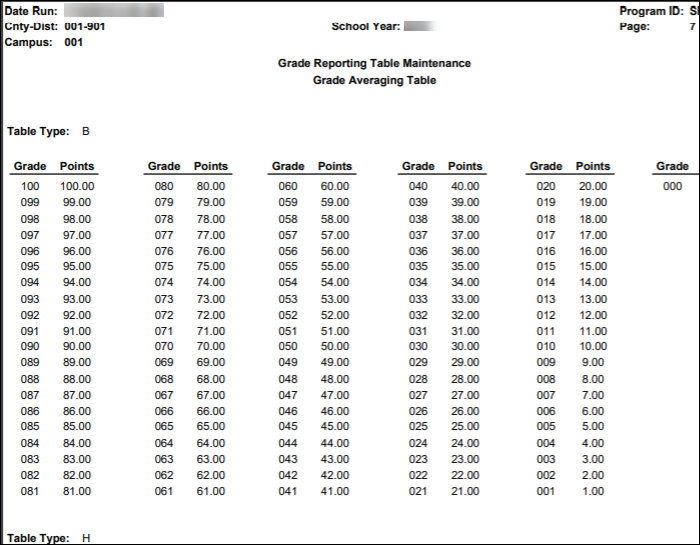
Grade averaging and class ranking is only as accurate as the data entered in the grade averaging tables. It is very important to verify that the entries in the tables are correct.
SRG0100 (in Registration) displays campus control information and table maintenance information from Grade Reporting. Review all applicable data for accuracy and completeness.
The grade averaging table information begins partway through the report.


academy/student/grade_reporting_grade_averaging_class_rank_ga_tables.txt · Last modified: 2020/07/08 13:51 by 127.0.0.1
Except where otherwise noted, content on this wiki is licensed under the following license: CC Attribution-Share Alike 4.0 International
Americans with Disabilities Act (ADA) and Web Accessibility
The Texas Computer Cooperative (TCC) is committed to making its websites accessible to all users. It is TCC policy to ensure that new and updated content complies with Web Content Accessibility Guidelines (WCAG) 2.0 Level AA. We welcome comments and suggestions to improve the accessibility of our websites. If the format of any material on our website interferes with your ability to access the information, use this form to leave a comment about the accessibility of our website.