- Individual students:
Scheduling > Maintenance > Student Schedules > Course Requests
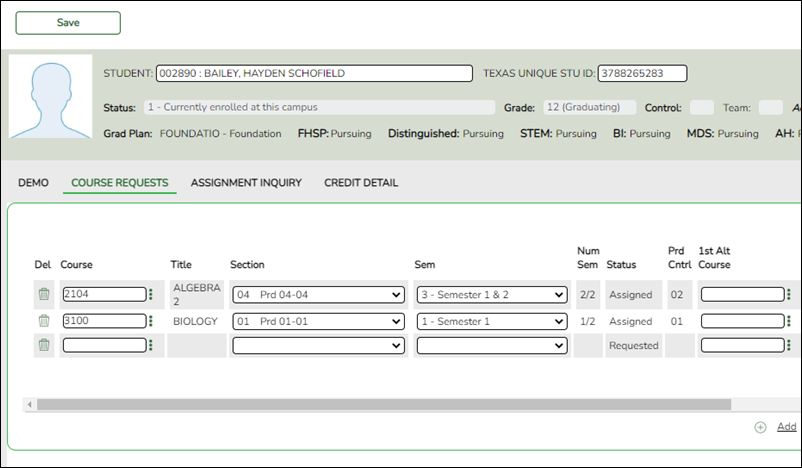
This tab allows you to create and adjust a student's course requests. You can also view the courses assigned to the student.
❏ To retrieve a student's records, select the student in one of the following ways:
Student Begin typing the student ID (with leading zeros) or last name. As you begin typing, a drop-down list displays students whose ID or last name begins with the numbers or characters you have typed. The drop-down list displays the students' full name and grade level. From the drop-down list you can select the student.
The student can also be located by typing the name in one of the following formats:
• Last name, comma, first name (smith, john)
• Last name initial, comma, first name initial (s,j)
• Comma, first name (,j)Texas Unique Stu ID Type all or part of the student's Texas Unique Student ID to retrieve students whose ID begins with the characters you typed.
If the student does not have a Unique ID, click TSDS Unique ID button to connect to the TSDS Unique ID Web Service and obtain an ID. Your LEA must have the appropriate credentials through Texas Education Agency Login (TEAL) before this functionality can be used.Review the Assign a TSDS Unique ID guide for additional information.
Directory Click to select a student from the Directory.
(photo) If a photo exists for the student, the student photo is displayed.
From Registration > Maintenance > Student Enrollment, you can change the student photo:
1. Hover over the image, and click Change. The Change Student Photo window opens.
2. Click Choose File. Locate and open the file for the new image.
3. Click Save. The window closes, and the new image is displayed.
Photos are not displayed in all applications. They are displayed in Attendance (Inquiry), Discipline, Grade Reporting, Graduation Plan, Health, Registration, and Scheduling. They are not displayed in Special Ed or Test Scores.
❏ Click +Add to add a course request for the student. A blank row is added to the grid.
❏ Or, click +Add 10 to add ten blank rows to the grid.
The Status field initially displays “Requested.”
Course Click
 to select the course.
The course title is displayed in the Title field.
Section Select the section of the course.
Sem Select the semester for the course-section. The field is required if you selected a section, the field is required.
IMPORTANT: Once the student has a course, section, and semester the Status field is updated to display “Assigned.”
Num Sem The number of semesters of the course requested and the number of semesters the course is actually taught are displayed. For example, if a course has semester code 3 (i.e., taught semesters 1 and 2), and the student requested semester 1 of the course, the field displays 1/2 (the student requested one semester of a two-semester course).
Prd Cntrl Period Control for a course is the number of class periods per day the course meets multiplied by the number of semesters taken.
If the student is not taking all of the semesters the course is taught, the period control from Maintenance > Master Schedule > District > Courses is recalculated according to the number of semesters the student is taking of the number of semesters the course is taught.
1st-3rd Alternate Course Click
to select up to three alternate courses. The course title is displayed in the Title field.
A student can select up to three alternate courses per course request in the ASCENDER StudentPortal Student Course Requests system. Alternate course requests submitted through ASCENDER StudentPortal are immediately visible in ASCENDER, and vice versa.
The counselor or scheduling administrator can delete, change, or add up to three alternate courses per course request in ASCENDER.
A student cannot edit alternate courses assigned by a counselor or scheduling administrator.
The scheduling load attempts to substitute alternate courses based on the field order (i.e., 1st, 2nd, and 3rd) in which they are entered.
NOTE: A proxy cannot be used as an alternate.
Grad Plan Use Cd Select the subject area to which the course should be applied on a graduation plan, if other than the course's service ID type.
The field is automatically populated when a student's graduation plan courses are moved to course requests but it can be modified.
Sem# Prd Cntrl The portion of the period control in each semester is displayed.
Example: If a two-semester course is taught period 02-02 (i.e., it is a one-period course), the period control is 02, and the course has one period each semester. One period is taught semester 1 (Sem1 Prd Cntrl field is 01), and one period is taught semester 2 (Sem2 Prd Cntrl is 01). The Sem1 Prd Cntrl field + the Sem2 Prd Cntrl field = the Prd Cntrl field.Requested by The field indicates if the course was requested by the student's graduation plan or by the student using the ASCENDER StudentPortal Student Course Requests system.
Slf Pcd The field is selected if the course is self paced, as specified by the Self Paced field on Maintenance > Master Schedule > District > Courses.
❏ Click Save.
Totals Totals for the Prd Cntrl and Sem# Prd Cntrl fields for the student's requested courses are displayed.

Delete a course from the student's course requests. 1. Click
to delete a row. The row is shaded red to indicate that it will be deleted when the record is saved. You can select multiple rows to be deleted at the same time.
2. Click Save. You are prompted to confirm that you want to delete the row. Click Yes to continue. Otherwise, click No.
You can save edits and delete records in the same step (i.e., the changes are all committed when the record is saved).
- By group:
Scheduling > Maintenance > Group Course Change
This page allows you to make course changes for a particular group of students at one time.
❏ Under Method:
Move Students from one Course to another Course This option moves students from the From course to the To course if they also meet the criteria specified under Students.
From Click
to select the course in which the students are currently enrolled.
To Click
to select the new course.
Add Course for Students enrolled in a Specific Course This option adds the Add course for students enrolled in the If course if they also meet the criteria specified under Students.
If Click
to select the course in which the students are currently enrolled.
Add Click
to select the course to be added.
Drop Students from a Specific Course This option drops the Drop course for students who are enrolled in that class and meet the criteria specified under Students.
Drop Click
to select the course to be dropped.
Add Students to a Specific Course This option adds the Add course or proxy for students who meet the criteria specified under Students.
Add Click
to select the course to be added.
❏ Under Students:Gender Select a gender if the change is only for one gender.
Next Year Grade Level Select a grade level if the change is only for students in that grade level next year.
Team Select a team if the change is only for students with a particular team code.
Next Year Control Nbr Select a control number if the change is only for students with that control number next year.
❏ Click Start.
A message is displayed indicating the group course change that will occur and the number of students affected.
- Click Details to view the group course change report. The report opens in a separate window. Review, save, and/or print the report.
Review the report using the following buttons:
Click to go to the first page of the report.
Click to go back one page.
Click to go forward one page.
Click to go to the last page of the report.
The report can be viewed and saved in various file formats.
Click to save and print the report in PDF format.
Click to save and print the report in CSV format. (This option is not available for all reports.) When a report is exported to the CSV format, the report headers may not be included.
Click to close the report window. Some reports may have a Close Report, Exit, or Cancel button instead.
- Click Commit to continue with the change. The student schedules are changed according to the selections.


