
User Tools
Sidebar
academy:business_checklists_servicerecordchecklist
Book Creator
Add this page to your book
Add this page to your book
Book Creator
Remove this page from your book
Remove this page from your book
This is an old revision of the document!
ASCENDER - Service Records

The purpose of this document is to guide you through the process of managing service records. ASCENDER retains data on multiple years of personnel service and accumulated state leave information.
Typically in June, LEAs use the Personnel > Utilities > Extract Teacher Service Record page to extract employee data and create service records. After service records are created, they can be viewed in detail by school year on the Personnel > Maintenance > Staff Demo > Service Record tab.
If an employee leaves the LEA, a service record can be conveniently printed, signed, and sent with the employee to their new employing LEA or simply forwarded to the LEA.
For additional information, reference the TEA Salary and Service Record page at https://tea.texas.gov/texas-educators/salary-and-service-record.
This checklist assumes you are familiar with the basic features of the ASCENDER Business system and have reviewed the ASCENDER Business Overview guide.
Some of the images and/or examples provided in this document are for informational purposes only and may not completely represent your LEA’s process.
WARNING: Service records must be extracted before new contract information is entered into current payroll or rolled in from next year payroll, and prior to updating the Years Experience fields on the Personnel > Maintenance > Employment Info tab for the next school year. This is because the Extract Teacher Service Record page retrieves the employee's contract begin/end dates from the Job Info page in order to create the service record.
Service records should include the completed number of years’ experience at the beginning of the current school year and the leave balances at the end of the current school year.
Note: It is recommended that service records are extracted for ALL employees after June payrolls have been completed. If all leave for the current year has not been posted for certain employees, you can update those employees by using the Update Leave Only option on the Personnel > Utilities > Extract Teacher Service Record page after leave is posted in July and August.
Review the following information:
WARNING: The Extract Teacher Service Record page retrieves the employee's contract begin/end dates from the Payroll > Maintenance > Staff Job/Pay Data > Job Info tab to create the service record, which means that service records must be extracted before new contract information is entered for the current year or rolled in from next year, and prior to updating the Years Experience fields on the Personnel > Maintenance > Employment Info tab for the next school year.
Notes:
- It is recommended that service records are extracted for ALL employees after June payrolls have been completed. If all leave for the current year has not been posted for certain employees, you can update those employees by using the Update Leave Only option on the Personnel > Utilities > Extract Teacher Service Record page after leave is posted in July and August.
- The data collection for Class Roster Winter submission will not be impacted since the prior teaching experience is maintained separately on the Personnel > Maintenance > Employment Info page.
Service records should include the completed number of years of experience at the beginning of the current school year and the leave balances at the end of the current school year.
Years of Service Notes
Years of Service Notes
1. On TEA's website, the Salary and Service FAQ's page clarifies how data is displayed on the service record.
Question: My service record shows ‘0’ for my first year of service even though I have completed that first year. Why isn’t it changed to a ‘1’?
Answer: The service record reflects the service that you begin the year with. The next year will reflect that you begin that year with 1 year of completed service.
In ASCENDER, Service Records retrieve Years of Service data from the Professional/Non-Professional Total Years Experience section on the Personnel > Maintenance > Employment Info page.
2. On the TSDS Web-Enabled Data Standards (TWEDS) website. In the top-right corner, select the appropriate School Year (20XX), Collection (PEIMS), and Submission (Fall) and click Open. Review the (E1721) CreditableYearOfService data element.
Definition: CreditableYearOfService indicates a teacher (StaffClassification 087) who currently qualifies for the TIA allotment or has been submitted by the LEA for a new or change of designation and has been employed by the LEA and compensated or will be compensated by the LEA for a creditable year of service. (§153.1021)
3. On the TSDS Web-Enabled Data Standards (TWEDS) website. In the top-right corner, select the appropriate School Year (20XX), Collection (PEIMS), and Submission (Fall) and click Open. Review the (E1377) TotalYearsPriorTeachingExperience data element.
Definition: TotalYearsPriorTeachingExperience is the total number of years an individual has previously held a teaching position in one or more educational institutions.
Fall PEIMS and Class Roster both report the same number of years of service that is displayed on the Teacher Service Record when extracted. The Service Records are typically extracted after June Payroll, before 12-month staff are rolled from NY Payroll. This means that the Years of Service do not include the current school year, only the number of years the employee completed as of the beginning of the school year. (see #1 above.)
Example:
In the 2022-2023 school year, Mrs. Smith began teaching at ABC School District. At this time, her Service Record has 0 Years Experience for the 2022-2023 school year because she did not complete any years prior. For Fall and Class Roster, the district will report to TEA that she has 0 years of experience and 0 years of prior teaching experience.
In the 2023-2024 school year, Mrs. Smith leaves ABC School District and moves to XYZ School District, her Service Record follows her to XYZ School District.
- XYZ School District will enter 01 Years of Experience in both Total Professional Years and Prior Teaching when they start the year since she has just completed 1 year.
- XYZ School District will report 1 year in both fields (for Fall and Class Roster Winter).
- XYZ School District will extract her Teacher Service Record showing 1 year in June, then roll it up sometime after extracting Service Records at the beginning of the school year in anticipation of the next school year.
In the 2024-2025 school year, XYZ School District will report her in Fall PEIMS with 2 Total Years Professional Experience, in Class Roster with 2 Prior Years Teaching Experience, and on the Service Record with 2 years. This should generally also match the Pay Step.
Note: Occasionally, this may fall out of sync if a teacher leaves the classroom to fill a different role such as principal, then decides to go back to the classroom. In that instance, the number of years reported for Prior Year Teaching may be lower than the Total Years of Professional Service.
On the Personnel > Maintenance > Employment Info page, the TIA Creditable Year of Service field is designed to alert TEA that the teacher has worked enough days to earn a year of service credit in the current year. Since the value will not be incremented until next year for Fall PEIMS, this provides data on the current year.
Service record fields in ASCENDER
The following is a list of fields from the Service Record tab and the corresponding fields in ASCENDER.

| Service Record Field in Personnel | ASCENDER Field | ASCENDER Page | |
|---|---|---|---|
| 1 | School Year | School Year | Finance > Tables > District Finance Options > Finance Options |
| 2 | Position Held Description | Job Code description | Payroll > Maintenance > Staff Job/Pay Data > Job Info |
| 3 | School Grades Taught | Grade(s) Taught | Personnel > Maintenance > Employment Info |
| 4 | % Day Employed | Percent Day Employed | Personnel > Maintenance > Employment Info |
| 5 | # of Days Employed | Calendar/Local Info section: # of Days Empld minus Svc Rec Days Ded | Payroll > Maintenance > Staff Job/Pay Data > Job Info Payroll > Maintenance > Leave Account Transaction > Leave Adjustment |
| 6 | Service Begin and End Dates | Calendar/Local Info section: Begin Date and End Date | Payroll > Maintenance > Staff Job/Pay Data > Job Info |
| 7 | Years Experience | Total Professional for TRS Position Codes: 01 (Professional) 02 (Teacher, Librarian) 05 (Nurse, Counselor) The selected Non-Professional Total or In District for all other position codes. | Personnel > Maintenance > Employment Info |
| 8 | District Type | District Type If P - Private is selected, the District Type field defaults to Private on the Maintenance > Staff Demo > Service Record tab in Personnel. If I - Independent or C - Charter are selected, the District Type field defaults to Public on the Maintenance > Staff Demo > Service Record tab in Personnel. | District Administration > Tables > District Information |
| 9 | Full Semester | Termination section, Full Semester check box | Personnel > Maintenance > Employment Info |
| 10 | State Sick/Personal Leave | Begin, Earned, Used, and Balance amounts for the selected leave codes in the Leave Code for State Sick and Leave Code for State Personal fields on the Payroll > Tables > District HR Options page. | Payroll > Maintenance > Staff Job/Pay Data > Leave Balance |
| 11 | Notes | Notes section | Personnel > Maintenance > Staff Demo > Service Record or Personnel > Utilities > Extract Teacher Service Record |
Create Service Records Process
- Verify leave type descriptions.
Verify leave type descriptions
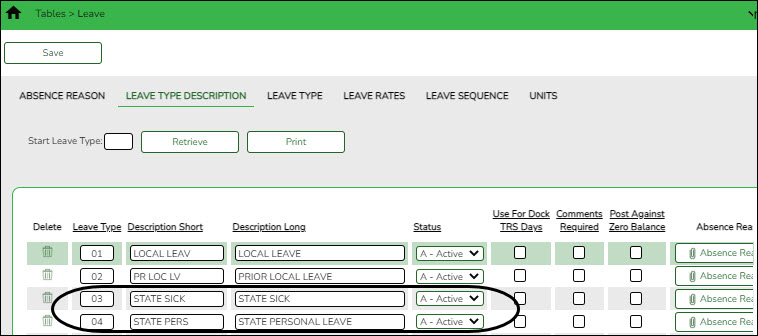
Payroll > Tables > Leave > Leave Type Description
Verify that the leave types and descriptions are accurate. State Leave (whether the old State Sick and/or the State Personal) must exist in this table.
- Verify state leave codes.
Verify state leave codes
Payroll > Tables > District HR Options
Verify that the leave codes used by your LEA are accurate.

- Leave Code for State Sick (old)
- Leave Code for State Personal (current)
Verify that each employee has the appropriate leave code assigned to create the required state personal leave for service records. If not, use the Payroll > Utilities > Mass Update > Leave tab to add the leave code to employees.
- Verify accuracy of employee data.
Verify accuracy of employee data
Payroll > Reports > User Created Report
Run a user-created report with the following criteria to verify that employee data is accurate. Also, verify that all leave has been posted for the school year and that the leave balances are correct.
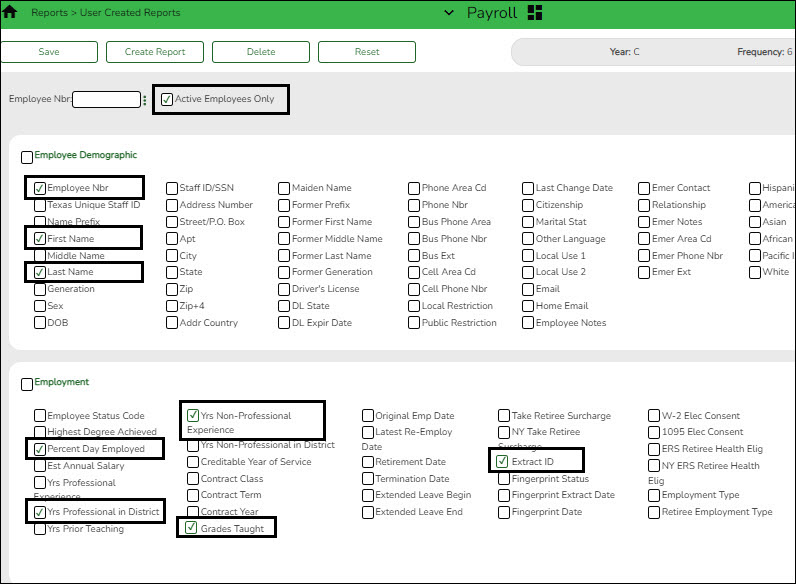
❏ Select Active Employees Only. By only including active employees, it is possible to overlook any employees who may have left your LEA early so be sure to individually verify information on those employees.
❏ Under Employee Demographic, review the following information and use the Personnel > Staff Demo > Demographic Information tab to make corrections as needed.- Employee Nbr
- First Name
- Last Name
❏ Under Employment, review the following information and use the Personnel > Maintenance > Employment Info tab to make corrections as needed.- Percent Day Employed - Verify that the percent of day employed for most employees is 100% (1.0 on the report). Identify employees who have less than 100% and verify whether or not the employees should have less than 100%.
- Yrs Professional in District and Yrs Non-Professional Experience - Most employees will either have professional or non-professional years. However, it is possible that an employee started as a non-professional such as an aide, and then later became a professional so the employee would have years of experience in both categories.
- Grades Taught
- Extract ID (if applicable)
Run another user-created report with the following criteria to continue verifying additional employee data:
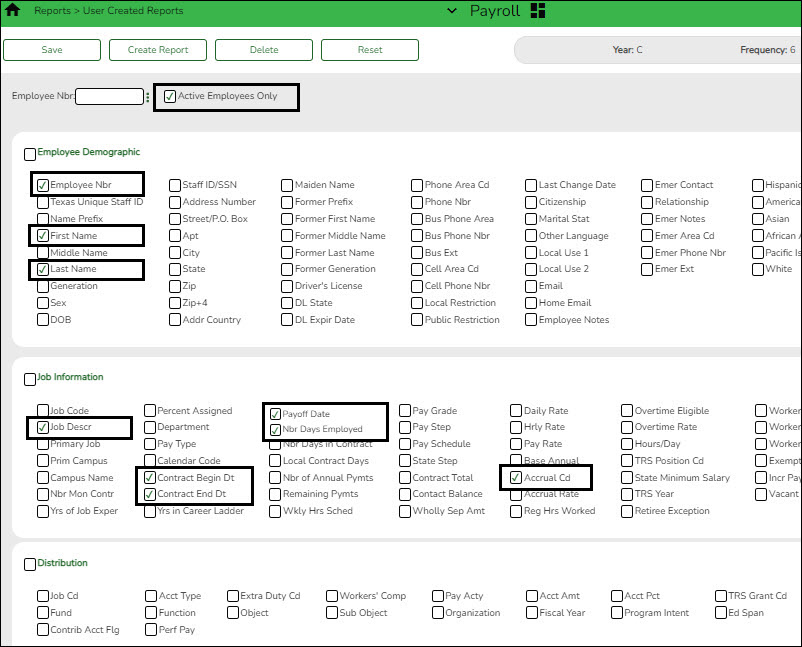
❏ Select Active Employees Only.❏ Under Employee Demographic:
- Employee Nbr
- First Name
- Last Name
❏ Under Job Information, review the following information and use the Payroll > Maintenance > Staff Job/Pay Data > Job Info tab to make corrections as needed.- Job Desc - If an employee has multiple jobs, all jobs should be included. However, if an employee changed jobs and the old job was removed from the Job Info tab, then you may need to manually add the old job.
- Contract Begin Dt
- Contract End Dt
- Payoff Date
- Nbr Days Employed - Verify the number of days employed for all employees. Review the report for any employees who started late or left early.
- Accrual Cd (if applicable)
TIP: Use the Sort/Filter options on the reports to easily locate and verify data.
- Consider service record notes.
Review and/or add service record notes
Personnel > Tables > Credential > Service Record Notes
Review and/or add service record notes. These notes are user-defined and intended to assist LEAs in recording information that is pertinent to specific service years. The notes on this tab can be selected in the Notes field on the Personnel > Utilities > Extract Teacher Service Record page.
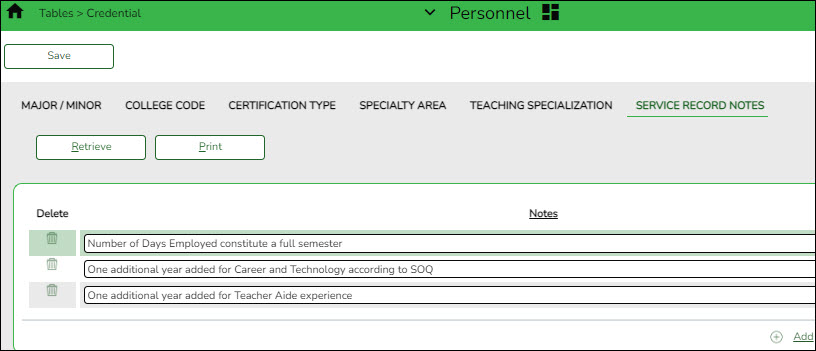
Some common examples might include the following:- Number of Days Employed constitutes a full semester
- One additional year added for Career and Technology according to SOQ
- One additional year added for Teacher Aide experience
- Extract service records.
Extract service records
Personnel > Utilities > Extract Teacher Service Record
Extract stored employee data to create service records. After data is extracted, the service record details can be viewed by school year on the Personnel > Maintenance > Staff Demo > Service Record tab for each individual employee. No labels are created and you can print the employee service record as needed, for example when an employee separates from the LEA.
The TEA Teacher Service Record guidelines can be found at https://tea.texas.gov/texas-educators/salary-and-service-record/teacher-salary-and-service-information.
Notes:
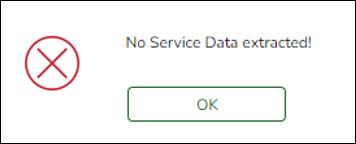
- If no employees match the extract criteria, a service record is not created and the following message is displayed: “No Service Data Extracted.”
- The Service Record Extract extracts all job records; however, leave information only applies to the primary job.
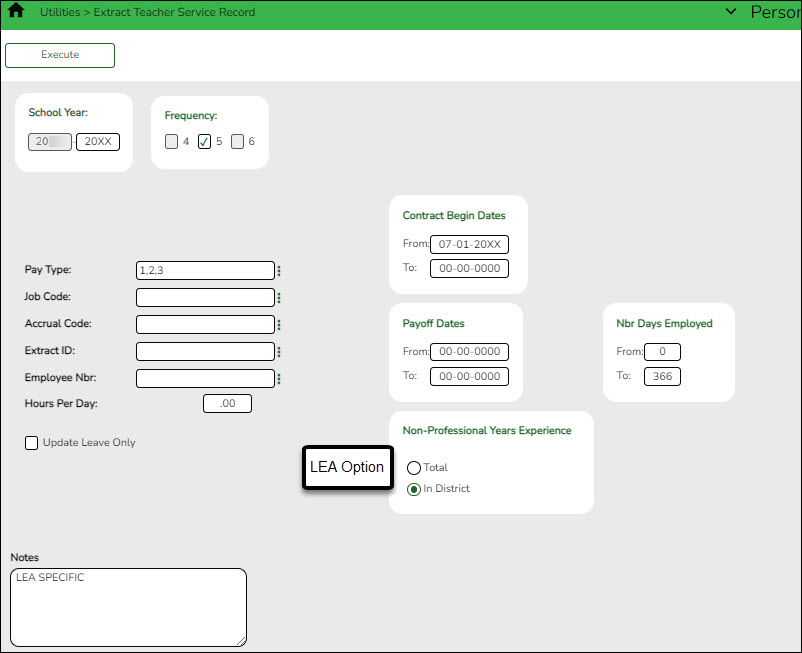
Field Description School Year Defaults to the current School Year on the Finance > Tables > District Finance Options > Finance Options page. Frequency The payroll frequencies authorized for use by the user are automatically selected. Pay Type Type the pay type(s) to be included separating multiple pay types with a comma (e.g., 1, 2) or click
 to select one or more pay types. If blank, all pay types (including substitutes) are included.
Notes:
If a substitute is a certified teacher and they substitute for at least 90 days, it is possible for them to earn a year of service credit. It is recommended that those substitutes receive a service record.Pay type 4 employees are only extracted if they have a contract begin date and end date.
Job Code Type the job code(s) to be included, separating multiple job codes with a comma (e.g., 5,76,3 = 0005, 0076, 0003) or click to select one or more job codes. Otherwise, leave blank to include all job codes.Accrual Code Type the accrual code(s) to be included, separating multiple accrual codes with a comma (e.g., A/5,B/5 where A and B are the accrual codes, and 5 is the pay frequency for the accrual code) or click to select one or more accrual codes. Otherwise, leave blank to include all accrual codes.Extract ID Type the extract ID(s) to be included, separating multiple extract IDs with a comma (e.g., 10, 11) or click to select one or more extract IDs. Otherwise, leave blank to include all extract IDs.Employee Nbr Type the employee number(s) to be included, separating multiple employee numbers with a comma (e.g., 5,76,3 = 000005, 000076, 000003) or click to select one or more employee numbers. Otherwise, leave blank to include all employee numbers.Hours Per Day (if required) Type the number of hours worked each day if required. If the Days/Hours field is set to Hours on the Leave Type tab for either of the state leave codes selected on the District HR Options page, the leave hours are converted to days using the Standard Hours per Workday field on the District HR Options page or the Hours Per Day field on the Extract Teacher Service Record page. If Hours Per Day is populated, the field overrides the populated Standard Hours per Workday field on the District HR Options tab. To convert the hours into days, the standard hours per workday or hours per day are divided into the employees’ leave balance amounts. When the service record is created, the number of days that resulted from the calculation is displayed.
Example: An employee has 27.0 hours on the Payroll > Maintenance > Staff Job/Pay Data > Leave Balance tab and the Standard Hours per Workday field has 8.0 hours on the District HR Options tab or in the Hours Per Day field, the extract creates a service record with 3.38 days.Update Leave Only Select to only update the leave balances for employees where the service record has been previously extracted. Only primary jobs are extracted. The leave on the existing service table row (matched by employee/job description) is replaced by the extracted leave for that employee/job. If an employee has multiple rows on the service record table with the same job description, only the row with the latest date-time stamp (DTS) and some value in any of the leave columns are updated. If the job is not a primary job, zeros are placed in all leave fields.
This feature is primarily used for employees with new contracts that begin in July or August and leave for the prior contract year was not posted before the service record was created.
Example #1: New contract began 07-01-2022 and the service record for the prior contract beginning 07-01-2021 was created. Leave from June was not reported and/or posted until July and/or August payroll. Therefore, leave balances need to be updated on the service record to accurately reflect the leave used and balance(s).
Example #2: An employee was paid off early, the service record was created, and later, it was discovered that the employee took leave that did not get posted prior to leaving the LEA. The LEA can either manually update the leave used and balances on the service record or update the employee's master leave record and re-extract using the Update Leave Only option.Contract Begin Dates Type the beginning and ending contract dates to be used during the extract process. These fields are optional.
If these dates are not used, all employees are extracted regardless if they were under contract for the most current school year. To narrow the data to only include employees under contract during the most current school year, type a beginning and ending contract date range.Payoff Dates Type the beginning and ending payoff dates to be used during the extract process. These fields are optional. If these dates are not used, all employees are extracted regardless if they were under contract for the most current school year. To narrow the data to only include employees under contract during the most current school year, type a beginning and ending payoff date range. To include all employees for the school year, it is recommended to enter a beginning date in September. However, if employees separated from the LEA in August for the current school year, a beginning September date will not include them. You will need to manually enter data or perform an individual extract on those employees. Nbr Days Employed Type the beginning and ending number of days to limit employee selection. Type the fewest and most number of days employed or in the contract from the Job Info tab to extract records for all employees within that range (e.g., 001-287). The system uses the # of Days Empld field on the Maintenance > Staff Job/Pay Data > Job Info tab and does not take consider the Serv Rec Days Ded field on the Leave Adjustment, Abs Ded, or Cd Abs Ded tabs.
Example: If an employee has 150 days in the # of Days Empld field on the Maintenance > Staff Job/Pay Data > Job Info tab and has 16.0 days in the Serv Rec Days Ded field on the Leave Account Transaction > Leave Adjustment tab, then enters 150 in the From Nbr Days Employed and To Nbr Days Employed fields, the employee extracts by the 150 days in the # of Days Empld field and the service record reflects 134 days (150 - 16 = 134). The employee is not extracted if 134 days is typed in the From Nbr Days Employed and To Nbr Days Employed fields.Non-Professional Years Experience Select Total or In District. If data exists in this field on the Maintenance > Staff Job/Pay Data > Employment Info tab, it is used to populate the service record as follows:
If the TRS Member Pos field is a 01, 02, or 05, the service record uses the Total field (under Years Experience in the Professional column on the Maintenance > Staff Job/Pay Data > Employment Info tab).
If the TRS Member Pos field is a 03, 04, 06, or 07:
If Total is selected, the service record uses the Total field (under Years Experience in the Non-Professional column on the Maintenance > Staff Job/Pay Data > Employment Info tab).
If In District is selected, the service record uses the In District field (under Years Experience in the Non-Professional column on the Maintenance > Staff Job/Pay Data > Employment Info tab).Notes Type a new note or modify an existing note. If anything was entered in the Notes field and the Update Leave Only option is selected, the Notes column contains the value in the Notes field appended to the end.
To view a list of existing notes, click the down arrow, up arrow, or SPACEBAR on the keyboard.❏ Click Execute to start the process. If you click Execute, the Teacher Service Records Extract Data Preview window is displayed with a list of employees who meet the selected criteria.
If there are no employees that match the extract criteria, then no service records are created and the following message is displayed:
The initial service record extract should display New for all employees. If not, a service record has already been created for that particular employee for the current year. Each employee who worked in a position, excluding substitutes, should be listed on the report. Any employees who already have a service record for the current year will have two or more rows, one of which will be highlighted green. The row highlighted green represents the initial extract. Review all rows for each employee to determine which row should be permanently written to the service record. Select Delete for the rows to be deleted. Otherwise, click Cancel.
When initially displayed, the Delete checkbox is not selected for each employee in the list. Leave the Delete checkbox blank for each employee for whom a row should be created. For each extracted employee marked as New for whom a row should not be created, select Delete to prevent those employees from being extracted. If employees have existing rows in the service record table, the page also displays those rows and they are not marked as New. Instead, the New column is blank and if Delete is selected, the row will be deleted from the service record table.
If multiple pay frequencies are selected and an employee exists on multiple pay frequencies, all jobs associated with the employee as well as any leave associated with the primary job in each frequency are displayed. The leave balances are not combined but are displayed individually for each primary job.
The Nbr of Days Empld field for the service record is based on the Nbr of Days Empld field on the Job Info tab for each job being extracted.
- If the employee has been docked for any leave day for any leave type (not just state-based leave types), the service record Nbr of Days Empld field will be reduced for the primary job.
- If the employee has any service record day adjustments reported on the Abs Ded or Cd Abs Ded transmittal tabs, those service record day adjustments are associated with the same job as used for the transmittal when calculating the service record Nbr of Days Empld field.
- If there are transmittals on the Abs Ded or Cd Abs Ded transmittal tabs for an employee where the job code for the transmittal no longer exists in the employee’s job master, the primary job service record days will be adjusted based on those transmittals.
❏ Identify and delete employees who do not require a service record to be created.
- Click Select Delete to select the Delete checkbox for each row. Rows marked as New are not selected for deletion.
- Click Unselect Delete to clear the Delete checkbox for each row.
Example 1: This employee was initially extracted with 14.00 days employed. The new row displays that the employee had 13.50 days employed. If the original (14.00 days) row is correct, select Delete for the new row. If the New row (13.50 days) is correct, then select Delete for the old (white) row.
Example 2: This employee has updated leave information. You must scroll right to view the column. Select the rows to be deleted.

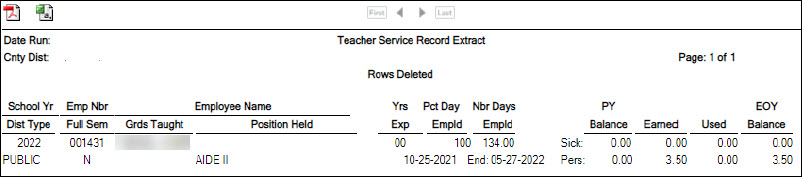
The Rows Deleted Data Preview window is displayed. Review the report.
❏ Click Continue to view the Teacher Service Record Extract Rows Deleted report. Review the report. If there are no applicable records, the Rows Deleted report is not displayed and the Rows Created report is displayed instead. Otherwise, click Cancel to cancel the process and return to the Extract Teacher Service Record page.
❏ Click Continue to view the Teacher Service Record Extract Rows Created report. Otherwise, click Cancel to cancel the process and return to the Extract Teacher Service Record page.
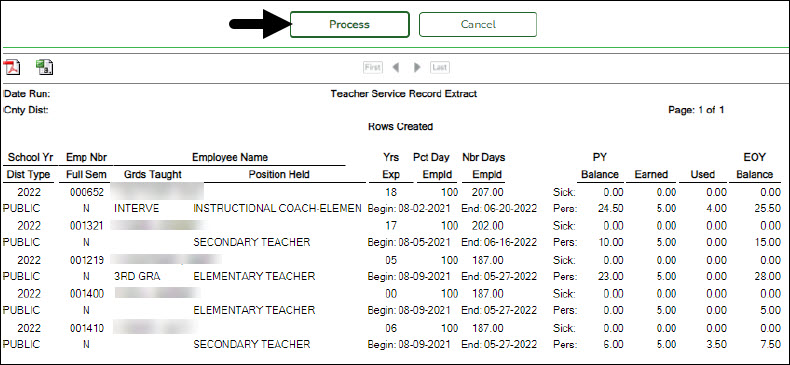
Carefully review the report to ensure the accuracy of the information and those only employees who meet the selection criteria are displayed. Make changes and re-extract the service record data as needed.
❏ Click Process. The service records on the Personnel > Maintenance > Staff Demo > Service Record tab for the selected employees and for the selected school year are deleted and/or extracted. The deleted records cannot be retrieved unless an import is performed.
❏ Click Cancel to cancel the process and return to the Extract Teacher Service Record page.
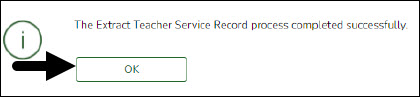
A message box is displayed indicating that the process was completed successfully. Click OK.
Other Considerations
❏ In the Data Preview window, be sure to use the scroll bars to review the complete report and identify duplicates records. If an employee is listed more than once for the same Position Held, select the extract row to be deleted for that employee. The current extract is labeled New and the other row(s) are from a previous extract for that employee. If you do not select a row to be deleted, duplicate service records will be created if there are multiple rows for an employee.
❏ If employees were docked through the leave system, adjustments are displayed on the Payroll > Maintenance > Leave Account Transaction > Leave Adjustment tab. ASCENDER calculates the days to be included on the service record by subtracting any days listed in the Serv Rec Days Ded column from the number of days employed on the Job Info tab.
❏ If an employee changed jobs during the year and is no longer being paid for the original job, both jobs should remain on the Job Info tab. The % Assigned field requires at least 1% in the original job for it to remain available on the Job Info tab and the new job should be marked as Primary. When the extract is performed, both jobs will be extracted for the service record and you do not need to manually add any job information for the original job.
❏ Use the Personnel > Maintenance > Staff Demo > Service Record for the following:
- If the employee has changed jobs during the year and the original job no longer displays on the Job Info tab, you must manually add the original job.
- If needed, you can add service record notes to an individual employee. If notes were previously created in the Service Record Note table, press the SPACEBAR in the Notes section to select one from the list. If not, you can manually enter a note.
- After performing the extract, verify the accuracy of the following:
- Begin and End Dates for each job
- # Days Employed for each job
- State Leave amounts and balances carried over from year to year.
- (If necessary) Review and edit service records.
(If necessary) Review and edit service records
Personnel > Maintenance > Staff Demo > Service Record
All employee service record data is now available and can be reviewed and edited for accuracy.
Identify special cases that may have occurred during the year such as employees who changed jobs, had fewer days, separated from the LEA mid-year, or had second jobs (e.g., bus drivers with another primary job).
❏ Click
 to view additional details for a selected row (School Year). The details for the selected row are displayed below the grid.
❏ Make the necessary changes and click Save.
Example 1: This employee drove a bus occasionally as a second position to her primary job as a Secondary Teacher. Her original teacher service record row reflects 187 days. An LEA could select to delete the bus driver row leaving only the teacher row on the service record. This can be done during the Service Record Extract process or at a later time on the Personnel > Maintenance > Staff Demo > Service Record tab.
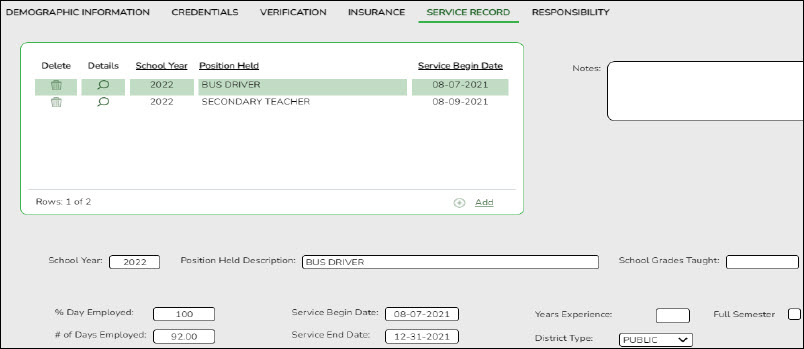
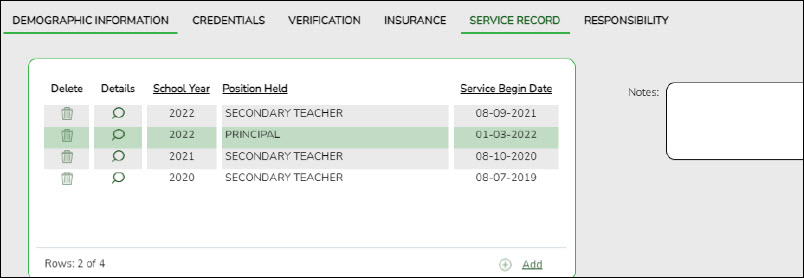
Example 2: This employee was a Secondary Teacher for 91 days and a principal for 117 days (from 01-03-2022 until the end of the year).


Other Considerations
❏ In the Data Preview window, be sure to use the scroll bars to review the complete report and identify duplicates records. If an employee is listed more than once for the same Position Held, select the extract row to be deleted for that employee. The current extract is labeled New and the other row(s) are from a previous extract for that employee. If you do not select a row to be deleted, duplicate service records will be created if there are multiple rows for an employee.
❏ If employees were docked through the leave system, adjustments are displayed on the Payroll > Maintenance > Leave Account Transaction > Leave Adjustment tab. ASCENDER calculates the days to be included on the service record by subtracting any days listed in the Serv Rec Days Ded column from the number of days employed on the Job Info tab.
❏ If an employee changed jobs during the year and is no longer being paid for the original job, both jobs should remain on the Job Info tab. The % Assigned field requires at least 1% in the original job for it to remain available on the Job Info tab and the new job should be marked as Primary. When the extract is performed, both jobs will be extracted for the service record and you do not need to manually add any job information for the original job.
❏ Use the Personnel > Maintenance > Staff Demo > Service Record for the following:
- If the employee has changed jobs during the year and the original job no longer displays on the Job Info tab, you must manually add the original job.
- If needed, you can add service record notes to an individual employee. If notes were previously created in the Service Record Note table, press the SPACEBAR in the Notes section to select one from the list. If not, you can manually enter a note.
- After performing the extract, verify the accuracy of the following:
- Begin and End Dates for each job
- # Days Employed for each job
- State Leave amounts and balances carried over from year to year.
Update Leave After Service Record Extract.
Update leave after extracting service records
If leave is taken after extracting service records, use the Personnel > Utilities > Extract Teacher Service Record to update the leave balances.
- Select the criteria for the employees to be updated.
- Select the Update Leave Only checkbox.
A preview report is displayed with a list of records where leave balances will be updated. Review the report for accuracy.
❏ Click Cancel to cancel the process and make corrections as needed or click Continue and Process to update the leave balances.
Print service record(s)
Personnel > Reports > Personnel Reports > HRS1400 - Teacher Service Record
An official service record is available upon the employee's request. Verify that all information is accurate on the service record as this is the official Teacher Service Record and must be signed by the employee and the LEA personnel authorized to sign off on service records.
- The Enter Optional Typewritten Title parameter is optional and is displayed under the Authorized Signature on the printed service record.
- Generate the service record and print it as a PDF.

You are not required to print a service record for every employee every year. However, you must produce a complete record of service from your LEA upon employee request and/or when the employee separates from the LEA. The process of successfully extracting service records stores a service record in the employee’s file in ASCENDER for future availability.
academy/business_checklists_servicerecordchecklist.1656094795.txt.gz · Last modified: 2022/06/24 13:19 (external edit)
Except where otherwise noted, content on this wiki is licensed under the following license: CC Attribution-Share Alike 4.0 International
Americans with Disabilities Act (ADA) and Web Accessibility
The Texas Computer Cooperative (TCC) is committed to making its websites accessible to all users. It is TCC policy to ensure that new and updated content complies with Web Content Accessibility Guidelines (WCAG) 2.0 Level AA. We welcome comments and suggestions to improve the accessibility of our websites. If the format of any material on our website interferes with your ability to access the information, use this form to leave a comment about the accessibility of our website.