
Sidebar
academy:business_overview_guide_run_payroll
Book Creator
Add this page to your book
Add this page to your book
Book Creator
Remove this page from your book
Remove this page from your book
This is an old revision of the document!
====== CRT - DRAFT ======
Run Payroll Guide

This provides an overview of how to run payroll in Human Resources. This guide assumes you are familiar with the basic features of the TxEIS Business system and have reviewed the TxEIS Business Overview guide.
Before You Begin
- (ESC-14) Verify beginning check number
- (ESC-14)Upload checks signatures if applicable
Supplemental Documents

Run Payroll Process
- Verify the payroll frequency.
Verify payroll frequency
The Payroll application allows the use of multiple payroll frequencies in both the current year and next year payroll. This feature allows you to use a different authorized payroll frequency for salaried staff than hourly staff or substitutes, if necessary.
CYR Payroll Frequency Frequency Description NYR Payroll Frequency 4 Biweekly Payroll D 5 Semimonthly payroll E 6 Monthly payroll F The Year field displays the year to which you are logged on (i.e., C - current year or N - next year).
The Frequency field displays the pay frequency based on the Year field.

❏ Click Change to select another year and frequency.
❏ Click Apply to apply the changes.
- Verify pay dates.
Verify pay dates
Verify that the pay dates exist for each payroll frequency.
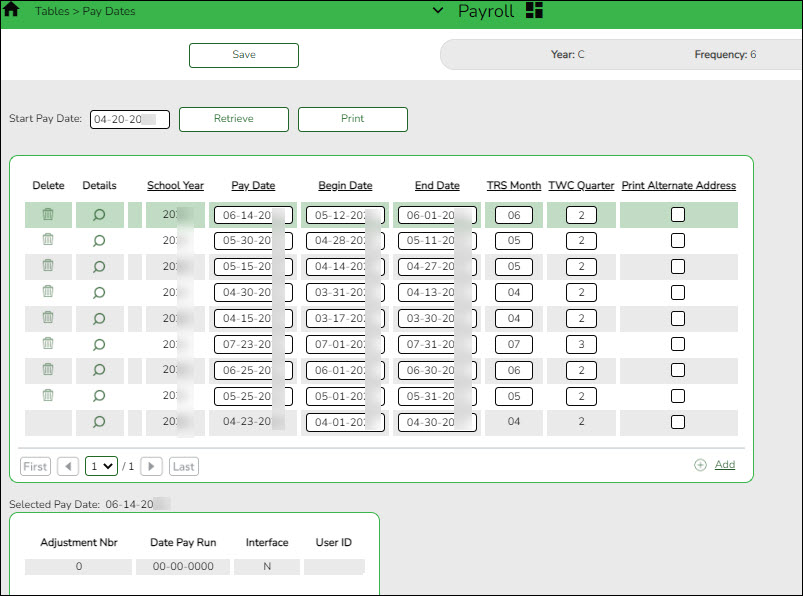
❏ Enter the Pay Date, Begin Date, End Date, TRS Month, TWC Quarter, and click Save.
Recommended: In September, enter all pay dates for the year, September through August. As supplemental payrolls arise, you may need to add additional pay dates.
- Perform employee updates.
Add or update employee information
Verify the employee's TRS status (new members, retiree surcharges) and confirm their Social Security Number (SSN) on the SSA website. Use the following pages to add or update existing employee records for the current payroll (e.g., deduction change, address change, etc.).
Personnel:
Payroll: - Create pay transmittals.
Import or manually enter hours/pay transmittals
Create the necessary hours and pay transmittals for applicable employees. The Print button on each tab allows you to balance the report with transactions then balance all reports with the Totals.
Note: Transmittal records cannot be changed after payroll is processed.
Review the Help for each individual tab for more information.
- Payroll > Maintenance > Hours/Pay Transmittals > Create Hours - This tab is used to create records for multiple hourly employees at one time.
- Payroll > Maintenance > Hours/Pay Transmittals > Reg Hours - This tab is used to pay hourly employees (pay type 3) based on their hourly rate.
- Payroll > Maintenance > Hours/Pay Transmittals > Abs Ded - This tab is used to dock an employee’s pay.
- Payroll > Maintenance > Hours/Pay Transmittals > Ovtm Hours - This tab is used to pay overtime at the employee’s overtime rate.
- Payroll > Maintenance > Hours/Pay Transmittals > Cd Abs Ded - This tab is used to dock an employee’s pay from a specific account code.
- Payroll > Maintenance > Hours/Pay Transmittals > Extra Duties - This tab is used to pay extra duty and/or substitutes.
- Payroll > Maintenance > Hours/Pay Transmittals > Non TRS - This tab is used to pay employees amounts that are not subject to TRS (reimbursements).
- Payroll > Maintenance > Hours/Pay Transmittals > Addl Ded - This tab is used to take additional one time deductions.
- Payroll > Maintenance > Hours/Pay Transmittals > Ded Refund - This tab is used to refund a deduction to an employee.
- Payroll > Maintenance > Hours/Pay Transmittals > System Adjust - This tab is used to correct system calculated amounts such as TRS, Medicare, etc.
- Create leave transmittals.
Import or manually enter employee and substitute leave
Use one of the following options to enter employee and substitute leave:
❏ (If applicable) Import leave data from a timekeeping/leave software:
- Payroll > Utilities > Import Online Leave Requests - Import employee leave entries from EmployeePortal.
- Payroll > Utilities > Merge Payroll Transaction Files - Import and merge payroll transactions.
❏ Manually enter employee leave and employee substitute transmittals using the following tabs:- Payroll > Maintenance > Leave Account Transaction > Staff Leave Maintenance - Enter employee leave without a substitute.
- Payroll > Maintenance > Leave Account Transaction > Employee Substitute - Enter employee leave transmittals and substitute pay (extra duty) transmittals. You can enter employee leave transmittals without a substitute and substitutes transmittal without an employee leave.
❏ Verify transmittals on the Payroll > Hours/Pay Transmittals > Extra Duties, Inquiry, or Total tabs, or generate one of the following reports:
After reviewing the transmittals, make corrections as needed and reprint the reports to verify that all data is accurate. - Run the Contract Variance Report.
Run the Contract Variance Report
Payroll > Reports > Payroll Information Reports > HRS6050 - Contract Balance Variance Report
❏ Run the report with the Maximum Acceptable Difference parameter set to:
- .11 (eleven cents) for monthly payroll (12 pay periods)
- .23 (twenty-three cents) for semi-monthly payroll (24 pay periods)
- .25 (twenty-five cents) for bi-weekly payroll (26 pay periods)
❏ If variances greater than these amounts exist, make the necessary changes on the Payroll > Maintenance > Staff Job/Pay Data > Job Info tab.This process is intended for annualized employees such as pay types 1 and 2. It does not work for pay types 3 and 4 employees.
- Run the Payroll Accrual Variance Report.
If your LEA accrues, run the Payroll Accrual Variance report
Payroll > Utilities > Payroll Accrual Variance Extract > Extract
Run the report and review possible accrual discrepancies. If discrepancies exist, make the necessary adjustments on the Payroll > Maintenance > Staff Job/Pay Data > Pay Info tab.
- Run payroll.
Run final payroll calculations
Payroll > Payroll Processing > Run Payroll
Run the final calculations for the selected payroll. Only pay dates that have not been processed and posted can be run from this page.
Perform all steps listed in step 12 and verify that the final payroll calculations are accurate. Continue with the below steps to complete the run payroll process.
❏ Click Next to continue to the Payroll Check Test Pattern page. Otherwise, click Back to go back to the previous page or click Cancel to exit the run payroll process.
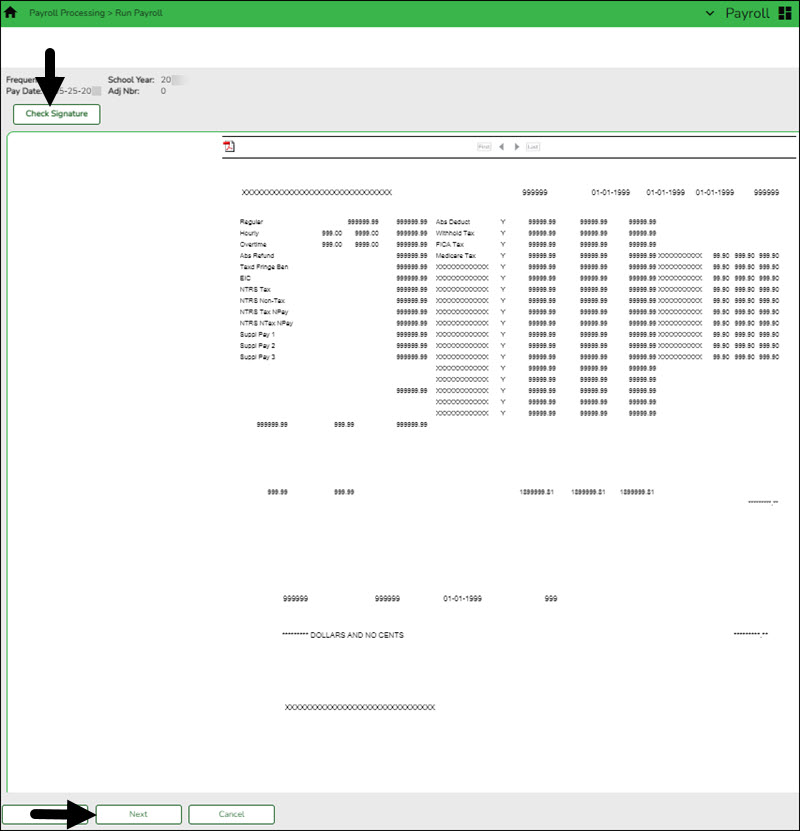
The Payroll Check Test Pattern page is used to preview and print the payroll checks. Use the scroll bars to view and verify the alignment of the check. If the local education agency (LEA) is using electronic signatures for checks, click Check Signatures.
❏ Click Next to continue. Otherwise, click Back to go back to the previous page or click Cancel to exit the run payroll process. If you click Next, the actual payroll checks are displayed. Only one check is displayed at a time.
Note: Be sure to verify printer settings.
❏ Choose from the following options:
- Click Previous Check to view the last check again.
- Click Next Check to view the next payroll check.
- Click Print. The Printer Selection pop-up window opens.
- Under Page Range, select All or Pages. If Pages is selected, type the page range (e.g., 1-12) to print.
- Click Print. The pop-up window closes.
- Click Check Signature to open Check Signature pop-up window and to customize these options for individual checks.
❏ Click Next to continue. Otherwise, click Back to go back to the previous page or click Cancel to exit the run payroll process.
Did the checks print correctly? The system default is Yes. If the checks did not print correctly, click  to select No to enable the Reprint checks starting from check number and Starting new check number fields. This field is disabled if no physical checks are created for the processed payroll (i.e., all employees included in the payroll have direct deposit/EFT).
 Reprint checks starting from check number Type the six-digit check number of the first check that did not print correctly. Starting new check number The system default is the next starting six-digit check number. This field can be changed. You printed checks 000100 -000120, and check numbers 000115 and 000117 did not print correctly. You cannot reprint only check numbers 000115 and 000117. Therefore, check numbers 000115-000120 must be reprinted. To assign new check numbers for checks 000115-000120, do the following:
- Select No in the Did the checks print correctly? field.
- Type 000115 in the Reprint checks starting from check number field, which indicates on which check the first printing error occurred.
- The Starting New Check Nbr field defaults to 000121, which is the next available check number.
- Click Next. The Print Checks pages opens for the user to view and reprint the original check numbers 000115-000120 as new checks 000121-000126.
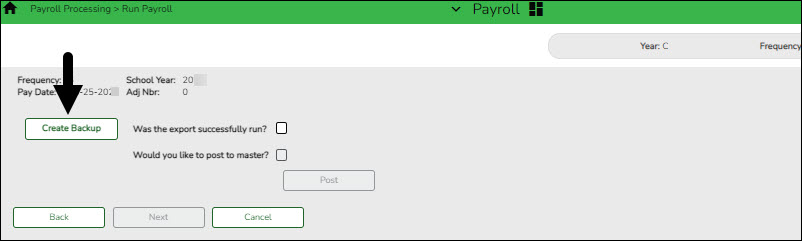
❏ Click Next to continue. Otherwise, click Back to go back to the previous page or click Cancel to exit the run payroll process. If you click Next, the create backup and post page is displayed.
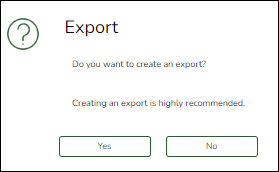
IMPORTANT: Do not skip this step. Click Create Backup. The export pay tables pop-up window opens allowing you to export the payroll tables.
- If you create an export when processing Regular or Supplemental payroll calculations, the data is exported to database tables, and the external .rsf file is no longer generated. As a result, the table names are no longer displayed during the export. Database tables can be imported using the Import HR Tables From Database Tables utility.
- If an export is run, it will overwrite the previous export database tables created for the pay frequency as only one set of payroll export database tables can exist per pay frequency.
- If you process payroll calculations for a check issue (adjustment cycle greater than zero), the external .rsf file is generated and the table names are displayed during the export.
- Click Yes to create the export. A progress message is displayed.
- Click No to create the export.
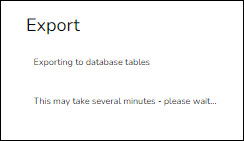
A message is displayed if the export was successful.
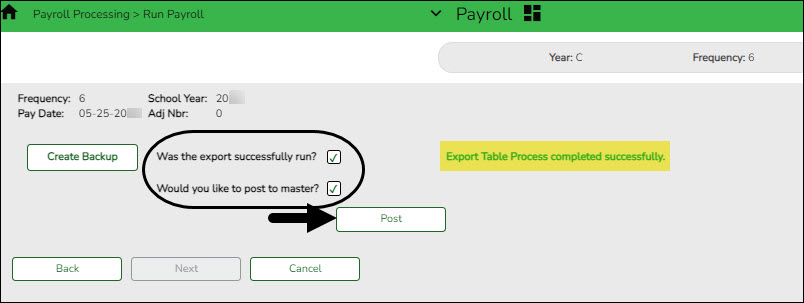
Was the export successfully run? Select if the export was successful. Would you like to post to master? This field is enabled. Select to post to the master. The Post button is enabled. ❏ Click Post! A message is displayed indicating that the posting was completed successfully. Click OK. The Post button is disabled and the Next button is enabled.
❏ Click Next to continue. If you click Next after running the payroll check process, print the Payroll Reports.
Under Payroll Reports:
❏ Select the Gen Rpt checkbox next to each report you want to generate or click Select ALL to select all reports. Review and print the reports as needed.
❏ On each report, under Sort Order, type the one-character letter that represents the sort option to be applied. Available sort options are listed under Sort Options. If the field is blank, no sort options are available.
❏ Click Generate Reports. The system displays the first report selected. Verify the report data is correct.
❏ Click Consolidate Rpts to combine the selected reports into one continuous report. This allows one PDF report to be created (instead of a PDF for each report).
❏ When all totals are verified, click Finish to close the Run Payroll page.
- Create EFT File.
Payroll > Payroll Processing > EFT Processing > Create EFT FileUse this tab to create an electronic fund transfer (EFT) file to process employee direct deposit.
Note: All fields on the Payroll > Tables > Bank Codes > EFT tab must be populated. Otherwise, the create EFT file process cannot be performed.
Field Description Payrun During a regular or supplemental payroll run, a check stub is produced for each employee participating in the direct deposit process if the Print Voided Checks field is selected on the Run Payroll page at the time payroll is processed. The actual check portion of the payroll check is voided. With the EFT payrun, the system creates the file as well as a direct deposit report indicating all of the information included on the EFT file for the employee.
The report also includes the total net pay and the total number of employees included in the report.❏ If Payrun is selected, the last four pay dates are displayed in the table. Select a payroll for the EFT file being created.
❏ Click Create EFT File. An Export dialog box is displayed.
❏ Under Save as type, select Text or CSV.
❏ Click Export to export the file. Otherwise, click Cancel to cancel the creation of the file and return to the Create EFT page. If you click Export, the following options are available:
- Click Open to open the file.
- Click Save to save the file. A Save As dialog box is displayed.
- In the Save in field, click to navigate to the appropriate folder.
- In the File name field, the file name is set to payeft_mmddyyyy.txt for a payrun file and prenote_mmddyyyy.txt for a prenote file. You can type a different name for the file.
- Click Save. Otherwise, click Cancel to close the Save As dialog box without saving the file.
- Click Cancel to not save the file and return to the Create EFT page.
If the EFT file was successful, a message indicating that the EFT file was created successfully is displayed.
If errors were encountered between voided and issued check amounts, an Error Listing Report is displayed.
Notes:
- The employee number or social security number will be included in EFT file based on the option selected in the Use Emp Nbr or SSN in EFT File field on the Payroll > Tables > District HR Options page.
- After a prenote EFT file has been created, the PreNote field is cleared on the Payroll > Maintenance > Staff Job/Pay Data > Pay Info tab.
- Create the Positive Pay File. (positive_MMDDYYY.txt)
- Create General Journal
Create general journal
Payroll > Payroll Processing > Interface Processing > Create General Journal
You must create the general journal before the payroll information can be posted to Finance. The general journal consists of all of the transactions that are posted to Finance.
The Create General Journal tab is a display-only grid of previous pay runs that have not been saved as pending or interfaced to Finance.
❏ Select the row(s) to create a general journal for the pay run.
❏ Click Create Gen Journal.
- A message may be displayed if all account amounts net to zero for the selected payroll and there are no accounts to process. You are prompted to set the interface flag.
- Click Yes. The interface flag is set to Y (meaning the payroll has been interfaced to Finance).
- Click No. The interface flag is not reset, and the entry will remain on this page.
- If any errors exist that are forcing entries to object code 3600 - undesignated fund balance, a message is displayed indicating that a report is being printed and that transactions with object code 3600 have been created. The report is sent directly to the printer and indicates the employees that could be causing the out of balance. Click OK to view the general journal report.
- If there are no errors, the General Journal, Funds Transfer Summary, and Auto JV Transaction Summary preview reports are displayed. Review the report.
- Click Save Pending. A message is displayed indicating that the general journal transactions were successfully saved as pending.
- Click Cancel to not save the transactions and return to the Create General Journal tab. The pay run that was being processed is shown in the grid.
- Click X to close the window.
If after restoring HR tables through the import process, payrolls that had been previously posted to Finance reappear on this page, click Reset Interface Flags. A message box is displayed with the message, “When the interface posting flags are reset, the payroll transactions cannot be interfaced to Finance,” and asks whether to reset the Interface Posting Flags.
- Click Yes. The interface flag is set to Y (meaning the payroll will no longer display on the page).
- Click No. The interface flag is not reset, nothing is changed, and the payroll will continue to display on the page.
- Interface General Journal to Finance
Interface general journal to Finance
Payroll > Payroll Processing > Interface Processing > Interface to Finance
The general journal must be created prior to interfacing to Finance. You must save the transactions as pending in order to interface the pay run transactions to the Finance files. This process is the actual interface between payroll processing and Finance.
The tab consists of a display-only grid of all the transactions that are in pending status.
❏ Select the pay run(s) that you want to interface to the Finance.
Field Description Post to Current Acct Period If selected and you click Interface, the following may occur:
If Finance end-of-month processing is being performed against any file ID, you may not post to either accounting period.
If the current and next accounting periods are the same, and the current accounting period is closed, a message is displayed indicating that the current accounting period XX is closed and that the next accounting period is set to XX. You are not allowed to post at this time. Click OK to return to the Interface to Finance tab.
If the current accounting period is closed, a message is displayed indicating that the current accounting period XX is closed. You are not allowed to post at this time. Click OK to return to the Interface to Finance tab. You can select the next accounting period for posting.
If the current accounting period is locked, a message is displayed indicating that the current accounting period XX is locked. You are not allowed to post at this time. Click OK to return to the Interface to Finance tab. You can select the next accounting period for posting.Post to Next Acct Period If selected and you click Interface, the following may occur:
If the current and next accounting periods are the same, a message is displayed indicating that the current accounting period XX is closed and that the next accounting period is also set to XX. You are not allowed to post at this time. Click OK to return to the Interface to Finance tab.❏ Click Preview. The General Journal, Funds Transfer Summary, and Auto JV Transaction Summary reports that were created on the Create General Journal tab are displayed. Review the report.
❏ Click Interface. A message is displayed indicating that the general journal transactions were successfully interfaced into Finance. Click OK.
Notes:
- You can verify that the interface to Finance was successful by running a general journal from Finance to compare to the general journal produced from Payroll.
- Verify that the interface flag is set to Y on the Pay Dates table. This indicates that the payroll has been run and interfaced to Finance.
- Process Supplemental P/R (if needed)
- Process Check Voids and/or Issues (if needed)
- Submit Payroll taxes
- Transfer Funds
(If applicable) Transfer funds to the payroll clearing bank account
Transfer money to the payroll clearing bank account at the bank using the Fund Transfer Summary. The transfer can be completed by submitting a Bank Transfer form, calling the bank to request a transfer(s), or via an electronic funds transfer.
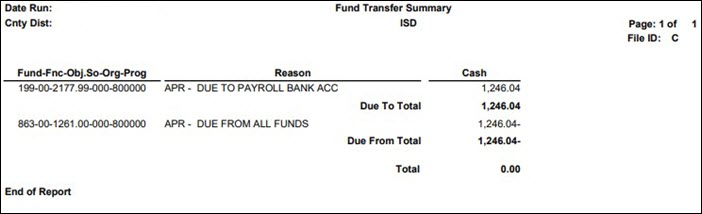
❏ If you already transferred TRS Active Care funds, be sure to subtract that amount.
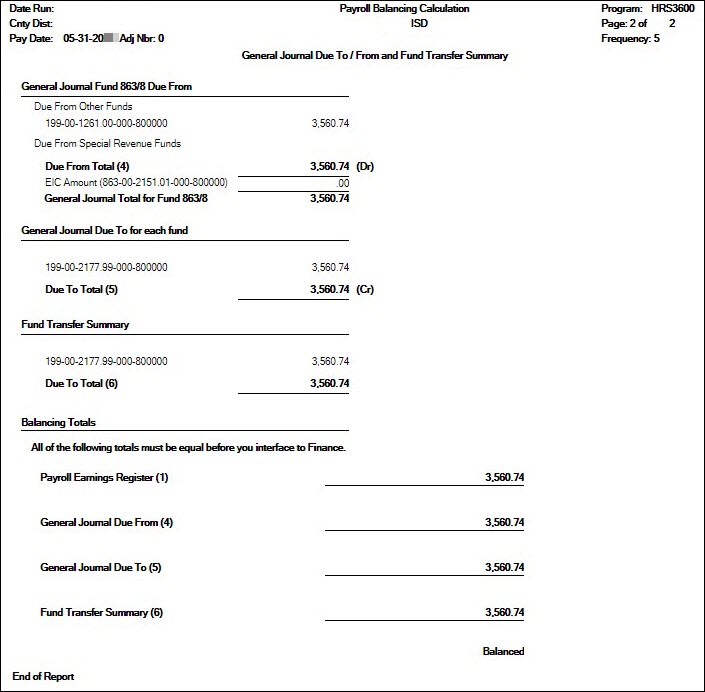
❏ If you already interfaced to Finance, use the Payroll Balancing Calculation Report as it may be difficult to regenerate the Fund Transfer Summary report.
- Create Deduction Checks
Process deduction checks
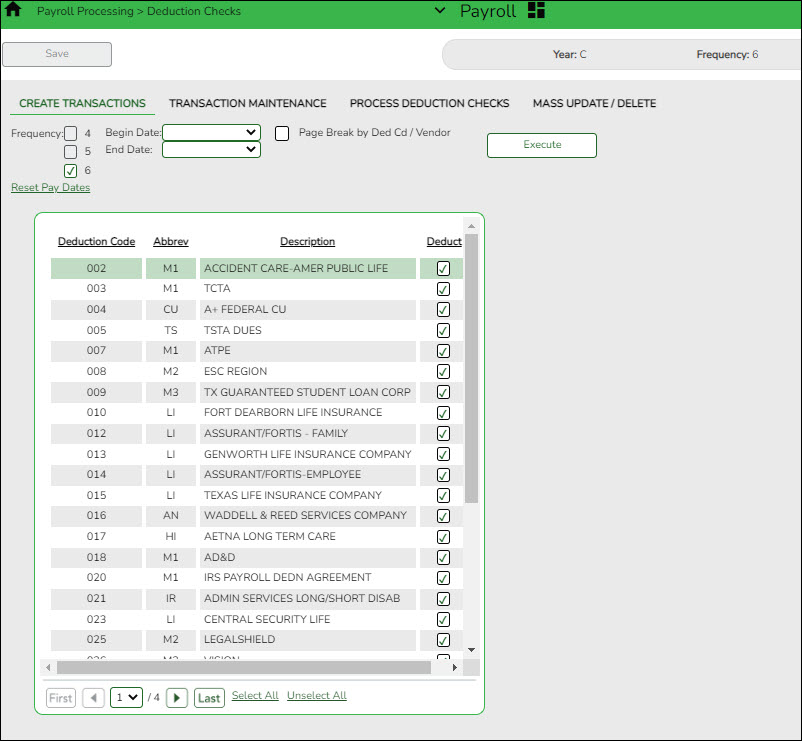
Use the following tabs to process deduction checks:
❏ Payroll > Payroll Processing > Deduction Checks > Create Transactions - This tab allows you to create the required deduction transactions. Before printing the deduction checks, use the Transaction Maintenance reports to verify that the amounts are correct.
❏ Payroll > Payroll Processing > Deduction Checks > Transaction Maintenance- This tab allows you to modify transactions before printing deduction checks and posting to the general ledger. Transactions grayed out on this tab have already had checks issued and cannot be modified.
❏ Payroll > Payroll Processing > Deduction Checks > Process Deduction Checks - This tab allows you to print the deduction checks and post the transactions to Finance.
- Perform Wire Transfers.
Perform wire transfers and post payments in ASCENDER
❏ Perform wire transfers to pay third parties (e.g., child support through Expert Pay).
❏ The payment can be posted via a transfer transaction, journal voucher (JV), or purchase authorization (PA). Use one of the following pages to post the payment in ASCENDER:
- Run the 941 Worksheet Report. |
Payroll > Reports > Quarterly/Annual Reports > HRS5000 - 941 WorksheetThe report lists information on checks that each employee received during the date range entered. The information is listed by employee name and includes the check number, check date, taxable gross, federal income tax, FICA gross, FICA withheld, Medicare gross, Medicare tax withheld, and earned income credit. The report is primarily used as a worksheet for preparing the quarterly 941 report. It only works if the LEA is maintaining year-to-date files, and it includes the pay history records that were created from the Calendar YTD maintenance tab.
If the calendar year is greater than 2013, the non-TRS nontax business allowance and non-TRS nontax non pay business allowance amounts are not included in the taxable gross calculations.
Note: taxable gross = withholding gross + non-TRS - nontax business allowances
You should run this report on a quarterly basis.
Quarter Month Due First March April Second June July Third September October Fourth December January - Run TWC Wage List |
Payroll > Reports > Quarterly/Annual Reports > HRS5050 - TWC Wage ListThe report is also known as the TWC Quarterly Report. The report lists each employee’s salary for the selected quarter. The report must be printed after the last payroll, and all adjustments are run for March, June, September, and December. Print the report for all pay periods at once or print the pay periods individually.
❏ Create and save the file in the Payroll Folder > TWC folder.
❏ Depending on your LEA, submit the file to TASB at https://www.tasb.org/apps/ucw/ucw_districtinput.cfm or TWC at https://apps.twc.state.tx.us/UITAXSERV/security/logon.do .
If applicable, run this report on a quarterly basis.
Quarter Month Due First March April 25 Second June July 25 Third September October 25 Fourth December January 25 - Run YTD Workers Comp Report
Payroll > Reports > Year To Date Reports > YTD Report Workers' CompensationThe report lists all employees with cumulative totals for the school year. The report includes cumulative totals for each individual rate as well as an overall total for all rates. Print the report after running payroll calculations and posting the payroll information to the master file to verify the workers’ compensation amounts for each employee, as well as for the district.
❏ Run the report in August for the “settle up” audit report, which requires actual payroll information for the year.
- Reconcile Payroll Clearing Liability Funds
Reconcile payroll clearing liability funds
Finance > Inquiry > General Ledger Inquiry > General Ledger Account Summary
Reconcile the payroll clearing liability accounts (e.g., 863 and 163 accounts) and verify that all liability account balances are zero. If the account balances are not zero, be sure that you can account for the remaining balances or make the necessary changes to clear the accounts.
❏ Enter account mask X63-XX-2XXX-XXX-XXXXXX.
❏ Print the information to verify that all liability account balances are zero or are accountable.
- Submit Staff Salary Data |
Payroll > Reports > TRS Reports > HRS4450 - FSP Staff Salary ReportRun the report and submit the staff salary data by logging onto the Foundation School Program using your TEAL logon. This data submission is required by the TEA.


ESC-11
- Process TRS Data and Submit TEAM
- Submit FSP counts to TEA (staff counts & health ins)
- Generate New Hire File (New_Hire_MMDDYYYY)
- Generate Quarterly Reports (when appropriate)
academy/business_overview_guide_run_payroll.1583526175.txt.gz · Last modified: 2020/03/06 15:22 (external edit)
Except where otherwise noted, content on this wiki is licensed under the following license: CC Attribution-Share Alike 4.0 International
Americans with Disabilities Act (ADA) and Web Accessibility
The Texas Computer Cooperative (TCC) is committed to making its websites accessible to all users. It is TCC policy to ensure that new and updated content complies with Web Content Accessibility Guidelines (WCAG) 2.0 Level AA. We welcome comments and suggestions to improve the accessibility of our websites. If the format of any material on our website interferes with your ability to access the information, use this form to leave a comment about the accessibility of our website.