
User Tools
Sidebar
academy:business_payroll_firstpayrollsy_julystarts
Book Creator
Add this page to your book
Add this page to your book
Book Creator
Remove this page from your book
Remove this page from your book
This is an old revision of the document!
ASCENDER - First Payroll of the School Year (July Start LEAs)

Created: 10/16/2023
Reviewed: 07/03/2025
Revised: 07/28/2025
CAUTION: Do not begin this process until the following processes are complete:
- If applicable or if your LEA processes monthly accruals, ensure that the End-of-Year (EOY) Accruals for June Year-End LEAs process is complete.
- Ensure that the Finance EOY Process is complete.
The purpose of this document is to guide you through the necessary steps to process the first payroll of the school year for July start LEAs. All steps in this guide are based on the First Payroll of the School Year (September Start LEAs) guide. This version has been specifically formatted for July Start LEAs.
Note: Certain steps in this guide must be reviewed again as each group of employees begins their new pay cycle (e.g., July, August, and September contract start dates).
In addition to the above processes, the following steps should be completed prior to continuing with this process.
- Update termination dates and reasons on the Personnel > Maintenance > Employment Info page for all employees who are no longer with the LEA.
- Verify that the budget is moved to Finance.
This document assumes you are familiar with the basic features of the ASCENDER Business system and have reviewed the ASCENDER Business Overview guide.
Some of the images and/or examples provided in this document are for informational purposes only and may not completely represent your LEA’s process.
Before You Begin
Terms:
| Term | Description |
|---|---|
| CYR payroll frequency | Current year payroll frequency |
| LEA (Local Education Agency) | Refers to the educational entity (e.g., charter, district, etc.). |
| Non-standard employee | An employee who receives their first paycheck in July or August should have the TRS Year selected on the Payroll > Maintenance > Staff Job/Pay Data > Job Info tab. |
| NYR payroll frequency | Next year payroll frequency |
Payroll/Personnel Verification Items:
Payroll/Personnel Verification Items
Review and address the applicable Payroll and Personnel items. These items should be reviewed and completed before each group of employees begins receiving their new pay for the new school year.
Run user-created reports to verify the following information.
Payroll
For payroll items, run the User-Created Report in Next Year Payroll.
Payroll > Maintenance > Staff Job/Pay Data > Pay Info
- Verify TRS eligibility using the View Employee Information webpage in the TRS RE Portal.
- Verify the employees who are coded Non-TRS eligible (should only be seasonal, subs, retirees, etc.)
- Reference the FICA/Medicare - Quick Reference chart to verify FICA eligibility for all employees coded Y, specifically substitutes who were hired as full-time employees (e.g., teacher). (only subs, seasonal, not students)
Payroll > Maintenance > Staff Job/Pay Data > Job Info
- Verify the Payoff Date for active employees reflect June, July, or August.
- Verify the contract Begin and End Dates are within the applicable school year.
- Verify the Number of Days Employed.
- Verify the Number of Months in the contract.
- Verify the Number of Payments and Number of Remaining Payments.
- Verify the State Min Days field for all employees including support staff. Select the number of days closest to their # of Days Employed.
- Verify salaries and State Minimum salary by either running a user-created report or the Payroll > Reports > Payroll Information Reports > HRS6400 - Salary Verification Report with Pay Type 1 selected.
Payroll > Maintenance > Staff Job/Pay Data > Distributions
- Verify that distributions are accurate and reflect the correct fiscal year.
- Verify salaries and distributions. Verify that Expense 373 is selected for all applicable employees.
- Verify that the applicable distributions have a federal Fund to Grant Code (240 may not have a grant code).
Payroll > Maintenance > Staff Job/Pay Data > Deductions
- Verify new deductions. Deduction Codes can either be manually entered or imported.
- Review all retiree records for applicable surcharges.
Payroll – General Reminders
- Verify unemployment. As a reminder, superintendent wages are subject to unemployment. Student workers are the only exempt exceptions.
- Verify next year payroll to budget.
- Use the August TRS Reporting Process guide to address TRS reporting for August.
- If applicable and not addressed in the August TRS Reporting Process, address August adjustment days.
- If an employee is no longer employed, ensure that appropriate end dates have been added to all applicable pages, including the contract End Date.
Personnel
Personnel > Maintenance > Staff Demo > Service Record
- Verify that service records were created and/or updated with leave for the latest completed school year.
Personnel > Maintenance > Employment Info
- Verify Employee Status (Employed or Not Employed). If the employee is no longer employed, the Termination Date must be populated. In addition, verify that an ED90 has been submitted for non-returning employees.
- If an employee is no longer employed, ensure that appropriate end dates have been added to applicable areas:
- Auxiliary Role ID
- Paraprofessional Certification
- Verify that the Original Employment Date or Latest Re-Employ Date fields are populated.
- Verify the Percent Day Employed (Did employees change from part-time/full-time?).
- Verify changes to the Employment Type, Retiree Employment Type, and/or Sub Type fields.
- Review all retiree records for applicable surcharges.
- Subs - Run a user-created report to verify the following information:
- TRS Position Cd
- Contract Begin Dt and Contract End Dt (First day when sub begins work for the school year through last day of school)
- FICA Eligible
- No TRS
- Retirees - Run a user-created report to verify the following information:
- Retiree Employment Type
- TRS Position Cd
- Contract Begin Dt and Contract End Dt (First day when retiree begins work for the school year through last day of school)
- FICA Eligible
- No TRS
- Ensure that applicable TSDS/PEIMS reporting areas are set up for applicable employees. All business-related data that is reported for Fall PEIMS is listed in the TSDS PEIMS Fall Submission Data for Business guide.
- Auxiliary Role ID
- Paraprofessional Certification
First Payroll of the School Year (July Start LEAs)
Reminder: The steps in this guide need to be addressed again in August for all employees with August contracts.
- Verify finance options.
Verify finance options
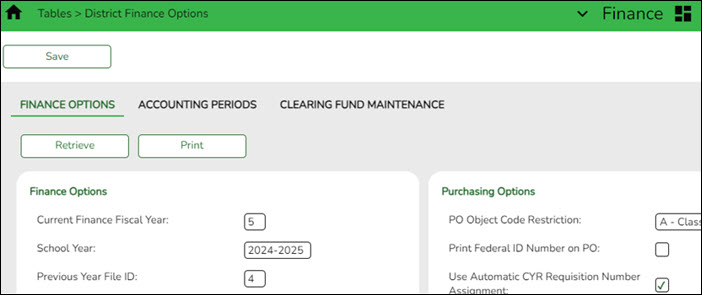
Finance > Tables > District Finance Options
Verify that the School Year field contains the new school year.
Note: If the new school year is not displayed, stop and complete the Finance End-of-Year Process first. Do not update the School Year field until the Finance End-of-Year (EOY) process is complete.
- Verify payroll frequency.
Verify payroll frequency
Each time you prepare to move a group of employees (July contracts, August contracts, and September contracts), be sure to start with this step to ensure you are starting in the correct frequency.
In Payroll, verify that you are in the next year frequency that is associated with your current year frequency. If not:
- Click Change.
- Select Next Year.
- Click Apply.

- Prepare NYR payroll for move to CYR.
Prepare NYR payroll for move to CYR
Complete this step only for employees with July contracts who receive their first paycheck in July. This process will be repeated in August for employees with August contracts who receive their first paycheck in August, and then in September for employees with September contracts who receive their first paycheck in September.
Payroll > Reports > User Created Reports
Generate a User Created Report (or another preferred payroll report) to:
- Verify that all employee data is correct prior to moving the next year payroll to the current year.
- Identify all employees with 11, 12, and/or 13 in the # of Months in Contract field on the Payroll > Maintenance > Staff Job/Pay Data > Job Info tab as these are the employees that will be moved. Before July payroll, the first group should be 12-month employees with July contracts, before August payroll, the second group should be 11-month employees with August contracts, and then before September payroll, it should be 10-month employees with September contracts.
Note: If changes are required, you can continue to update data when it is moved to the Current Year frequency.
- Verify payoff dates in the next year payroll frequency. You may use the above criteria to copy employee data from next year to current year.
- Verify that Distribution information has been updated for those employees being moved. It is important that only the specified groups are moved to the Current Year frequency at the appropriate times (July contracts before July payroll, August contracts before August payroll, and September contracts before the September payroll), as each group starts their pay in the new fiscal year.
Payroll > Reports > Payroll Information Reports > HRS6150 - Employee Payroll Listing
Generate the HRS6150 report to verify the pay status of applicable employees. Employees being moved must have an Active pay status. Ensure that any employees who should not be moved at this time are set to Inactive. For example, when moving the July contracts, you want the 11- and 10-month employees to be set to Inactive at that time. As you move each group, ensure all employees who do not need to be moved to the Current Year frequency are set to Inactive. The status is updated in the Payroll > Maintenance > Staff Job/Pay Data > Pay Info tab.
Print and/or save this report, then review it for accuracy.
Payroll > Maintenance > Staff Job/Pay Data > Pay Info
Use the Pay Info tab to inactivate an employee. Inactivate those employees who do not need to be moved such as employees whose contract days begin in July and/or August (11- and 12-month contracts) or “filler” employees who are used only for budget purposes (i.e., vacancies).
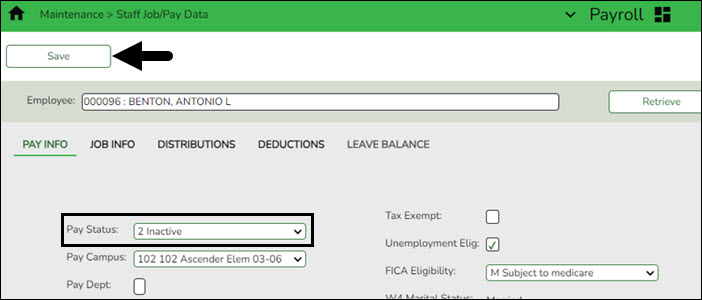
- Retrieve the employee.
- In the Pay Status field, select 2 Inactive.
- Click Save.
- Copy NYR tables to CYR.
Copy NYR tables to CYR
Do not copy all tables at this time. Review only for employees with July contracts who receive their first paycheck in July. Only copy tables that are applicable to the group of employees currently being moved. For example, when updating Current Year payroll information for the July employees, only move specific table information for July contracts. This process will be repeated in August for employees with August contracts and then in September for employees with September contracts.
Log on to the next year payroll frequency.
Payroll > Next Year > Copy NYR Tables to CYR
Copy the necessary school calendar information from Next Year to Current Year. The school calendars should be moved at the same time as a specific group of employees are moved from Next Year to Current Year. For example, if you are moving July contract employees to the current year payroll, only move workday/school calendars for July contract employees to current year payroll, etc.
CAUTION: Take caution when moving tables from the Next Year frequency to the Current Year. Keep in mind that selecting the main checkbox indicates that you want all tables selected for the move; however, you can select the ellipsis for each table and select more specific options.
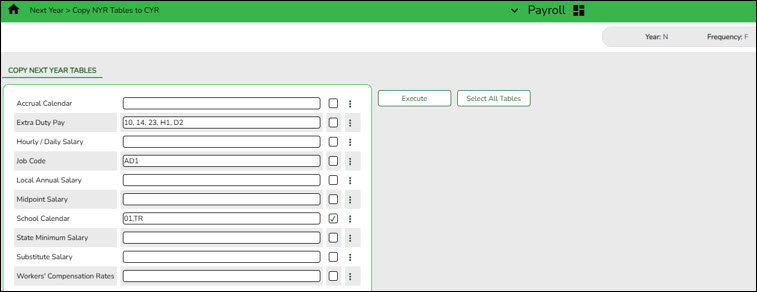
- Click Select All Tables to select all of the tables.
OR
- Select ❏ next to the table(s) you want to include.
- Select ❏ again to unselect a table.
❏ If you do not want to copy the entire table, but want to include specific data from a table, click
 to open a pop-up window containing the corresponding tables. Select the applicable tables and click OK to populate the selected tables in the applicable fields.
Note: If you receive a database access error referencing your Summer School Calendar, click OK. This error is generated when a Summer School Calendar exists in the current year payroll frequency but does not exist in the next year payroll frequency. Select the tables you previously selected again, but in this instance, select the individual School Calendars to be copied.
❏ Click Execute. Only the selected tables are processed. As the reports are generated, click Process for each table. Review the reports.
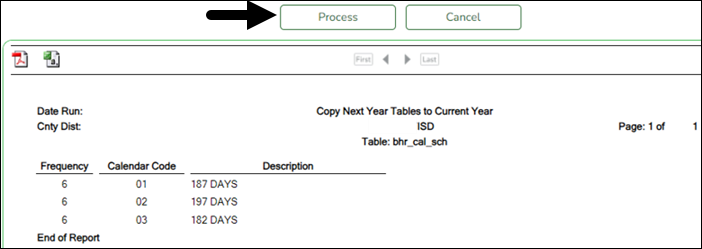
A message is displayed with the table names and the number of rows that were copied. Click OK.
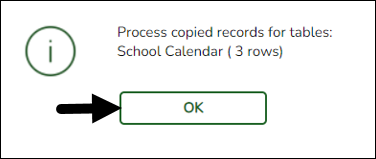
Review the process report to verify that all applicable calendars, extra duty pay, and job codes were copied to the current year payroll frequency. It is recommended that you log on to Personnel > Tables > Workday Calendars to verify this information. If the calendars were not copied over correctly, you may have to individually copy the calendars.
Note: When copying the school calendar table from next year to the current year, the calendar code, description, and days are copied. If a calendar code exists in the next year and current year, the next year data replaces the entire calendar contents for the current year for the specified calendar code.
- Copy active staff to the CYR.
Copy active staff to the CYR
Complete this step only for employees with July contracts who receive their first paycheck in July. Use the list of employees from the User Created report run on Step 3. This process will be repeated in August for employees with August contracts who receive their first paycheck in August, and then in September for employees with September contracts who receive their first paycheck in September.
Log on to the next year payroll frequency.
Payroll > Next Year > Copy NYR Staff to CYR
Copy active employees with July contracts to the current year. You can select specific employees to copy using the following parameters: Contract Months, Contract Begin Date, Contract End Date, Payoff Date, Extract ID, or Employee Number.
CAUTION: Use caution when moving employees from the Next Year frequency to Current Year. Be sure to use the applicable and specific parameters to only move employees that need to be moved at the time. Otherwise, Current Year data may be unintentionally overwritten for employees.
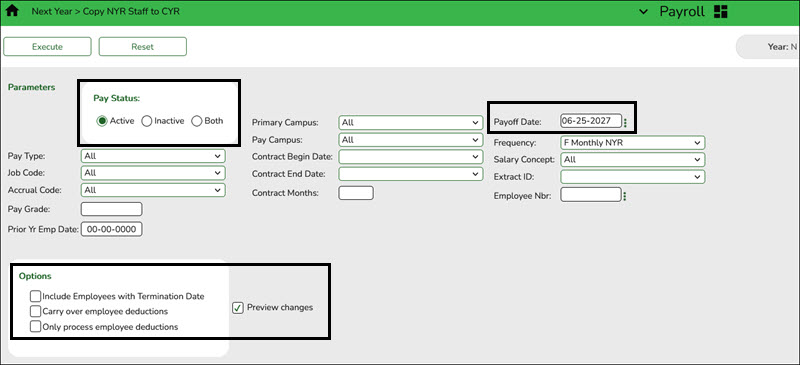
❏ Under Options, select the appropriate option:
Field Description Include Employees with Termination Date Select to copy employees with a termination date. Leave blank to exclude employees with termination dates from the current year records. Carry over employee deductions Select to copy employee payroll deductions (e.g., insurance, dues) from the next year to the current year. Leave blank to exclude the employee payroll deductions from the current year records. Only process employee deductions Select to copy only the selected employee deductions from the next year to the current year. If this field is selected, Carry over employee deductions is cleared (if selected). ❏ Select Preview Changes.
❏ Click Execute. Review the list and click Process.
- Change to the current year frequency.
Change to the current year frequency
In Payroll, change to the current year frequency that is associated with your next year frequency (i.e., F = 6).

- Click Change.
- Select Current Year.
- Select a pay frequency.
- Click Apply.
The following steps should be performed in the current year frequency unless otherwise noted.
- Update District HR options.
Update District HR options
Payroll > Tables > District HR Options
Update only the the Payroll Clearing Fund/Year field.
If your LEA has a separate payroll clearing fund, use 163/X or 863/X in the Payroll Clearing Fund/Year field. If your LEA does not use a separate payroll clearing fund, use 199/X in the Payroll Clearing Fund/Year field.
Reminders:
- The First Pay Date of the School Year field must reflect a September pay date for all LEAs, including those with a July start date. Do not change this date at this time as it will be updated in a later step.
- Do not update the School Year for PEIMS Codes field at this time. All LEAs, regardless of their start month, must wait until September to update this field.

Additional first pay date notes
Fiscal Year versus School Year
- If your fiscal year is July through June and all employees (including 10-month employees) are paid from August through July, those employees should all have TRS Year selected on the Payroll > Maintenance > Staff Job/Pay Data > Job Info tab.
- If the First Pay Date of School Year field has an August date, a new school YTD is created and updated with all pay and accrual amounts. The TRS YTD is updated in the old school year. For example, if the first pay date of the school year is August 25, 2025, pay and accruals are updated in the 2026 school YTD and the 2025 TRS YTD is updated. Note: If the First Pay Date of School Year field is set to a date prior to September, be sure to verify that your TRS rates correspond to the appropriate TRS reporting month.
- If the First Pay Date of School Year field is updated with a September date, the school YTD and TRS YTD are updated in the current school year and if accruing, a new school YTD is created and updated with those amounts. For example, if the first pay date of the school year is September 25, 2025, pay and TRS amounts are updated in the 2026 school YTD and the 2026 TRS YTD. If the employee accrues, a 2026 school YTD is also created.
❏ Click Save.
- Complete fund to grant information.
Complete fund to grant information
Log on to the current year payroll frequency.
Personnel > Tables > Salaries > Fund to Grant
IMPORTANT: All applicable federal grants must have a fund to grant code listed in the TRS Grant Cd field on this tab. If not, TRS federal grant care and TRS federal grant deposit amounts will not be calculated for that specific fund during payroll.
Verify that the applicable federal grant funds (200-300) have a two-digit TRS grant code. Update this table as needed.
Exception: If using the TRS Child Nutrition worksheet for TRS reporting, the child nutrition funds (240 and 242) should NOT have a fund to grant code assigned.
This generates salaries for the TRS 3 and TRS 489 reports.
In order for a fund to be displayed on this page, the fund must exist in an account code on the Finance Chart of Accounts. The codes are LEA-specific.

- Generate the Account Code Comparison report.
Generate the Account Code Comparison report
Complete this step only for employees with July contracts who receive their first paycheck in July. This process will be repeated in August for employees with August contracts who receive their first paycheck in August, and then in September for employees with September contracts who receive their first paycheck in September.
Payroll > Reports > Payroll Information Reports > HRS6000 - Account Code Comparison
Complete the applicable report parameters and generate the report. Print and/or save this report, then review it for accuracy. Verify for the applicable group of employees currently being moved from NY payroll to CY.
IMPORTANT: If a distribution (fund) for an employee was continued during the Finance EOY Process (keeping the same fiscal year – ex. 211/4 in 23-24 is 211/4 in 24-25), be sure that the distribution listed has the correct fiscal year. It is important to review/verify distribution information for all employees (especially the fiscal year) for July payroll.
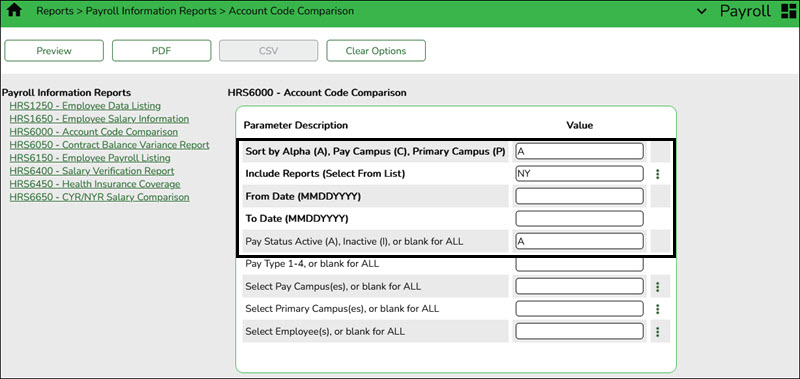
- Review the report and correct all of the errors.
- Verify that all employee master distribution records have matching accounts in Finance.
If there are account codes on the report that do not exist in Finance, perform one of the following steps:- If there are accounts that have a 6 for July and August start employees, perform a mass update of Payroll distributions. You can either mass update records by fund/year using the Payroll > Utilities > Mass Change Payroll Account Codes > Mask Crosswalk page OR mass update all records in the Current Year by using the Fiscal Year field on the Payroll > Utilities > Mass Update > Employee tab.
- Employees who are paid out of federal funds may need their distributions reviewed and changed for a different fund year, if necessary. For example, federal funds may still be available for the previous year.
- If your LEA accrues monthly, many employees might be paid from accrued funds for July and August. The Mass Update utility assists with updating the Distribution tab for all employees who are not paid from accruals.
- If there are other accounts that need to be added, add them on the Finance > Maintenance > Create Chart of Accounts page.
After all of the account codes are added, generate the Payroll > Reports > Payroll Information Reports > HRS6000 - Account Code Comparison report again.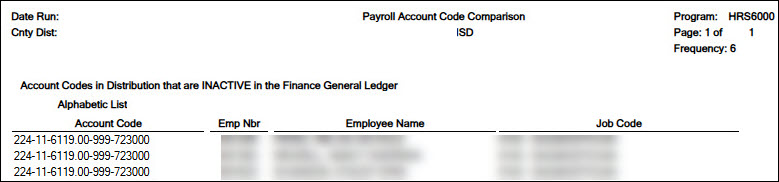
If all account codes exist, a blank report should be generated.

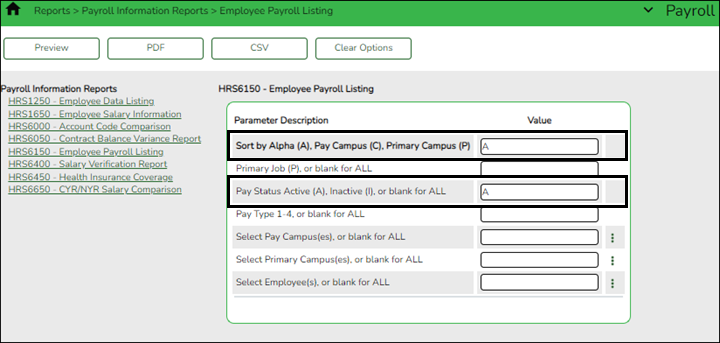
- Generate the Employee Payroll Listing report.
Generate the Employee Payroll Listing report
Complete this step only for employees with July contracts who receive their first paycheck in July. This process will be repeated in August for employees with August contracts who receive their first paycheck in August, and then in September for employees with September contracts who receive their first paycheck in September.
Payroll > Reports > Payroll Information Reports > HRS6150 - Employee Payroll Listing or a User Created Report
The report provides a single-spaced list of employees that includes the tax information, contract information, pay rates, and primary job account code. Print the report by employee name for the entire district or group the report by campus. Include all employees, those with an active status or inactive status. When primary job (P) is not selected, all jobs are displayed with one account per job with a total for all jobs displayed. The criteria for which account is chosen to display for a job are as follows:
- The account with the highest percent.
- If there is more than one account with the highest percent for a job, the lowest account is displayed.
Complete the applicable report parameters and generate the report. Print and/or save this report, then review it for accuracy. Review for employees with July contracts. Verify that all current employees are listed.
Verify that distribution information is updated for each applicable group of employees who are starting their pay in the new fiscal year when being moved from NY payroll to CY.
- Correct necessary payroll errors.
Correct necessary payroll errors
Complete this step only for employees with July contracts who receive their first paycheck in July. This process will be repeated in August for employees with August contracts who receive their first paycheck in August, and then in September for employees with September contracts who receive their first paycheck in September.
Payroll > Utilities > Pre-Edit Payroll Data
Correct the applicable payroll errors for the next upcoming pay date.
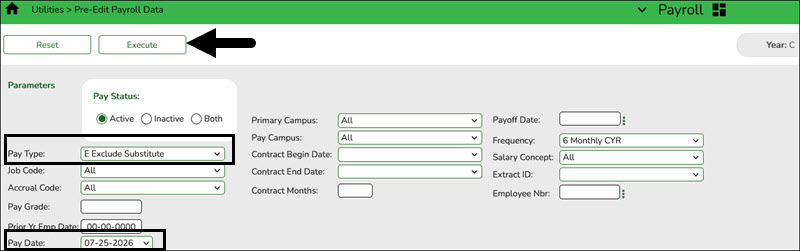
❏ Under Pay Status, select Active.
❏ In the Pay Type field, select E Exclude Substitute.
❏ In the Pay Date field, select the appropriate pay date. (LEA’s next upcoming pay date)
❏ Click Execute. Review the report.
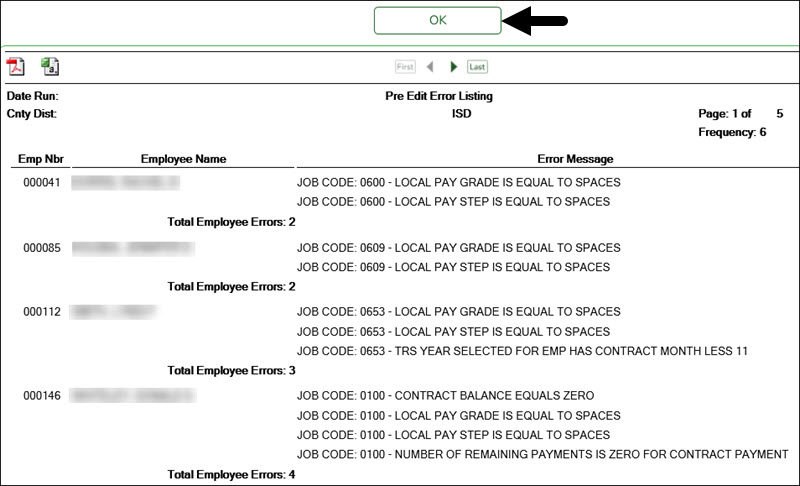
❏ Click OK. Keep in mind that the errors displayed on this report are not exactly the same as the errors received during the Run Payroll process. Be sure to review and correct errors as needed and repeat the process until all necessary errors are corrected. There is a possibility that not all errors require a correction.
- Address leave.
Address leave
If applicable at this time, complete this step only for employees with July contracts who receive their first paycheck in July. Follow your LEA's local policy guidelines to determine when to update leave balances for employees with July contracts as it may be updated later.
Depending on when leave is provided, this process may be repeated in August for employees with August contracts who receive their first paycheck in August, and then in September for employees with September contracts who receive their first paycheck in September.
❏ In the current year payroll frequency, generate the Payroll > Reports > Leave Information Reports > HRS7350 - Leave Status Report for active employees and exclude substitutes.Print and/or save this report, review it for accuracy, and retain it for your historical records.
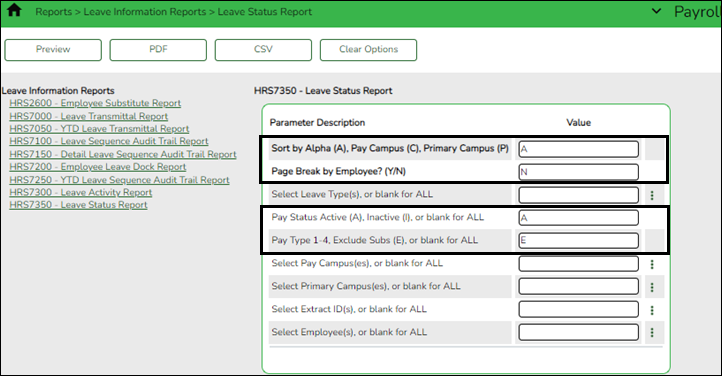
❏ Use the Payroll > Utilities > Mass Update > Leave tab to update employee master leave record balances. This is a three-step process.
Leave type codes are LEA-specific.
1. This step automatically adds leave types to active employees who do not have the leave type assigned on their leave balance record. This step must be completed before leave is mass incremented.
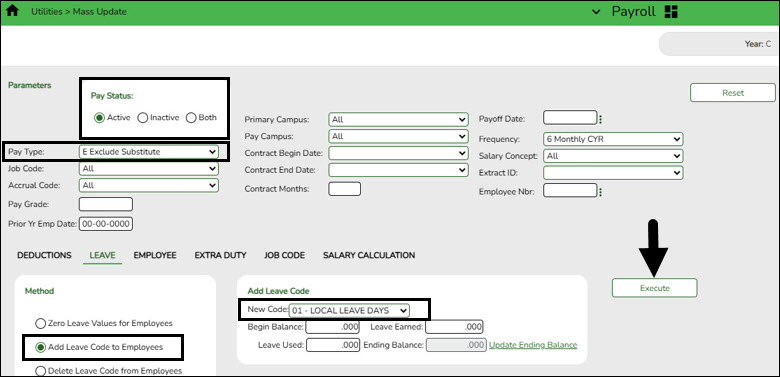
- Under Pay Status, select Active.
- In the Pay Type field, select E Exclude Substitute.
- Under Method, select Add Leave Code to Employees.
- In the New Code field, select the leave code.
- Do not add balances.
- Click Execute.
- Print and/or save this report, then review it for accuracy. The report only displays the employees who will have the leave code added.
- Repeat this step for each leave type to be added before it is incremented in Step 3.
2a. This step clears the Leave Used and Leave Earned fields and rolls the ending balances to the following year beginning balances:
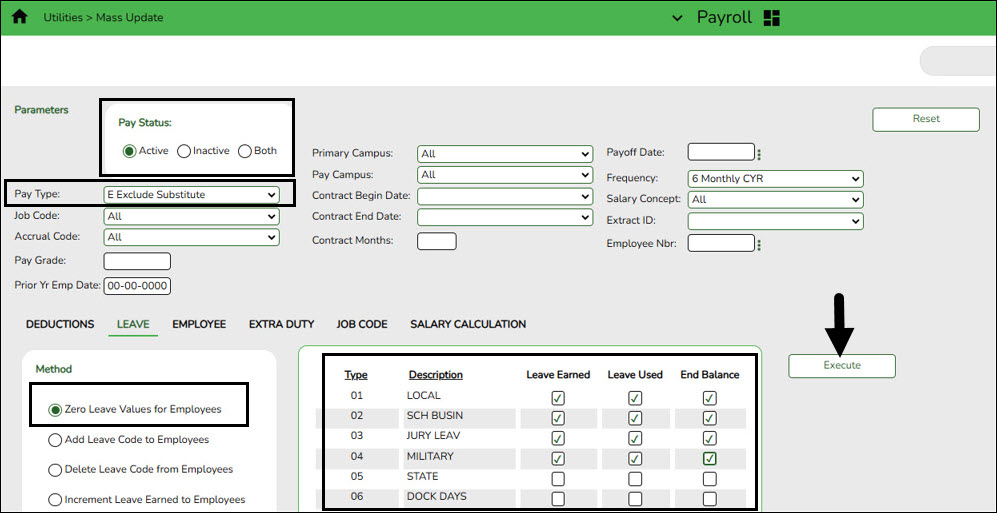
- Under Pay Status, select Active.
- In the Pay Type field, select E Exclude Substitute.
- Under Method, select Zero Leave Values for Employees.
- Under Leave Earned and Leave Used, select all leave types to be set to zero for the new school year. Be sure to process both options at the same time to prevent inaccurate balances.
- Do not select End Balance unless you want to set the balance to zero for that specific leave type. If this field is not selected, the 2025-2026 ending balances are rolled to the beginning balance fields for the 2026-2027 school year.
- Click Execute.
- Print and/or save this report, then review it for accuracy.
2b. You may have leave codes for which you want to zero the end-of-year balance. For example, Jury Duty, School Business, etc.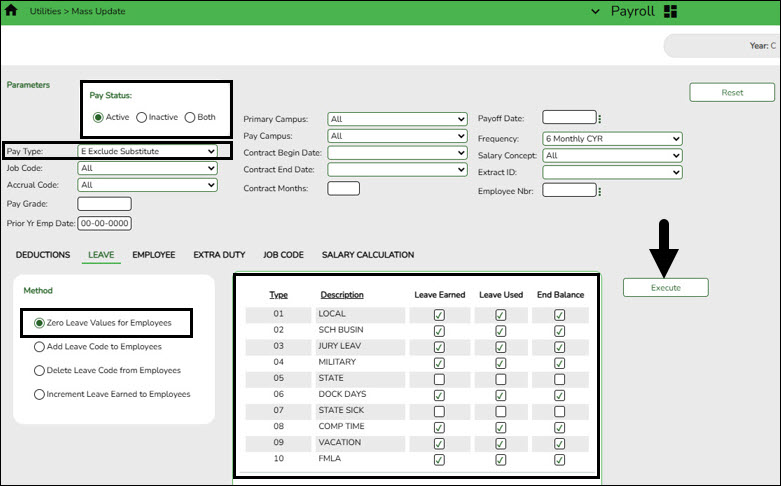
- Under Pay Status, select Active.
- In the Pay Type field, select E Exclude Substitute.
- Under Method, select Zero Leave Values for Employees.
- Select Leave Earned, Leave Used, and End Balance for all leave types you want to zero out completely and not carry forward ending balances.
- Click Execute.
- Print and/or save this report, then review it for accuracy.
- If the report is accurate, click Process to complete the changes.
3. This step increments leave earned to employees:
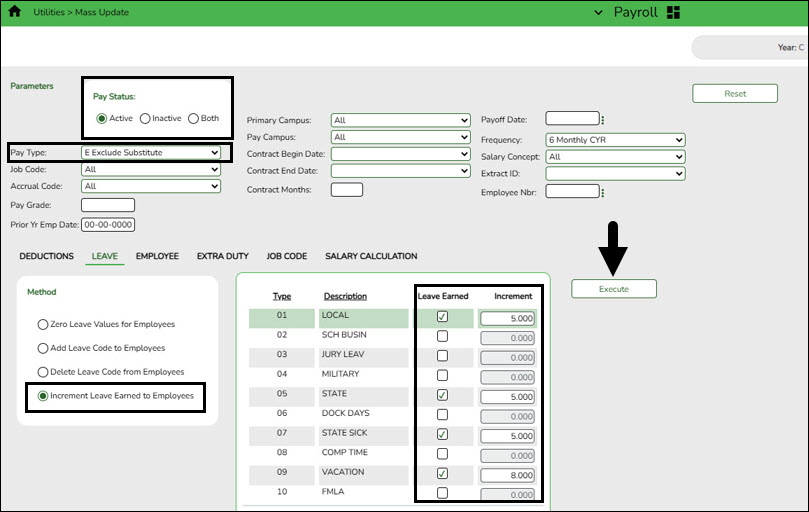
Note: If you have a maximum balance designated on the leave type table, this step will not allow the leave balance to exceed the maximum number set on the leave type table.
- Under Pay Status, select Active.
- In the Pay Type field, select E Exclude Substitute.
- Under Method, select Increment Leave Earned to Employees.
- Select Leave Earned for the applicable leave types (as defined in your local policy).
- In the Increment field, enter the number of days to increment.
- Click Execute.
- Print and/or save this report, then review it for accuracy. The report includes a list of those employees who have reached a maximum of any leave type.
- If the report is accurate, click Continue.
- The second report displays the newly incremented leave earned and the new ending balances. Click Process.
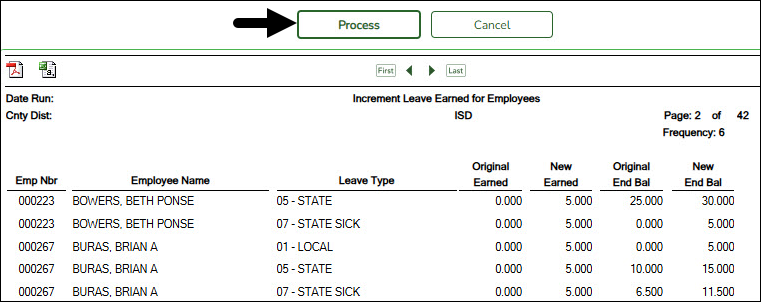
For new employees, leave balances must be individually updated from their service record information on the Payroll > Maintenance > Staff Job/Pay Data > Leave Balance tab.❏ Use the Payroll > Reports > Leave Information Reports > HRS7350 - Leave Status Report to verify the accuracy of the leave information. Print and/or save this report, then review it for accuracy.
If necessary, use the Payroll > Maintenance > Staff Job/Pay Data > Leave Balance tab to make changes to individual employees who are working less than the full school year or less than 100% percent of the day.
- (If applicable) Verify the accrual expense table.
(If applicable) Verify the accrual expense table
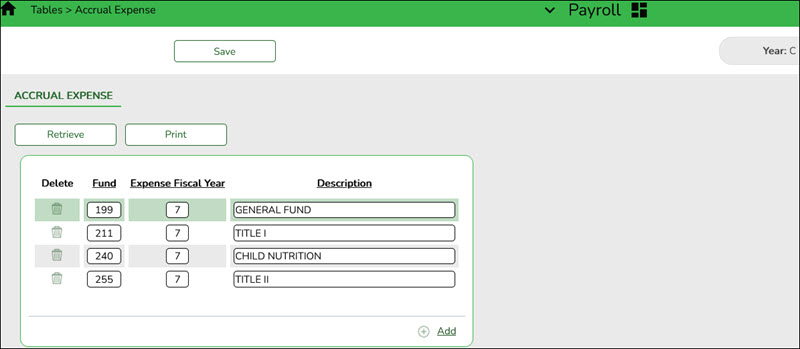
Payroll > Tables > Accrual Expense
If your LEA accrues monthly, verify the accrual expense table and update the fund/fiscal year to reflect the fiscal year for the new school year (e.g., 199/X and 211/X).
Be sure to include all funds with payroll expenses. Also, add new fund codes if necessary.
- Generate the Contract Balance Variance Report.
Generate the Contract Balance Variance Report
Complete this step only for employees with July contracts who receive their first paycheck in July. This process will be repeated in August for employees with August contracts who receive their first paycheck in August, and then in September for employees with September contracts who receive their first paycheck in September.
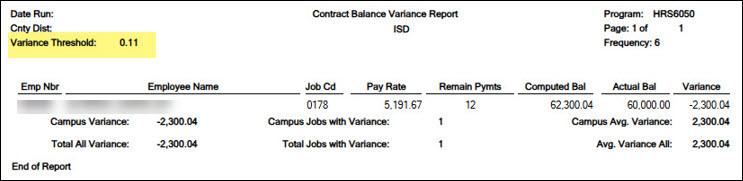
Payroll > Reports > Payroll Information Reports > HRS6050 - Contract Balance Variance Report
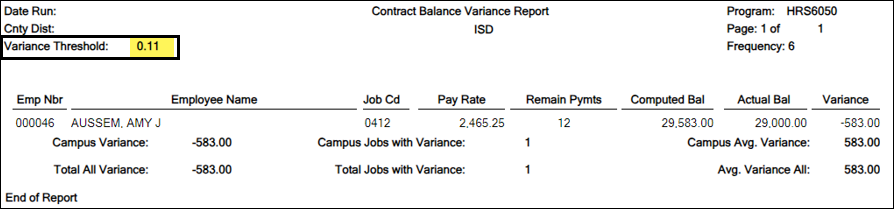
Complete the applicable report parameters and generate the report. Print and/or save this report, then review it for accuracy. This report should have been reviewed during the Finance EOY Process, ensure that the information is accurate at this time.
IMPORTANT: Verify the accuracy of payroll over the course of the school year. Based on your LEA's pay frequency, investigate the maximum acceptable differences and correct them if needed.
Use the following variance thresholds accordingly:
Pay Frequency # of Pymts Maximum Acceptable Difference Monthly 12 .11 Semi-monthly 24 .23 Bi-weekly 26 .25 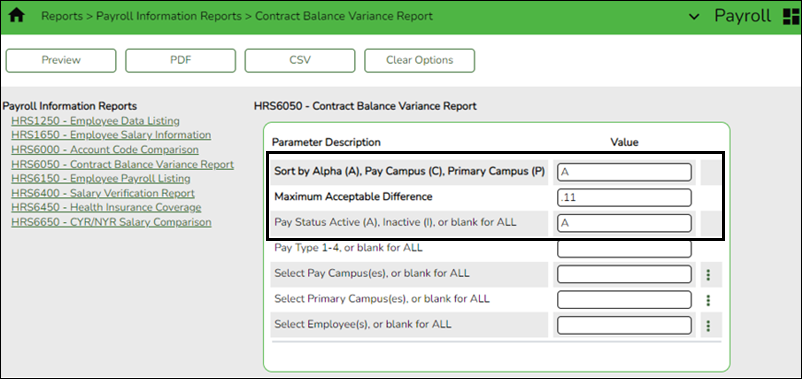
- Generate the Employee Verification report.
Generate the Employee Verification report
Complete this step only for employees with July contracts who receive their first paycheck in July. This process will be repeated in August for employees with August contracts who receive their first paycheck in August, and then in September for employees with September contracts who receive their first paycheck in September.
Personnel > Reports > Personnel Reports > HRS1100 - Employee Verification Report OR Payroll > Reports > Personnel Reports > HRS1100 - Employee Verification Report
Run the report with the Pay Status Active (A), Inactive (I), or blank for ALL parameter set to A - Print active employees only and the Pay Type 1-4, Exclude Subs (E), or blank for ALL parameter set to E - Exclude substitute employees from the report. Verify for the applicable group of employees currently being moved from NY payroll to CY.
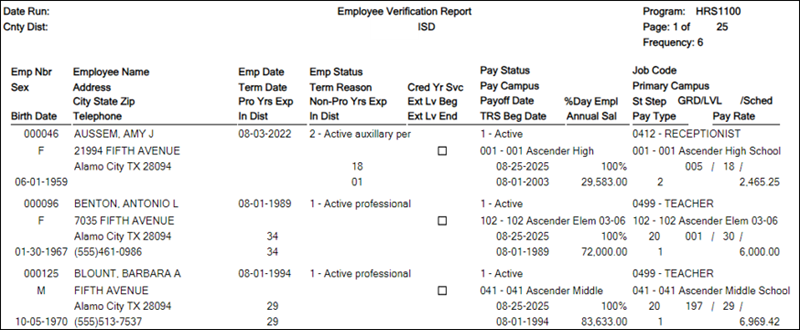
Print and/or save this report, then review it for accuracy.
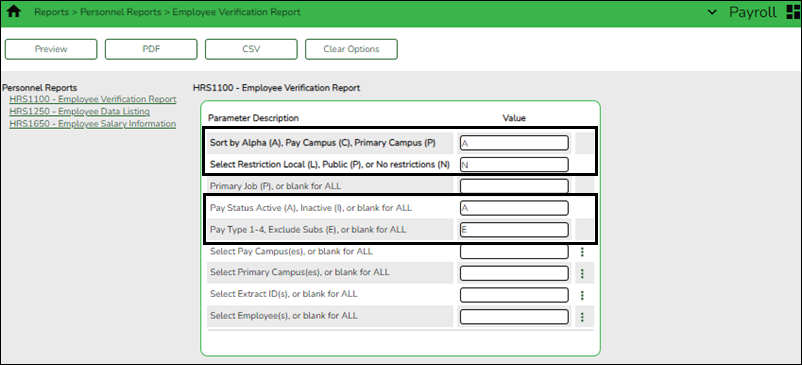
Verify that the employee information (e.g., years of experience) is correct to start the new school year. If individual corrections are needed, use the Personnel > Maintenance > Employment Info tab to update the employee's record.
- Generate the Employee Salary Information report.
Generate the Employee Salary Information report
Complete this step only for employees with July contracts who receive their first paycheck in July. This process will be repeated in August for employees with August contracts who receive their first paycheck in August, and then in September for employees with September contracts who receive their first paycheck in September.
Payroll > Reports > Payroll Information Reports > HRS1650 - Employee Salary Information
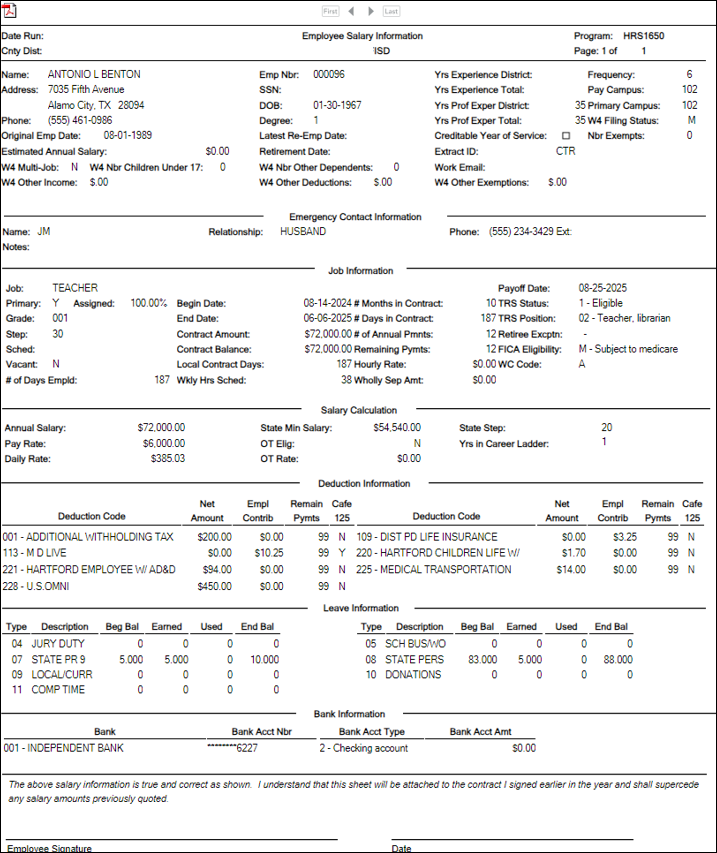
Complete the applicable report parameters and generate the report. Print and/or save this report, then review it for accuracy. Verify for the applicable group of employees currently being moved from NY payroll to CY.
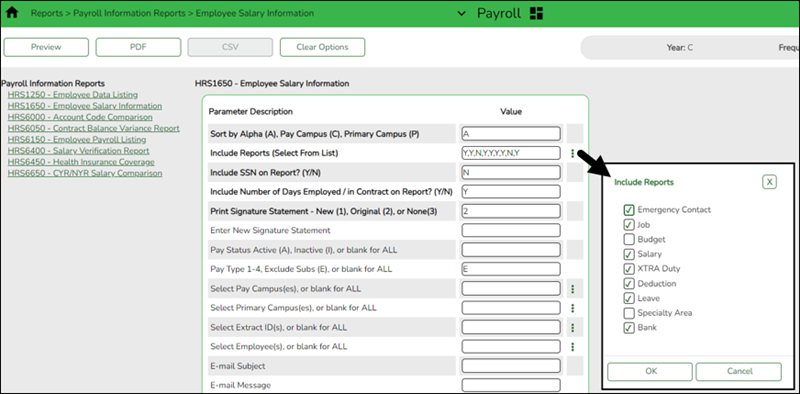
Print the report for employee verification. If needed, print an Addendum from the Payroll > Utilities > Payroll Simulation page.
- Calculate a sample payroll.
Calculate a sample payroll
Complete this step only for employees with July contracts who receive their first paycheck in July. This process will be repeated in August for employees with August contracts who receive their first paycheck in August, and then in September for employees with September contracts who receive their first paycheck in September.
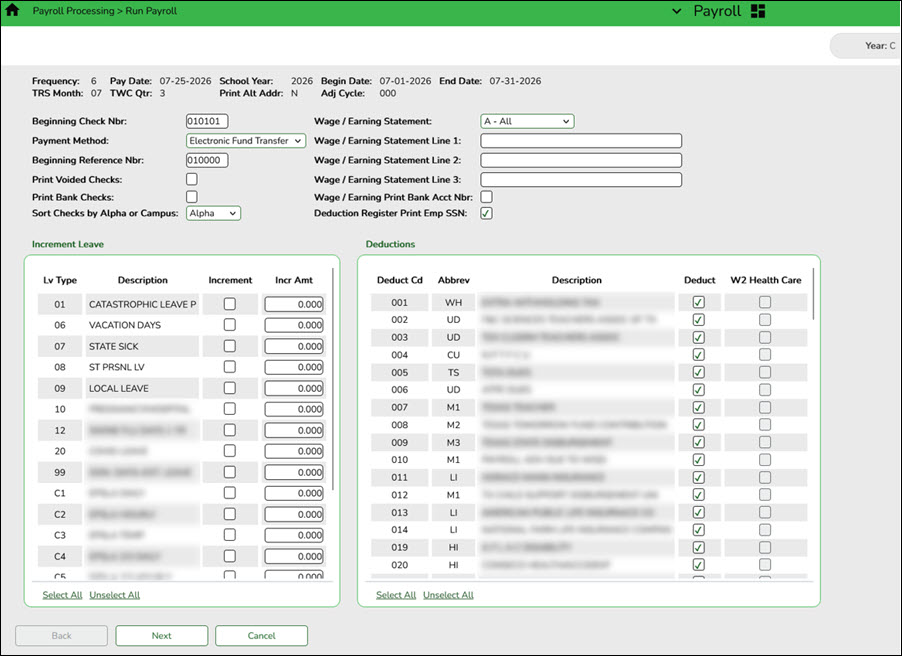
Payroll > Payroll Processing > Run Payroll
Calculate a sample payroll to identify any errors that need to be corrected prior to processing the first payroll in July.
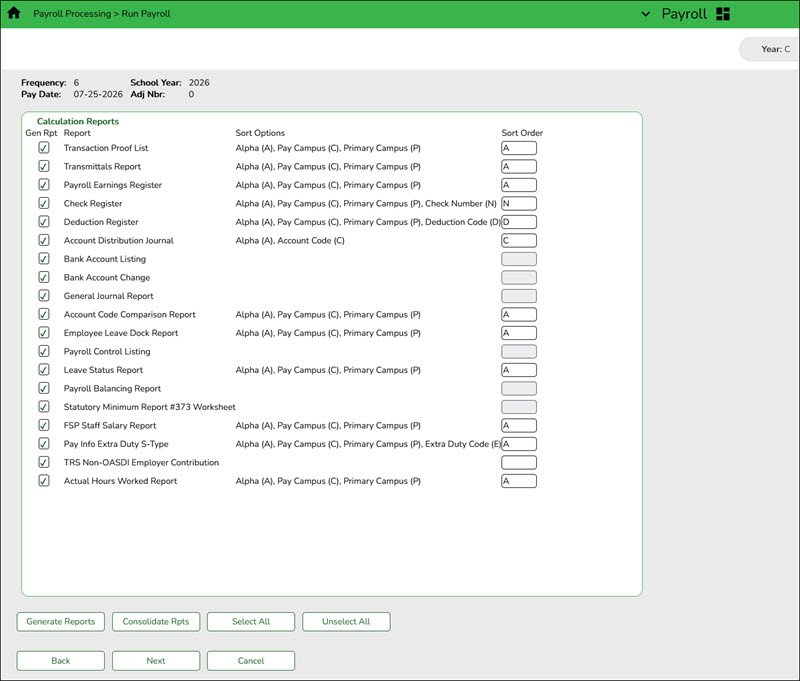
Review the selected Calculation Reports to verify the accuracy of data for the new year.
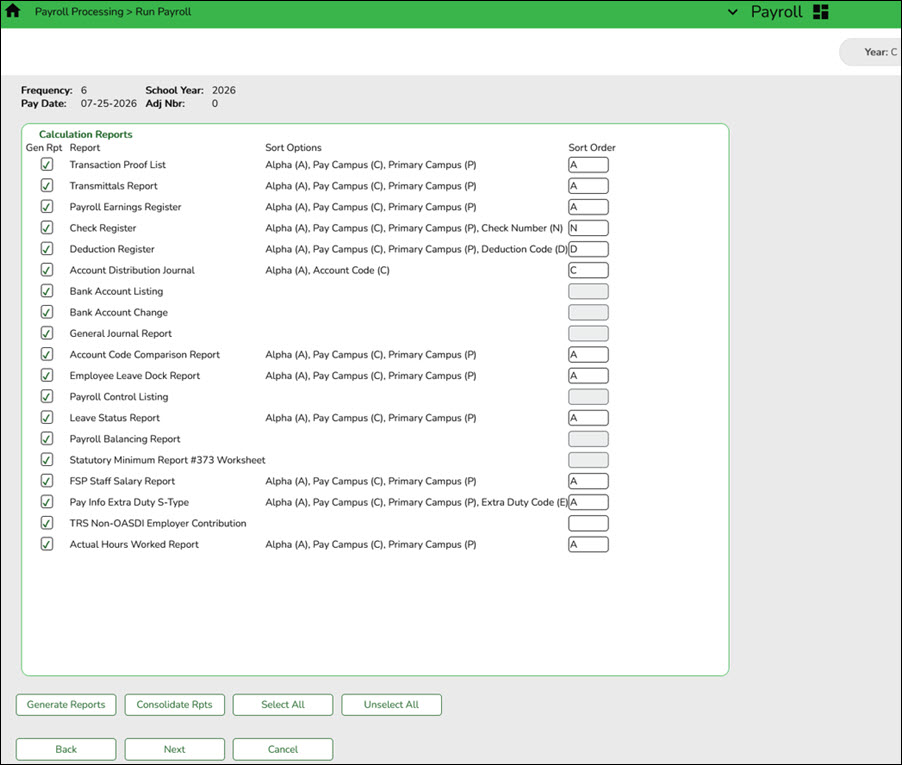
Review the following pre-post reports from the Run Payroll process prior to running your actual payroll (important for July, August, and September):
- Personnel > Reports > Personnel Reports > HRS1000 - Roster of Personnel: Review and save for the auditors.
- Payroll > Reports > Payroll Reports > HRS2400 - Bank Account Listing: Review for accuracy.


Address the following steps when preparing for the September payroll. Review Steps 2-6, 9-12, and 14-17 in the first section of this guide before continuing to the following steps.
- Update District HR options.
Update District HR options
Payroll > Tables > District HR Options
Verify that the following fields are updated. These fields may already be updated.
- If your LEA has a separate payroll clearing fund, use 163/X or 863/X in the Payroll Clearing Fund/Year field. If your LEA does not use a separate payroll clearing fund, use 199/X in the Payroll Clearing Fund/Year field.
- The School Year for PEIMS Codes field should be set to 2027.
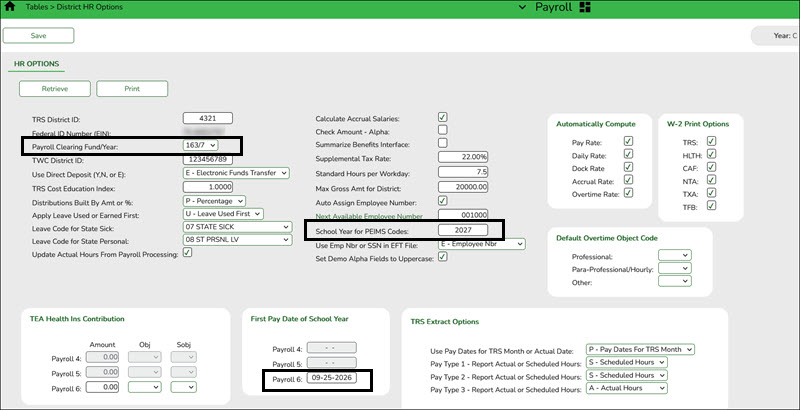
CAUTION: No payrolls should be processed for the new (upcoming) school year prior to the First Pay Date of the School Year.
❏ Under First Pay Date of School Year:
- Update the first pay date of the new school year for each payroll frequency. The date(s) must match the first payroll date(s) indicated on the pay dates table.
- In the Payroll 4, 5, 6 fields, enter the first pay date for each of the three pay frequency fields in the MM-DD-YYYY format. Once the pay date is entered, it should not be changed until the next school year. The entered date should represent a payroll that will actually be processed, supplemental or regular. If a date is entered and no payroll is actually posted using that date, the system will have difficulty identifying when the new school year began. This could affect how data is handled in the new school year.
Additional first pay date notes
Fiscal Year versus School Year
- If your fiscal year is July through June and 10-month employees are paid from September through August, this date should be September.
- If your fiscal year is July through June and all employees (including 10-month employees) are paid from August through July, those employees should all have TRS Year selected on the Payroll > Maintenance > Staff Job/Pay Data > Job Info tab.
- If the First Pay Date of School Year field has an August date, a new school YTD is created and updated with all pay and accrual amounts. The TRS YTD is updated in the old school year. For example, if the first pay date of the school year is August 25, 2026, pay and accruals are updated in the 2027 school YTD and the 2026 TRS YTD is updated. Note: If the First Pay Date of School Year field is set to a date prior to September, be sure to verify that your TRS rates correspond to the appropriate TRS reporting month.
- If the First Pay Date of School Year field is updated with a September date, the school YTD and TRS YTD are updated in the current school year and if accruing, a new school YTD is created and updated with those amounts. For example, if the first pay date of the school year is September 25, 2026, pay and TRS amounts are updated in the 2027 school YTD and the 2027 TRS YTD. If the employee accrues, a 2027 school YTD is also created.
- If your fiscal year is September through August and the 10-month employees are paid from September through August, this date should be September.
- If end-of-year payroll accruals are performed for August days worked and the first paycheck is in September, the first pay date should be September.
- All non-standard employees (those employees who receive their first check in July or August) should have TRS Year selected on the Payroll > Maintenance > Staff Job/Pay Data > Job Info tab.
This first pay date of the school year is used to determine:- The school year to be used for the school YTD records for regular and non-standard employees. If the employee is a non-standard employee (TRS Year is selected), and the contract begin date is greater than this date, then the payroll calculation stores the accrual amounts in the next year school YTD record.
- The school year that should be used for the TRS rates and employee TRS record.
- The pay history records that should be used for accruals.
- The leave transmittals that should be accumulated to determine if the leave duration has been met for the school year.
Notes:
If the LEA does not use one of the pay frequencies, access to that field is not allowed. If a user does not have security access to a pay frequency, access to that field is not allowed.
When the first pay date of the school year is changed, if any message displayed includes information about contacting your regional consultant, there are processed pay dates where amounts need to be moved from one school year to another. If these amounts are not moved, it can adversely affect school YTD historical amounts, TRS historical amounts, and reporting, workers’ compensation historical amounts and reporting, and payroll accrual calculations. Do not proceed without addressing this issue.
❏ Click Save.
- Enter school year pay dates.
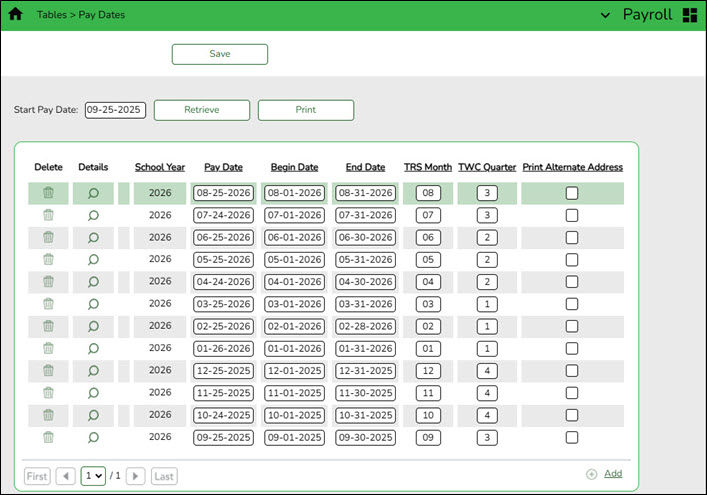
Enter school year pay dates
Enter pay dates for the new school year and click Save.
- (If applicable) Complete the accrual calendar.
(If applicable) Complete the accrual calendar
Log on to the current year pay frequency.
Payroll > Tables > Accrual Calendars > Accrual Calendar
❏ Enter the new pay dates and accrual days for all applicable accrual codes. The total number of days should equal the number of days employed for that group of employees.
If your LEA accrues, verify that the accrual calendar pay dates match the pay dates on your pay dates table.
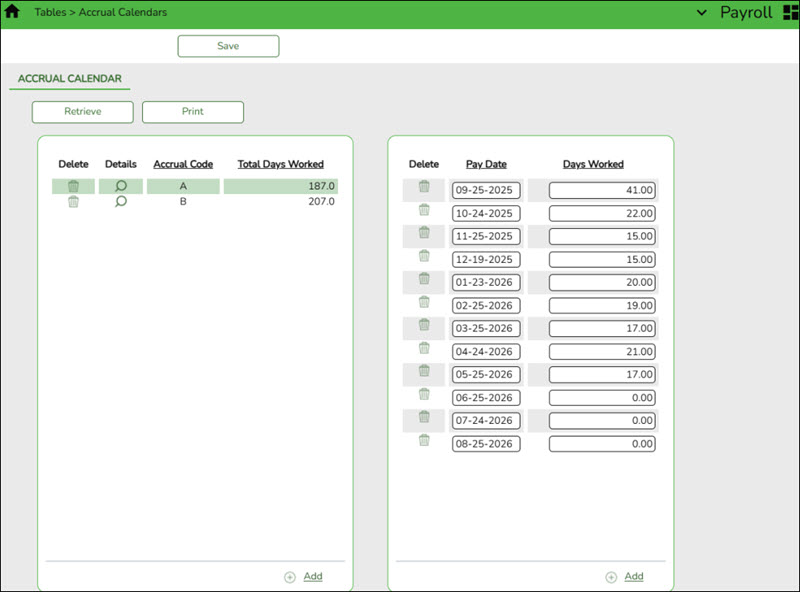
- Continue adding pay dates and days worked for the remainder of the school year. The dates must equal the dates in your pay dates table. All pay dates should be entered even if zero days are accrued for that month. This information is LEA-specific.
Note: For a standard 187-day calendar in a monthly pay frequency, there should be 13 entries including the date for the August Accrual process and the 12 pay dates including the months that may have zero workdays.
- Verify/update TRS rates.
Verify/update next year TRS rates
Log on to the CYR payroll frequency.
Payroll > Tables > Tax/Deductions > TRS Rates
Update the TRS rates.
CAUTION: Be sure to retrieve the 2027 school year data prior to updating this tab.
IMPORTANT: Be sure to visit the TRS website: https://www.trs.texas.gov/Pages/re_contribution_rates.aspx to obtain the updated rates for the next school year, and then return to this table to update the new rates.
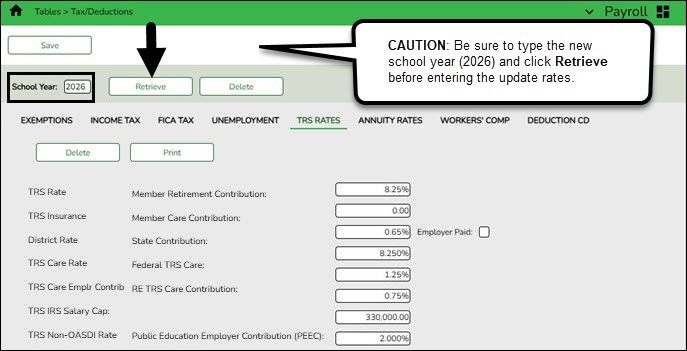
To create a new TRS rates record:
- Type the new year (2027) and click Retrieve. A message is displayed indicating that the new record is populated based on the prior year's (2026) TRS rates record.
- Complete the applicable fields.
- Click Save.
- Verify/update Unemployment rates.
Verify/update Unemployment rates
Log on to the current year pay frequency.
Payroll > Tables > Tax/Deductions > Unemployment
Notes:
- Unemployment rates vary by LEA.
- The information in this table is obtained from the Texas Workforce Commission or the LEA's unemployment insurance carrier.
- Unemployment rates are based on the calendar year and not the fiscal year.
Verify that you are in the correct calendar year. If not, in the Calendar Year field, type 2027 and click Retrieve.
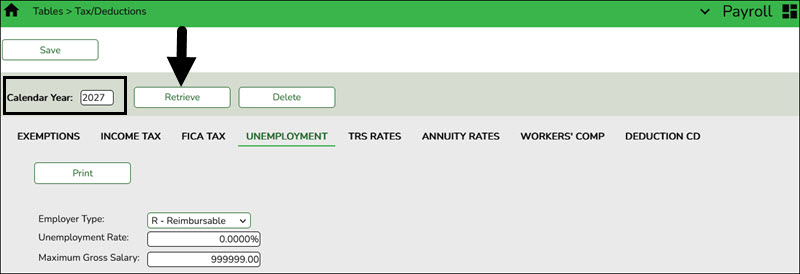
- Verify the accuracy of the rates.
- Make the necessary updates and click Save.
- Verify/update Workers' Compensation rates.
Verify/update Workers' Compensation rates
Payroll > Tables > Tax/Deductions > Workers’ Compensation
Verify that the workers' compensation rates are accurate for the new school year. If not, update the rates.
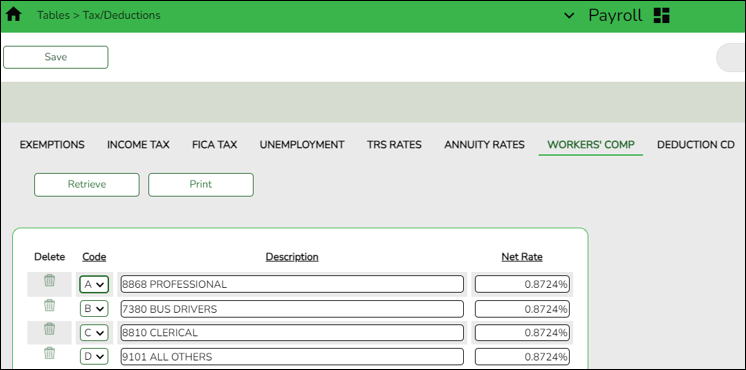
For example, if the Workers' Compensation letter provides a rate of .001792, move the decimal two places to the right and enter that number in the Net Rate field.
Codes, descriptions, and rates vary by LEA.
Note: The number of months in the contract should correlate with the number of workers' compensation payments. For example, if the employee has a 10-month contract, then the employee will have ten workers' compensation payments for the year.
Use the User Created Reports to verify the number of Workers' Compensation remaining payments.
If the report displays an incorrect number of remaining payments, use the Payroll > Utilities > Mass Update > Employee tab to reset the number of remaining payments.
- Recalculate the state minimum salary.
Recalculate the state minimum salary
Log on to the current year pay frequency.
Note: For Districts of Innovation, the statutory minimum days should reflect 187 days. The statutory minimum days should not be less than 187 (e.g., 177, 182, etc.). You can use the Mass Update utility to change the number of days to 187 and calculate the state min salary. Then, use the Mass Update utility to replace the accurate number of days.
If your LEA is a District of Innovation or operates on a non-standard (4-day) workweek, contact your regional ESC consultant for additional assistance, as extra steps are required.
Payroll > Utilities > Mass Update > Salary Calculation
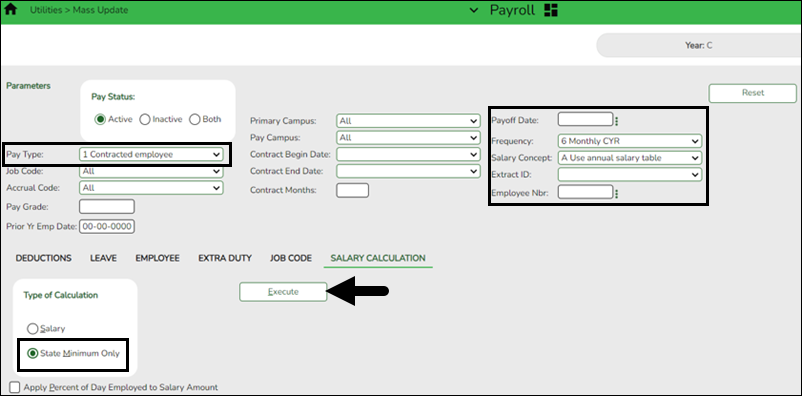
❏ In the Pay Type field, select 1 Contracted employee.
❏ Under Type of Calculation, select State Minimum Only to recalculate the state minimum salary for the new school year.
❏ In the Salary Concept field, select A Use annual salary table.
❏ Click Execute.
- (If applicable) Update substitute information.
(If applicable) Update substitute information
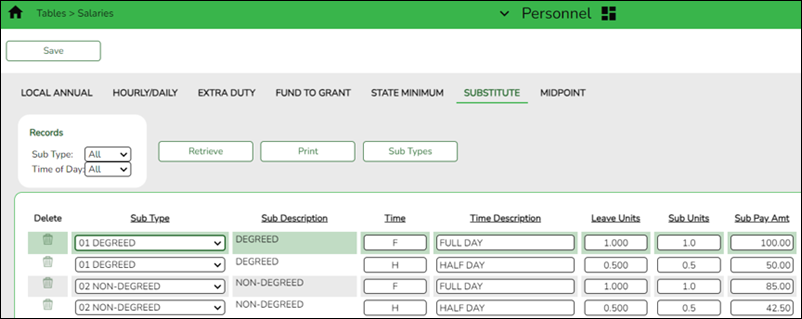
Update the substitute information on the Personnel > Tables > Salaries > Substitute tab.
- Review data for September employees.
Review data for September employees
Log on to the CYR payroll frequency.
Verify that all applicable data has been updated for all employees with a September contract. Refer to the Before You Begin section of this guide to review the Payroll Verification Items.
Generate the following Payroll Reports to thoroughly review data prior to running the September payroll:
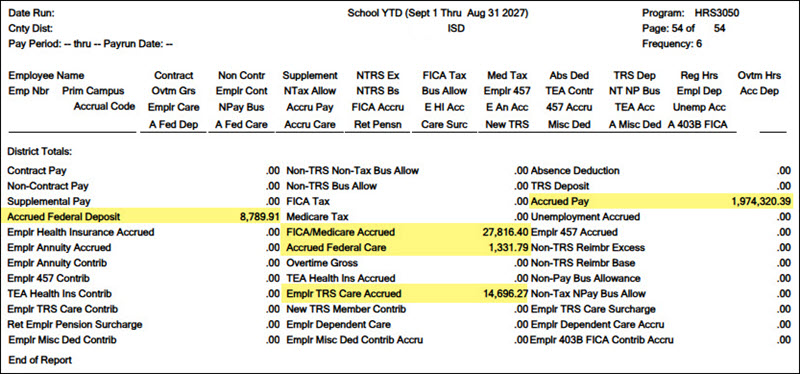
Payroll > Reports > Year to Date Reports > HRS3050 - School Year To Date Report
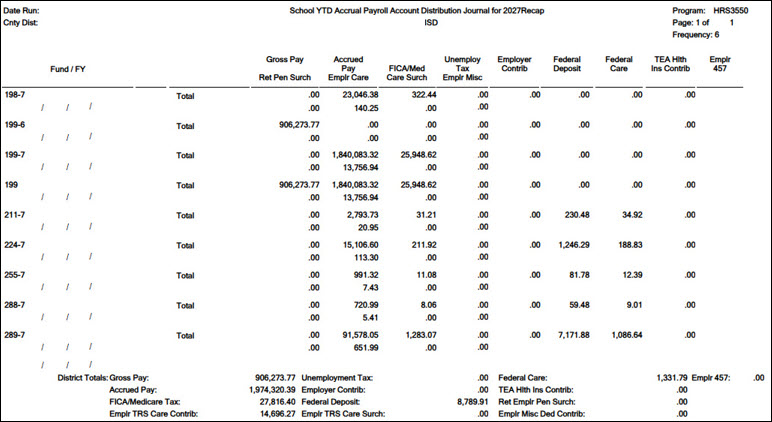
Payroll > Reports > Year To Date Reports > HRS3550 - School YTD Accrual Payroll Account Distr
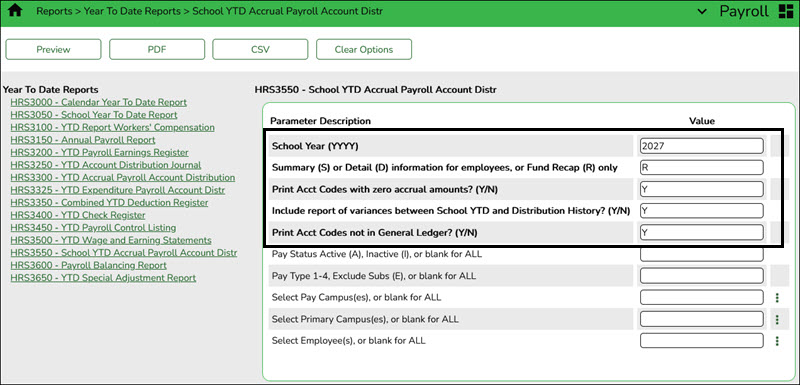
Verify the accrual amounts balance with the amounts on the HRS3050 - School Year to Date Report.
Payroll > Reports > Payroll Information Reports > HRS6000 - Account Code Comparison
Payroll > Reports > Payroll Information Reports > HRS6050 - Contract Balance Variance Report
Payroll > Reports > Payroll Information Reports > HRS6150 - Employee Payroll Listing OR Payroll > Reports > HRS9000 - User Created Report
Payroll > Utilities > Pre-Edit Payroll Data
Review the following pre-post report from the Payroll > Payroll Processing > Run Payroll process before running your actual September payroll: HRS2250 - Deduction Register by Employee – Verify deductions are correct.
If leave was not updated in an earlier step, be sure to update appropriate leave balances now.
Address leave
Payroll > Utilities > Mass Update > Leave
Update the employee master leave record balances.
❏ In the current year payroll frequency, generate the Payroll > Reports > Leave Information Reports > HRS7350 - Leave Status Report for active employees and exclude substitutes.Print and/or save this report, review it for accuracy, and retain it for your historical records.
❏ Use the Payroll > Utilities > Mass Update > Leave tab to update employee master leave record balances. This is a three-step process.
Leave type codes are LEA-specific.
1. This step automatically adds leave types to active employees who do not have the leave type assigned on their leave balance record. This step must be completed before leave is mass incremented.
- Under Pay Status, select Active.
- In the Pay Type field, select E Exclude Substitute.
- Under Method, select Add Leave Code to Employees.
- In the New Code field, select the leave code.
- Do not add balances.
- Click Execute.
- Print and/or save this report, then review it for accuracy. The report only displays the employees who will have the leave code added.
- Repeat this step for each leave type to be added before it is incremented in Step 3.
2a. This step clears the Leave Used and Leave Earned fields and rolls the ending balances to the following year beginning balances:
- Under Pay Status, select Active.
- In the Pay Type field, select E Exclude Substitute.
- Under Method, select Zero Leave Values for Employees.
- Under Leave Earned and Leave Used, select all leave types to be set to zero for the new school year. Be sure to process both options at the same time to prevent inaccurate balances.
- Do not select End Balance unless you want to set the balance to zero for that specific leave type. If this field is not selected, the 2025-2026 ending balances are rolled to the beginning balance fields for the 2026-2027 school year.
- Click Execute.
- Print and/or save this report, then review it for accuracy.
2b. You may have leave codes for which you want to zero the end-of-year balance. For example, Jury Duty, School Business, etc.
- Under Pay Status, select Active.
- In the Pay Type field, select E Exclude Substitute.
- Under Method, select Zero Leave Values for Employees.
- Select Leave Earned, Leave Used, and End Balance for all leave types you want to zero out completely and not carry forward ending balances.
- Click Execute.
- Print and/or save this report, then review it for accuracy.
- If the report is accurate, click Process to complete the changes.
3. This step increments leave earned to employees:
Note: If you have a maximum balance designated on the leave type table, this step will not allow the leave balance to exceed the maximum number set on the leave type table.
- Under Pay Status, select Active.
- In the Pay Type field, select E Exclude Substitute.
- Under Method, select Increment Leave Earned to Employees.
- Select Leave Earned for the applicable leave types (as defined in your local policy).
- In the Increment field, enter the number of days to increment.
- Click Execute.
- Print and/or save this report, then review it for accuracy. The report includes a list of those employees who have reached a maximum of any leave type.
- If the report is accurate, click Continue.
- The second report displays the newly incremented leave earned and the new ending balances. Click Process.
For new employees, leave balances must be individually updated from their service record information on the Payroll > Maintenance > Staff Job/Pay Data > Leave Balance tab.❏ Use the Payroll > Reports > Leave Information Reports > HRS7350 - Leave Status Report to verify the accuracy of the leave information. Print and/or save this report, then review it for accuracy.
If necessary, use the Payroll > Maintenance > Staff Job/Pay Data > Leave Balance tab to make changes to individual employees who are working less than the full school year or less than 100% percent of the day.
- (If necessary) Mass update employee experience.
(If necessary) Mass update employee experience
Personnel > Utilities > Mass Update > Employee
Note: This process is typically not performed until before the start of your September payroll. You must verify that service records have already been run before proceeding.
If this process is delayed, ensure that employee experience is updated for all applicable groups. It is extremely important to update employee experience on account of the Teacher Retention Allotment.
If necessary, increment the years of total professional and non-professional experience, and the years of district professional and non-professional experience for employees with July contracts.
Additionally, you can use this page to increment the prior years of teaching experience for those individuals in a teaching role. The Prior Teaching Experience is the total number of years that an individual has previously held a teaching position in one or more education institutions. This information collected during the PEIMS Core Collection: Class Roster.
If this process has not already been completed, it must be done at this time. It is highly important to confirm that it is completed.
- The Commissioner's Rules on Creditable Years of Service, Title 19, Texas Administrative Code (TAC) §153.1021, serve as a baseline for minimum requirements when determining an individual's years of experience.
- The Prof Experience Yrs and Non-Prof Experience Yrs should be incremented in separate instances.
Total (Prof) Experience:
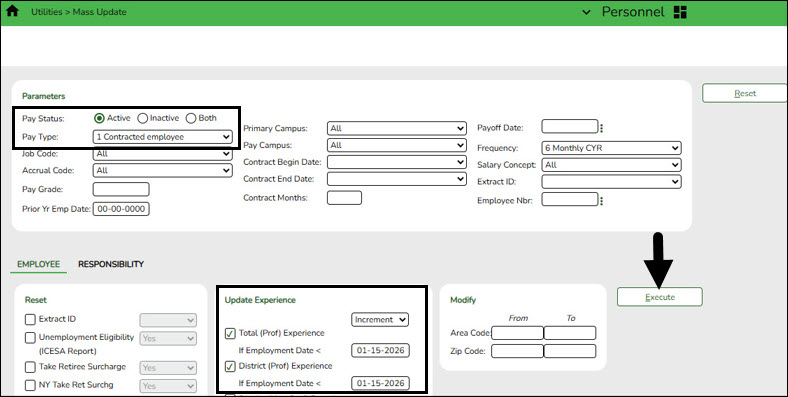
❏ Click Execute. The Employee Mass Update Report is displayed.
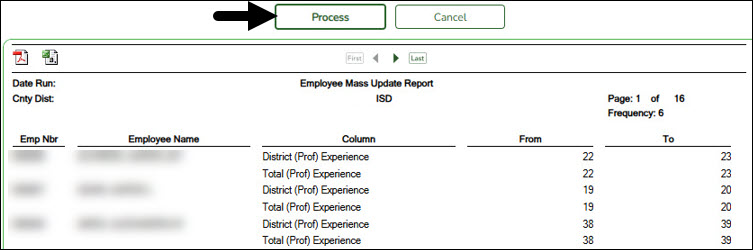
❏ Click Process. The following message is displayed.

Total (Non-Prof) Experience:
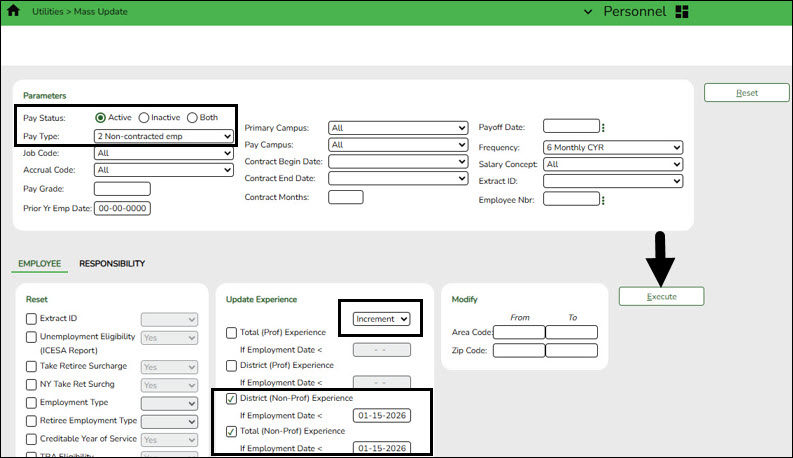
❏ Click Execute. The Employee Mass Update Report is displayed.
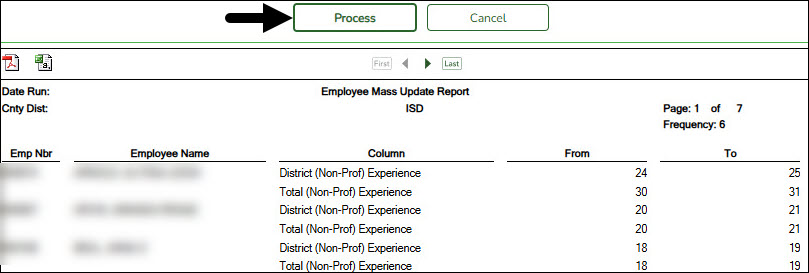
❏ Click Process. The following message is displayed.
Use the Personnel > Reports > Personnel Reports > HRS1100 - Employee Verification Report to verify the accuracy of the years of experience.
Prior Teaching Experience:
Use the Job Code field to select specific job codes where the prior teaching experience should be updated.
The employees who match the selected parameters and the selected job codes will have their prior teaching experience updated. If an employee has multiple jobs included in the job code selection, their employment record is only updated once.
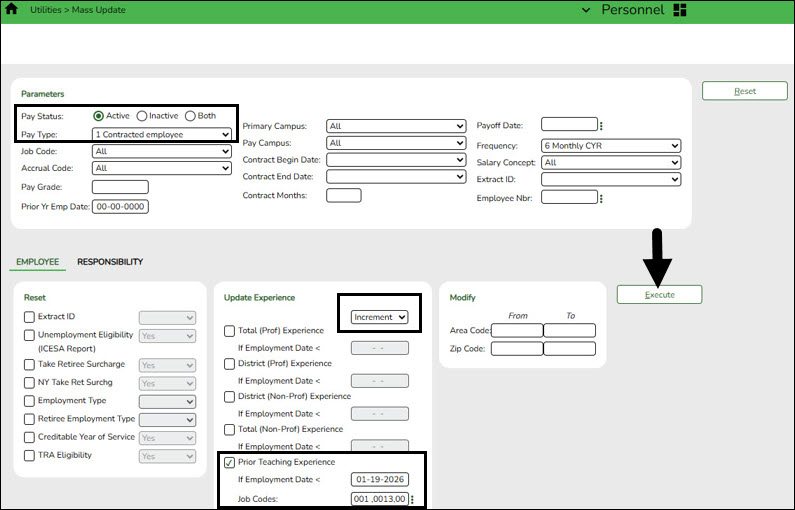
❏ Click Execute. The Employee Mass Update Report is displayed.
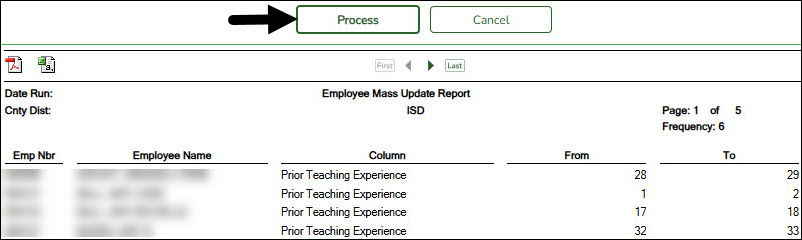
❏ Click Process. The following message is displayed.
Responsibility:
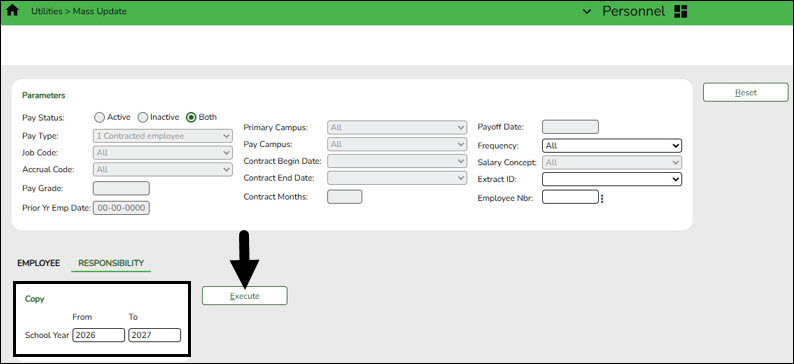
❏ Click Execute. The Responsibility Employee Mass Update Report is displayed.
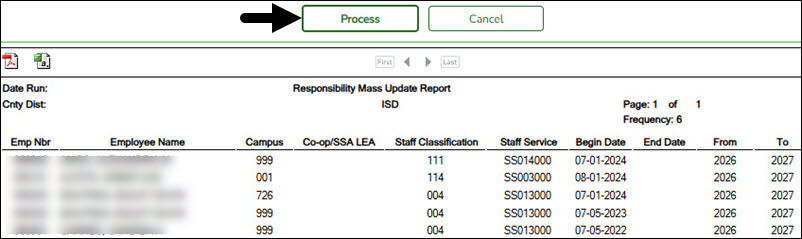
❏ Click Process. The following message is displayed.
TRA Teaching Experience:
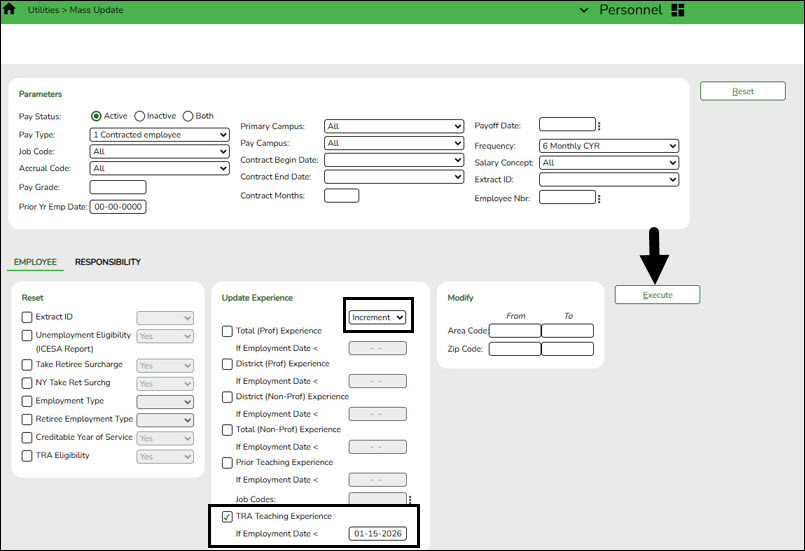
❏ Click Execute. The Employee Mass Update Report is displayed.
❏ Click Process. The following message is displayed.
- Verify payoff dates.
Verify payoff dates
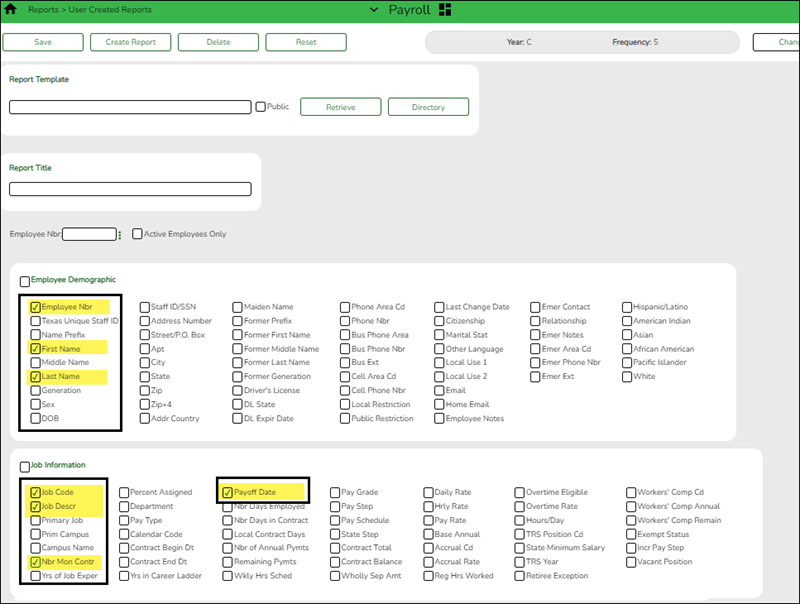
Payroll > Reports > User Created Reports
Verify that all pay type 1 and 2 employees have payoff dates that match the pay dates in the pay dates table.
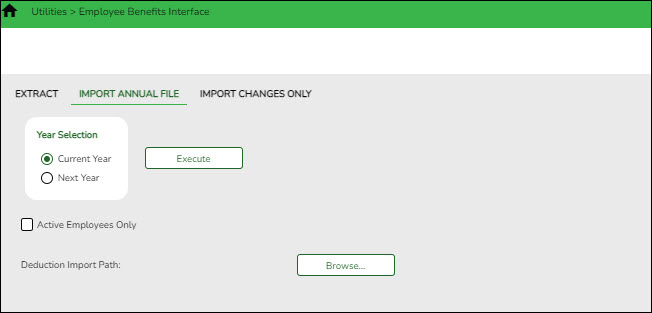
- (If available) Import annual benefits file.
(If available) Import annual benefits file
Payroll > Utilities > Employee Benefits Interface > Import Annual File
If available, import your LEA's file of employee deduction records file created by your third-party administrator.
- Generate the Employee Salary Information report.
Generate the Employee Salary Information report
Payroll > Reports > Payroll Information Reports > HRS1650 - Employee Salary Information
Complete the applicable report parameters and generate the report. Print and/or save this report, then review it for accuracy.
Print the report for employee verification. If needed, print an Addendum from the Payroll > Utilities > Payroll Simulation.
- Calculate a sample payroll.
Calculate a sample payroll
Payroll > Payroll Processing > Run Payroll
Calculate a sample payroll to identify any errors that need to be corrected prior to processing the first payroll.
IMPORTANT:
- If applicable, increment leave types.
- Verify the selection of deduction codes on the Payroll > Payroll Processing > Run Payroll page before processing the first payroll.
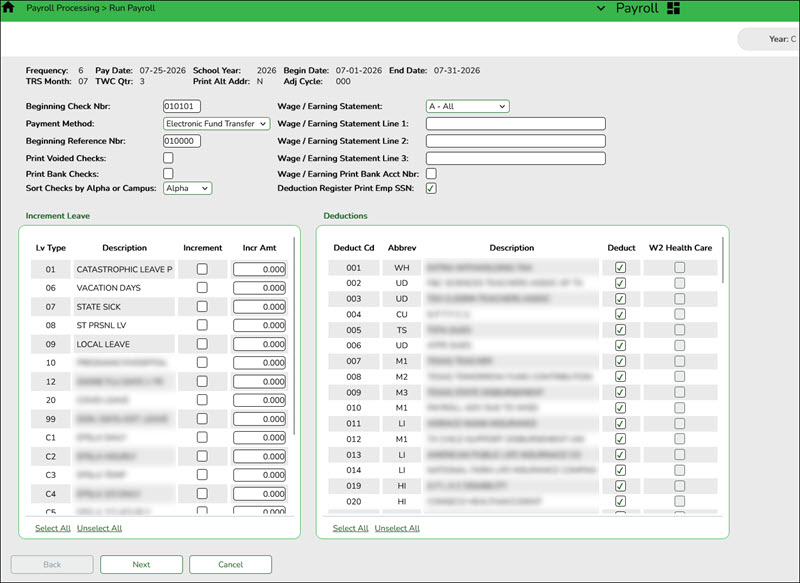
Review the selected Calculation Reports to verify the accuracy of data for the new year.


academy/business_payroll_firstpayrollsy_julystarts.1754054037.txt.gz · Last modified: 2025/08/01 13:13 by emoreno
Except where otherwise noted, content on this wiki is licensed under the following license: CC Attribution-Share Alike 4.0 International
Americans with Disabilities Act (ADA) and Web Accessibility
The Texas Computer Cooperative (TCC) is committed to making its websites accessible to all users. It is TCC policy to ensure that new and updated content complies with Web Content Accessibility Guidelines (WCAG) 2.0 Level AA. We welcome comments and suggestions to improve the accessibility of our websites. If the format of any material on our website interferes with your ability to access the information, use this form to leave a comment about the accessibility of our website.